
Hermes Agent Telegram: Setup, Gateway, and Bot Workflow Guide

This guide covers how to connect Hermes Agent to Telegram using BotFather, configure the gateway for private messages, groups, and forum topics, and decide between self-hosting and FlyHermes managed cloud. It is for anyone who wants to use Telegram as a messaging-first interface for their Hermes Agent, whether for private mobile access, cron alerts, voice notes, or team collaboration.
What You Need
Before you begin, confirm you have the following:
- Hermes Agent installed and running. The Telegram integration is a layer on top of a working Hermes Agent. You need a functional local or VPS-hosted Hermes instance first. The official documentation states that you should confirm the agent answers in the CLI before connecting Telegram, because a silent Telegram bot is almost always a provider, config, or gateway-uptime problem rather than a Telegram one.
- A Telegram account. You need an active Telegram account to create a bot and receive messages.
- Access to @BotFather. This is the official Telegram bot that creates and manages other bots. You interact with it via a chat on Telegram.
- A Hermes profile configured. You should have at least one active Hermes profile with a working provider (e.g., OpenAI, Anthropic) and a model selected. The Telegram gateway uses this profile to process messages.
- The Hermes Web UI (recommended). While not strictly required, the dashboard is the checkpoint for inspecting gateway, provider, and log state before and after setup. The official documentation emphasizes that the Web UI is the checkpoint; one delivered Telegram message is the proof.
Understanding the Telegram Integration
Hermes Agent Telegram is not a single feature but a set of components that work together: a Telegram bot created via BotFather, a gateway process that bridges Telegram and Hermes, and a configuration layer that controls who can talk to the agent and how it responds.
How It Works
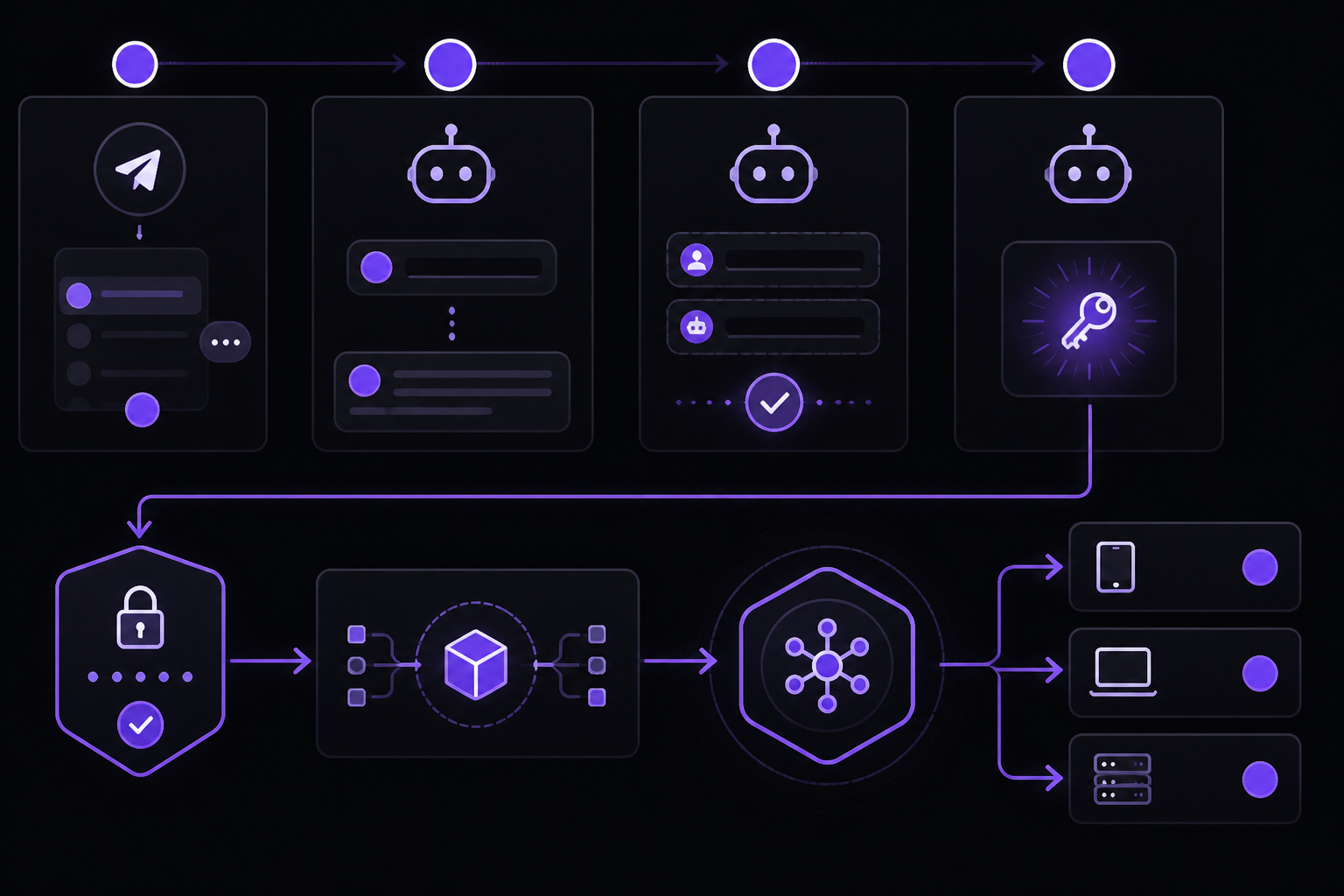
- You create a bot on Telegram using @BotFather. This gives you a token that authenticates your bot to Telegram's servers.
- You configure that token in your active Hermes profile. The token tells Hermes which bot to connect to.
- You start the Hermes Telegram gateway. This is a background process that listens for incoming messages from Telegram, sends them to your Hermes Agent for processing, and delivers the response back to the chat.
- The gateway must stay running for messages to flow. If the gateway stops, the bot appears offline.
Best Use Cases
The official documentation lists the following as ideal scenarios for the Telegram integration:
- Private mobile access to a local or VPS-hosted Hermes Agent. This is the most common use case: you can query your agent from your phone without opening a terminal.
- Cron/job alerts sent to a chat you already check. You can schedule Hermes to run tasks and deliver results to a Telegram channel or DM.
- Voice-note and file handoffs when you are away from the terminal. Telegram supports voice messages and file attachments, which the gateway can process.
- Small trusted groups where Hermes only responds when mentioned. This allows team collaboration without the bot spamming the chat.
Telegram vs. Discord
The FAQ in the official documentation addresses this directly: Telegram is better for private mobile access, voice notes, quick approvals, and alerts. Discord is better for team/community channels, slash commands, and threaded collaboration. Choose based on your primary workflow.
Step-by-Step Setup: From BotFather Token to a Working Gateway
Step 1: Create a Bot with @BotFather
- Open Telegram and search for @BotFather. Start a chat.
- Send the command
/newbot. - Follow the prompts to choose a name and username for your bot. The username must end in
bot(e.g.,MyHermesBot). - After creation, BotFather will give you a token. This is a long string that looks like
1234567890:ABCdefGHIjklmNOPqrstUVwxyz. Copy it immediately and store it securely.
Critical warning from the official documentation: Save the token once in the active Hermes profile, not in a random shell or committed file. Tokens exposed in shell history, environment variables in dotfiles, or committed to Git repositories are a security risk. Treat the token like a password.
Step 2: Configure the Token in Your Hermes Profile
- Open your Hermes Web UI or edit your Hermes configuration file directly.
- Navigate to the Telegram integration settings within your active profile.
- Paste the BotFather token into the designated field.
- Set your allowed user ID. This is your Telegram user ID, which you can get by messaging @userinfobot on Telegram. The official documentation insists you start with a private DM and an allowlisted Telegram user ID before enabling groups, free-response chats, or forum topics. This is the most important safety measure.
- Save the profile.
Step 3: Start the Telegram Gateway
- Run the command
hermes gateway setupor configure the Telegram gateway through the Web UI. The exact command may vary by Hermes version, but the official documentation confirms this is the standard path. - After configuration, restart the gateway process. The documentation states that you must restart the gateway so token/chat changes load. A simple chat session restart is not enough; you need to stop and start the gateway service.
- Confirm the gateway is running. The Web UI dashboard should show the gateway as connected. If it does not, check the logs.
Step 4: Perform the Private Smoke Test
The official documentation is emphatic: prove one reply in a private conversation before doing anything else.
- Open Telegram and find your bot by its username.
- Start a private chat and send a simple message, like "Hello" or "What can you do?"
- Wait for a reply. If the bot responds, your core setup is working.
- If the bot does not respond, do not proceed to groups or automation. Troubleshoot first (see the Troubleshooting section below).
Why this matters: The documentation states that one delivered Telegram message is the proof. Use the dashboard to inspect profile, provider, gateway, logs, and cron state before rotating bot tokens or adding complexity.
Step 5: Expand to Groups and Topics (Optional)
Once the private DM works, you can add groups and forum topics.
- Add your bot to a Telegram group as an administrator. The bot needs permission to read messages.
- In the Hermes profile, add the group's chat ID to the allowed chats list. You can get the chat ID by sending a message in the group and checking the gateway logs, or by using a bot like @getidsbot.
- Decide how Hermes should behave in the group:
- Require mentions: The bot only responds when someone types
@YourBotUsernamefollowed by a query. This is the safest mode for groups. - Free response: The bot responds to all messages in the group. Use this only in small, trusted groups.
- Topic-specific: The bot only responds in specific forum topics. You must configure the
message_thread_idfor each topic.
- Require mentions: The bot only responds when someone types
- For forum topics, the official documentation warns that most topic failures are routing or permission problems, not model failures. Verify the bot can read group messages, the group is allowlisted, the exact topic
message_thread_idis configured for free response or cron delivery, and the gateway logs show the inbound update before testing provider fallbacks.
Advanced Configuration: Profiles, Isolation, and Multiple Agents
One Bot, Multiple Agents?
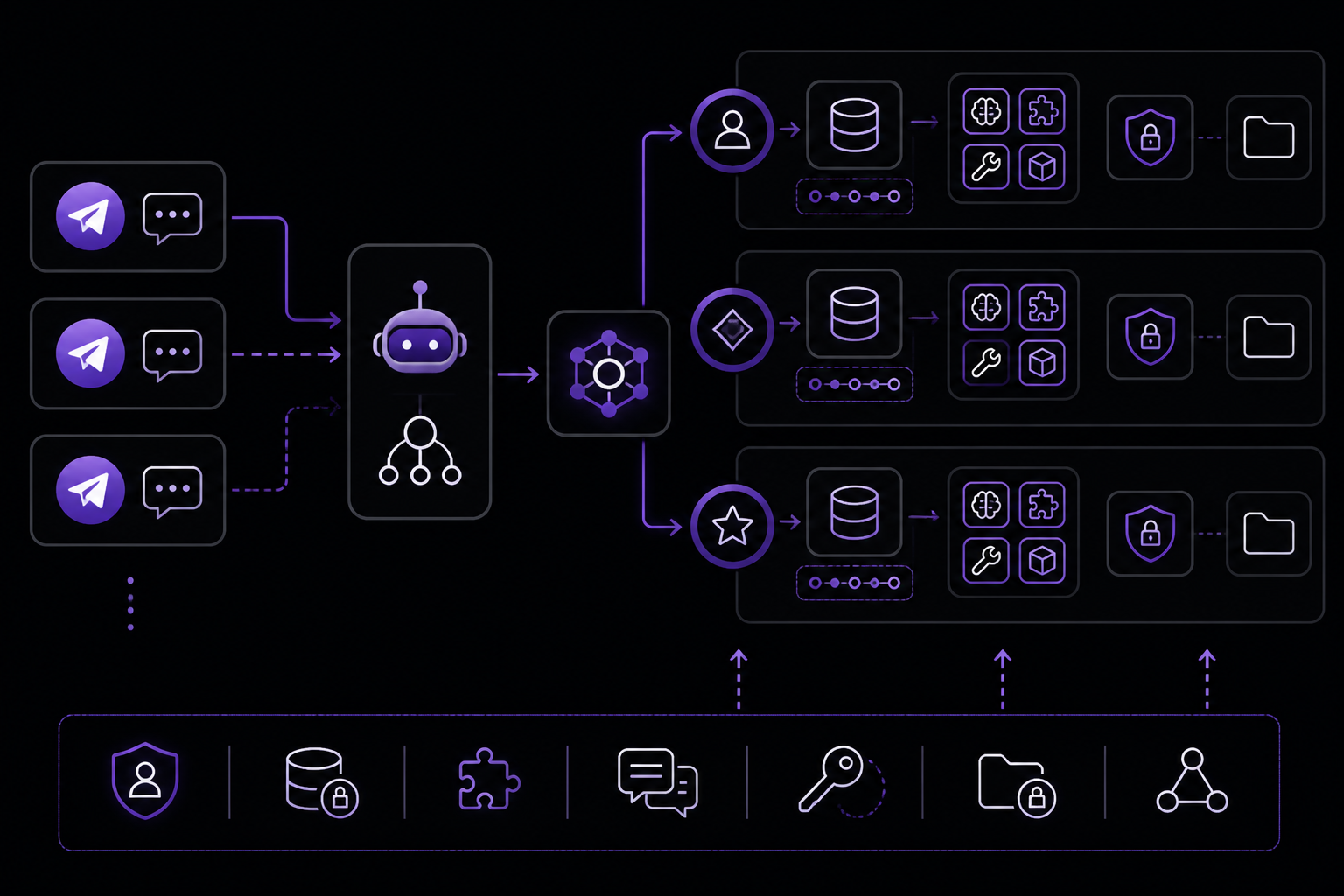
The FAQ addresses this directly: you can route multiple conversations through one bot in simple cases, but strict project isolation should use separate Hermes profiles and often separate Telegram bot tokens. Profiles isolate memory, skills, sessions, secrets, and gateway state; separate bots make chat boundaries clearer for teams.
If you have multiple projects or agents, the official documentation recommends creating separate Hermes profiles and usually separate bot tokens so secrets, memory, skills, sessions, and filesystem access do not bleed between projects.
Gateway as Production Infrastructure
The community evidence section of the documentation notes that Discord support history repeatedly surfaced messaging-gateway issues: Telegram token overhead from a bad startup directory, gateway restart questions, and platform bots reading more context than expected. The practical fix is to treat the gateway as production infrastructure, not a casual chat plugin.
- Run Hermes from the intended home/project directory. If you start Hermes from a temporary directory, the gateway may load the wrong workspace context.
- Keep gateway profiles smaller than your full local coding profile. The gateway loads workspace and context files on each turn, so a large profile increases token usage and latency.
- Check logs after every token, allowlist, or group-setting change. The Web UI dashboard is the place to inspect gateway logs and provider state.
Token Usage and Cost Awareness
Reaching Hermes through Telegram costs more tokens than the CLI. The official documentation provides specific numbers from community reports: CLI usage is around 6,000 to 8,000 input tokens, while Telegram with tools and skills enabled uses roughly 15,000 to 20,000 input tokens per turn. This is because the gateway loads workspace and context files on each turn.
This is fine for convenience, but it is worth knowing when you budget. The documentation also warns that Telegram voice notes, long group context, loaded skills, and cron reports can cost more than a short CLI prompt. If you see a cost spike after moving to Telegram, check loaded project context, skills, voice transcription, cron jobs, and auxiliary provider routes.
Self-Hosted vs. FlyHermes Managed Cloud
Self-Hosted (VPS, Docker, Local Machine)
Choose self-hosting when you want control over the Hermes gateway, profiles, server, logs, and provider keys. The official documentation says to self-host when you want to own uptime, logs, restarts, provider credits, and gateway upgrades.
Requirements:
- A machine that stays on 24/7 (VPS, dedicated server, or always-on local machine).
- Docker or direct installation of Hermes.
- Responsibility for gateway maintenance, including restarts after updates.
- Management of provider API keys and budget.
FlyHermes Managed Cloud
Use FlyHermes when the goal is managed Telegram/mobile access and always-on uptime without maintaining a laptop, VPS, Docker stack, BotFather routing, or provider-credit plumbing. The official documentation positions FlyHermes as the solution when the blocker is always-on channel uptime, provider plumbing, or server restarts rather than a one-time bot-token setup.
Key benefits per the documentation:
- Managed hosting with connected channels.
- Bundled operations (API costs included).
- No gateway maintenance.
- No VPS or Docker management.
The documentation also notes that if the setup feels like infrastructure work, choose FlyHermes so the hosted path owns uptime and channel operations.
Deployment Decision Tree
The official documentation provides a clear decision tree to avoid the common mistake of treating "Telegram bot" as one setup.
- One user / one bot / local Mac: Fastest path for private mobile access. Keep
allowed_chatsnarrow and verify one DM. - One group or forum topic: Add the group only after the DM works. Verify mention rules, privacy mode, and
message_thread_idwith a real topic message. - Multiple projects or agents: Create separate Hermes profiles and usually separate bot tokens so secrets, memory, skills, sessions, and filesystem access do not bleed between projects.
- Team or always-on channel: Use VPS/Docker only if you want to own uptime, logs, restarts, provider credits, and gateway upgrades. Use FlyHermes when the business need is hosted Telegram/mobile access without that operations layer.
Troubleshooting
Bot Does Not Answer in DM
The official documentation provides a checklist: verify the token, allowed user ID, active profile, gateway process, and logs. The most common cause is that the gateway is not running or the token is incorrect.
Steps:
- Confirm the gateway process is active. Restart it if necessary.
- Check the Web UI dashboard to see if the gateway shows as connected.
- Verify the BotFather token in your Hermes profile matches the token from BotFather exactly. No extra spaces or characters.
- Confirm your Telegram user ID is in the allowed users list.
- Check the gateway logs for any error messages related to authentication or connection.
Gateway Says Connected but No Reply Arrives
This is a specific failure mode mentioned in the documentation. The fix is to restart the service process, not just the chat session, and test with a fresh DM. A simple reconnect of the chat client is insufficient; the gateway daemon itself needs to be restarted.
Group Works but Topic Does Not
Most topic failures are routing or permission problems, not model failures. The documentation advises verifying:
- The bot can read group messages.
- The group is allowlisted.
- The exact topic
message_thread_idis configured for free response or cron delivery. - The gateway logs show the inbound update before testing provider fallbacks.
Costs Spike After Moving to Telegram
Check the following, as listed in the documentation:
- Loaded project context (large files or many skills).
- Voice transcription (transcribing audio uses tokens).
- Cron jobs (scheduled tasks that run frequently).
- Auxiliary provider routes (if you have fallback models configured).
Dashboard Says Connected but Telegram is Silent
Use the Web UI to check active profile, provider, and gateway state. Then verify BotFather token, allowed chats, privacy/mention settings, topic ID, logs, and one real message in the exact chat. The documentation emphasizes that the Web UI is the checkpoint; one delivered Telegram message is the proof.
Going Further
Once your Telegram integration is working, the official documentation suggests several next steps:
- Set up cron jobs to deliver scheduled results to your Telegram channel. The documentation confirms Hermes can run scheduled jobs through Telegram, but only after the gateway is verified with a direct test message.
- Explore voice notes and file handoffs. Telegram supports voice messages and file attachments, which the gateway can process for hands-free interaction.
- Create reusable skills. The documentation recommends documenting your working setup as a reusable skill when it becomes repeatable.
- Consider the Claude Code alternative workflow. Use Telegram when coding-agent output needs phone or team delivery rather than another terminal tab.
- Review related setup guides mentioned in the documentation: "run hermes agent from phone", "connect telegram to hermes", "pricing", "hermes agent v0 16 surface release", and "hermes agent telegram setup".
- Evaluate other integrations if Telegram is not the right fit: Discord, Slack, WhatsApp, Signal, and Email are listed as alternatives.
The official documentation also notes that fresh demand signal from YouTube and Reddit shows people want end-to-end Telegram agent setup, not just a token field. Tutorials emphasize installing Hermes from scratch, choosing a model provider, creating a BotFather bot, and then keeping the gateway alive. This guide covers that full workflow.
The #1 AI Newsletter
The most important ai updates, guides, and fixes — one weekly email.
No spam, unsubscribe anytime. Privacy policy