
Hermes Agent WeChat Integration: Setup, Workflows, and Safe Usage Guide
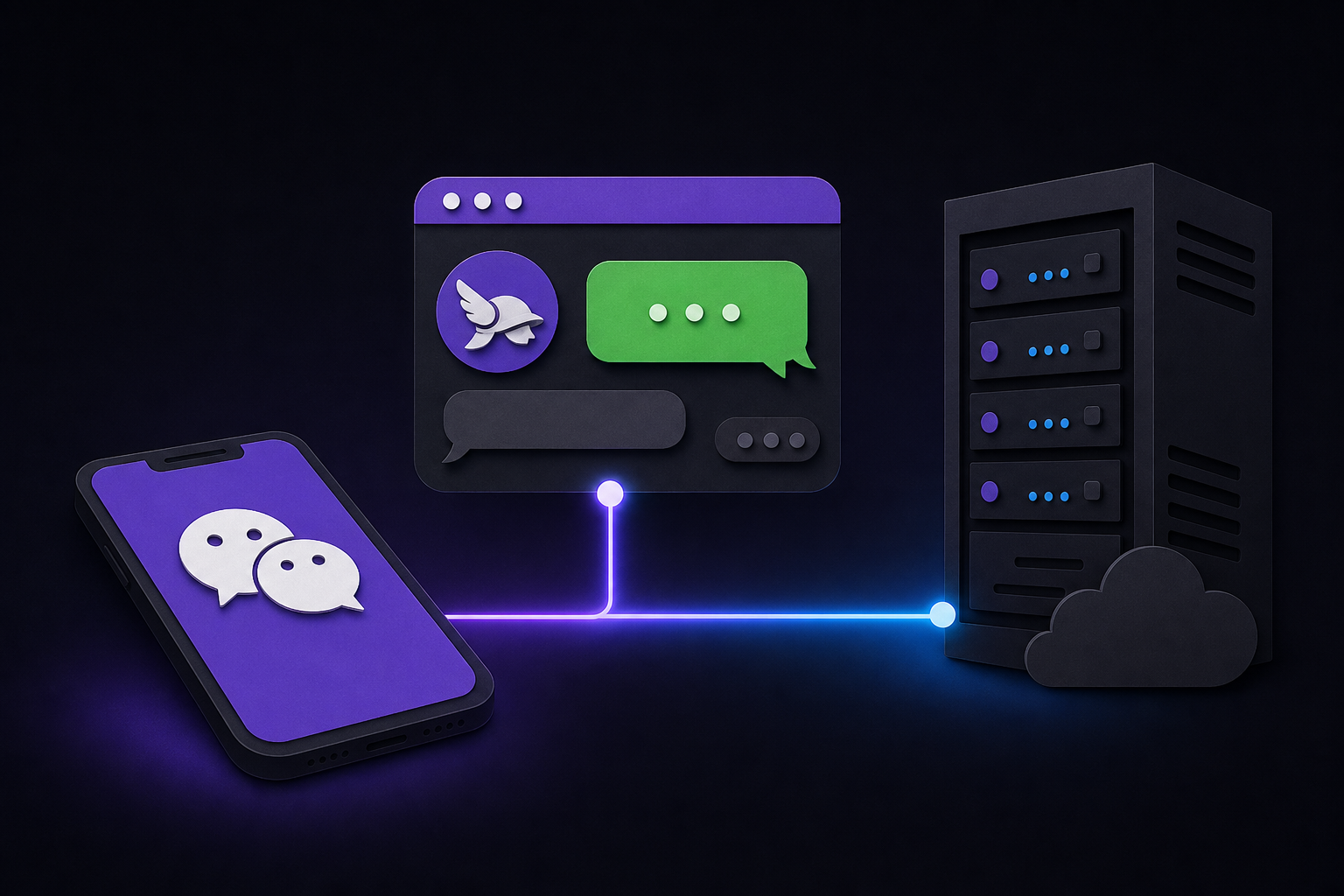
This guide covers how to connect Hermes Agent to WeChat (Weixin) as a chat gateway, enabling you to send prompts, receive notifications, and run workflows directly from the messaging app your team already uses. It is written for team leads, DevOps engineers, and automation builders who want a human-friendly front door for Hermes without exposing the full system to untrusted chats.
What You Need
Before you begin, gather the following prerequisites from the official documentation:
- A Hermes Agent instance that is already installed and running. This guide assumes you have a working Hermes profile with tools, skills, or MCP servers configured. If you do not, set up Hermes first using the official quickstart.
- A WeChat bot, app, or official account that can receive and send messages. The exact type depends on your WeChat setup (personal account bot, WeCom bot, or official account). You must have the ability to create or configure this account and obtain its credentials.
- Credentials for the WeChat bot (token, app secret, or similar). The official documentation stresses that these credentials must be stored in the active Hermes profile environment, never in source control or a shared note.
- The Hermes gateway feature must be available in your Hermes version. Run
hermes gateway setupto verify. - An allowlist of at least one private user, room, group, or contact for initial testing. Do not skip this.
Concepts: The WeChat Gateway
What the Gateway Does
The WeChat gateway acts as a bridge between WeChat messages and Hermes Agent. When you send a message to the WeChat bot, the gateway receives it, forwards it to Hermes as a prompt, and then returns Hermes's response back to the chat. According to the official documentation, "WeChat can be a convenient front door for Hermes, but it should still be treated as a production gateway: allowlist users, test privately, and avoid giving broad tool access to untrusted chats."
What the Gateway Does Not Do
The gateway is a human-facing interface, not the entire automation system. The chat message starts the request, but Hermes can still use files, terminal tools, MCP servers, web search, cron history, GitHub, Linear, Notion, and project-specific skills to do the real work. This is a critical distinction: the WeChat bot is the input/output surface, while Hermes's full capabilities remain behind it.
Best Use Cases
The official documentation identifies three primary scenarios where the WeChat gateway excels:
- Teams that already coordinate in WeChat and want Hermes where work is discussed. This reduces context switching.
- Operational alerts and status reports that should reach people without opening a terminal. Cron reports, deployment notes, and incident summaries can be pushed to a WeChat group.
- Approval workflows where Hermes drafts an action (like a deployment or a purchase) but a human confirms it in chat before execution.
- Project-specific agents that need a narrow channel boundary rather than one global bot everywhere. You can scope a WeChat gateway to a specific Hermes profile that only has access to certain tools.
Setup: Step-by-Step
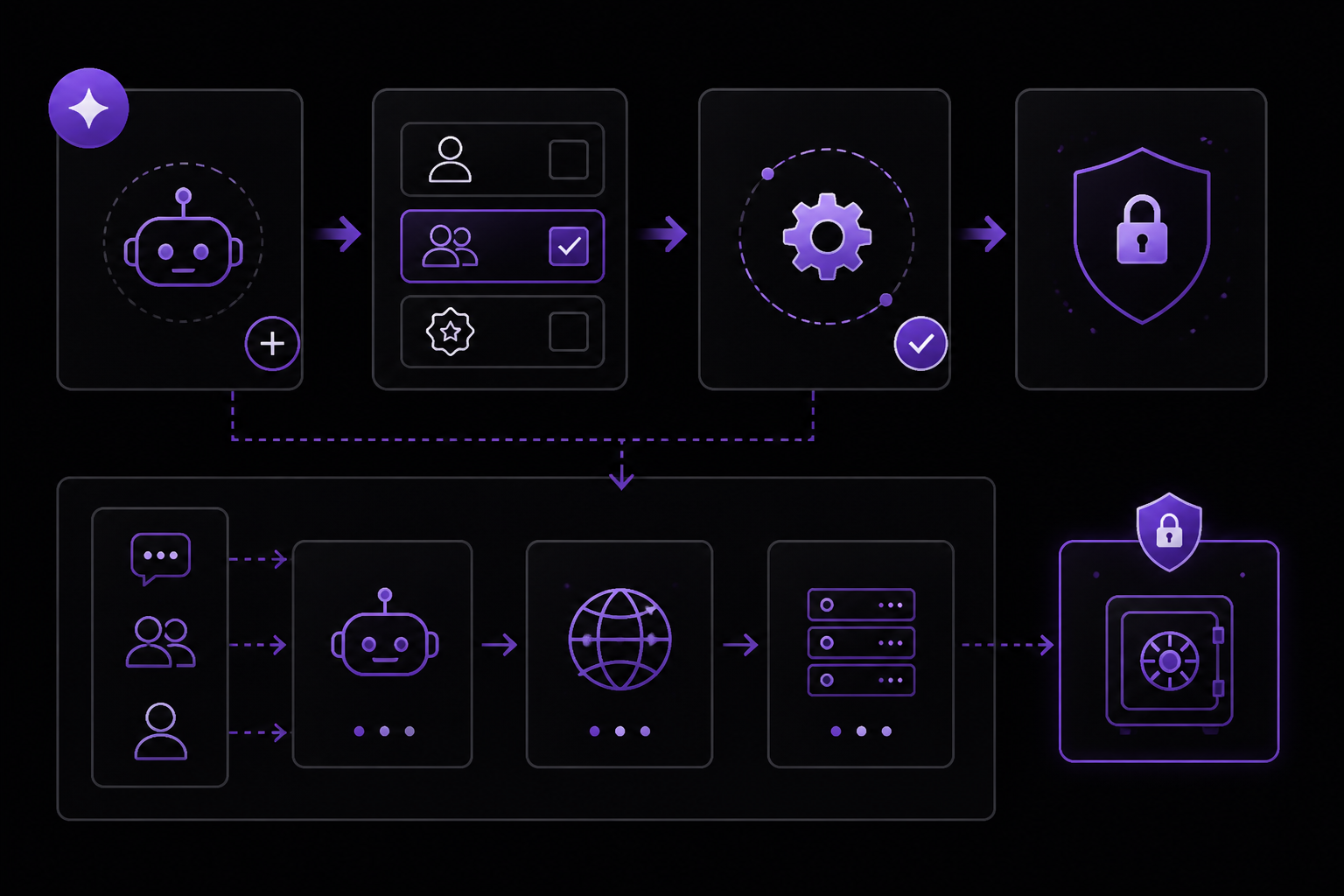
Step 1: Create or Configure the WeChat Bot
You need a WeChat bot, app, or official account that can send and receive messages. The official documentation does not specify which type (personal bot, WeCom bot, or official account) because it depends on your platform. Choose the one that fits your team's WeChat setup. If you are using WeCom (WeChat Work), you will likely create a bot within a group or a custom app. For personal WeChat, you may need a third-party bridge or a dedicated account.
Once the bot is created, obtain its credentials (token, app secret, or similar). Store these securely.
Step 2: Store Credentials in the Hermes Profile
Do not put credentials in source control or a shared note. Instead, store them in the active Hermes profile environment. The exact method depends on how you manage Hermes profiles. Typically, you would set environment variables or use a secrets manager that Hermes can read. For example, you might add the WeChat token to a .env file that is loaded by the Hermes profile, or use a vault integration if available.
Step 3: Run the Gateway Setup Command
Execute the following command in your terminal:
hermes gateway setup
This command will present a list of available platform adapters. Enable only the WeChat adapter for now. The official documentation recommends enabling only the platform you are testing to avoid confusion during initial setup.
Step 4: Restrict Access with an Allowlist
Before the first test, restrict who can talk to the bot. The official documentation is explicit: "Restrict allowed users, rooms, groups, or contacts before the first test." You must configure an allowlist that includes at least one private user or test room. This is a safety measure to prevent accidental exposure to untrusted chats.
How you configure the allowlist depends on your Hermes profile and gateway settings. Look for a configuration option like allowed_users, allowed_rooms, or allowed_contacts in the gateway configuration. Add the WeChat ID of your test user or the room ID of a private test group.
Step 5: Restart the Gateway
After configuring the allowlist, restart the gateway to apply the changes. The exact command may be hermes gateway restart or you may need to stop and start the gateway process. Check your Hermes documentation for the correct command.
Step 6: Send a Private Test Message
Send a harmless prompt to the WeChat bot from the allowlisted user or room. The official documentation recommends this specific prompt:
reply with the active profile and enabled platform name.
This prompt is safe because it does not invoke any tools, access files, or modify anything. It simply confirms that the gateway is running, the correct profile is active, and the WeChat platform is enabled. If you get a response with the profile name and platform name, the gateway is working.
Step 7: Connect Production Channels
Only after the smoke test passes should you connect project skills, cron reports, MCP tools, or team rooms. The official documentation recommends a phased rollout: "The safest rollout is always private first, group later." Add one additional room or user at a time, test each, and then expand.
Usage: Common Workflows
Once the gateway is stable, WeChat becomes a convenient control surface for Hermes workflows. The official documentation lists several common workflows:
Incident Triage
Send a message like "summarize the latest alert from PagerDuty" or "check the error logs for service X." Hermes can inspect logs, dashboards, or monitoring tools and post a summary back to the chat. This keeps incident response in the same app where the team is already communicating.
Project Updates
Ask Hermes what changed in GitHub, Linear, or Notion. For example:
what pull requests were merged in the last 24 hours?
Hermes will query the connected services and return a concise report. This is useful for daily standups or async updates.
Approvals
Let Hermes draft an action and ask for confirmation before executing it. For example, you might set up a workflow where Hermes proposes a deployment and then waits for a "yes" or "no" in the chat. The official documentation describes this as: "let Hermes draft the action and ask for confirmation before sending, deploying, or editing anything sensitive." This requires careful prompt engineering and possibly a custom skill that pauses execution until a human responds.
Knowledge Capture
Turn a chat thread into a task, document, issue, or reusable skill. For example, you could send a message like "create a GitHub issue from this conversation" and Hermes would parse the context and create the issue. This is useful for capturing decisions or action items that come up in chat.
Advanced Details
Profile and Credential Boundaries
Each WeChat channel can be scoped to a specific Hermes profile. This means you can have one bot for a development team that has access to staging servers and another bot for a management team that only has read-only access to reports. The official documentation calls this "profile and credential boundaries so each channel can be scoped to the right trust level." To achieve this, run separate gateway instances for each profile, each with its own WeChat bot and allowlist.
Tool Access and Trust Levels
The chat gateway can use the same tools as the CLI, but the official documentation warns: "Scope tool access carefully because chat channels often have different trust levels than your terminal." A terminal user is typically a trusted administrator, while a WeChat group may include contractors or junior team members. Therefore, you should configure the Hermes profile used by the WeChat gateway to only enable tools that are safe for that audience. For example, you might disable file deletion, deployment, or financial tools in the WeChat profile.
Delivery Target for Cron Reports
The WeChat gateway can be a delivery target for cron reports, incident summaries, approval prompts, and project updates. This means you can configure Hermes to send scheduled reports or alerts directly to a WeChat room. The official documentation lists this as a key feature: "Delivery target for cron reports, incident summaries, approval prompts, and project updates." To set this up, configure a cron job in Hermes that outputs to the WeChat gateway channel.
Message Length and Formatting
WeChat has tight message limits. The official documentation warns: "Messages are too long or poorly formatted - use concise prompts and route long reports to email, docs, or a file when the platform has tight message limits." If your Hermes response is likely to be long (e.g., a full log file), consider having Hermes save the output to a file or a document and then send a short summary with a link in the WeChat message.
Troubleshooting
No Response in WeChat
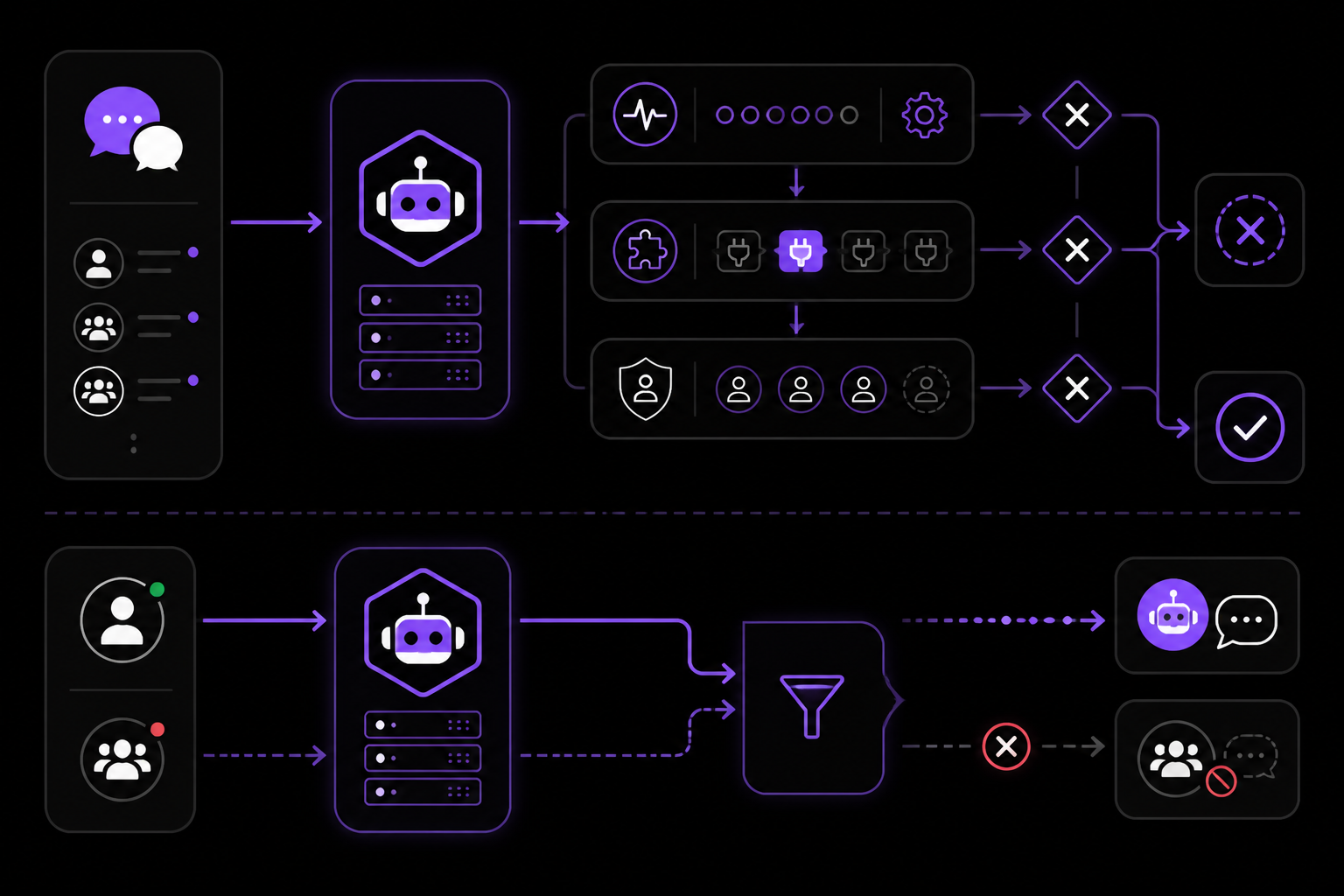
If the bot does not respond, check these three things in order:
- Is the gateway running? Verify that the Hermes gateway process is active. Use
hermes gateway statusor check the process list. - Is the platform enabled? Run
hermes gateway setupagain and confirm that the WeChat adapter is enabled. - Is the chat or contact allowlisted? Double-check the allowlist configuration. If the user or room is not on the list, the gateway will silently ignore the message.
Bot Replies in DM but Not in a Group
If the bot works in a direct message but not in a group, the official documentation suggests checking:
- Group permissions: Does the bot have permission to read and write messages in the group?
- Mention/free-response settings: Does the bot require being mentioned (e.g., @bot) to respond, or does it respond to any message? Configure this based on your preference.
- Gateway received the group update: The gateway may need to be restarted after the bot is added to a new group. Restart the gateway and try again.
Wrong Profile or Tools Are Active
If the bot responds but uses the wrong tools or profile, verify which Hermes profile is running the gateway. The official documentation says: "verify the Hermes profile running the gateway and keep project-specific secrets in the correct profile." If you have multiple profiles, ensure the gateway is using the one you intend. You can check this by sending the smoke test prompt (reply with the active profile and enabled platform name) to see which profile is active.
Messages Are Too Long or Poorly Formatted
As noted earlier, WeChat has message length limits. If your responses are being truncated or rejected, shorten your prompts or route long outputs elsewhere. The official documentation recommends: "use concise prompts and route long reports to email, docs, or a file when the platform has tight message limits." For example, you could have Hermes save a long report to a Google Doc and then send a one-line summary with a link.
Going Further
Once you have the basic WeChat gateway working, the official documentation suggests exploring these next steps:
- Messaging setup overview: Review the general Hermes gateway documentation to understand all available platform adapters (Telegram, Discord, Slack, WhatsApp, Signal, WeCom, DingTalk).
- Pricing and managed cloud: Consider using Hermes managed hosting when uptime and mobile access matter more than maintaining your own gateway server. The managed cloud option includes API costs and no gateway maintenance.
- Webhooks: Trigger agent runs from external systems instead of a human chat message. This allows you to connect Hermes to CI/CD pipelines, monitoring alerts, or other automated systems.
- Other integrations: Explore the full list of supported chat platforms: Telegram, Discord, Slack, WhatsApp, Signal, WeCom, and DingTalk. Each has its own setup guide on the Hermes website.
The #1 AI Newsletter
The most important ai updates, guides, and fixes — one weekly email.
No spam, unsubscribe anytime. Privacy policy