n8n Microsoft Graph OAuth2 fails after admin consent: fixes
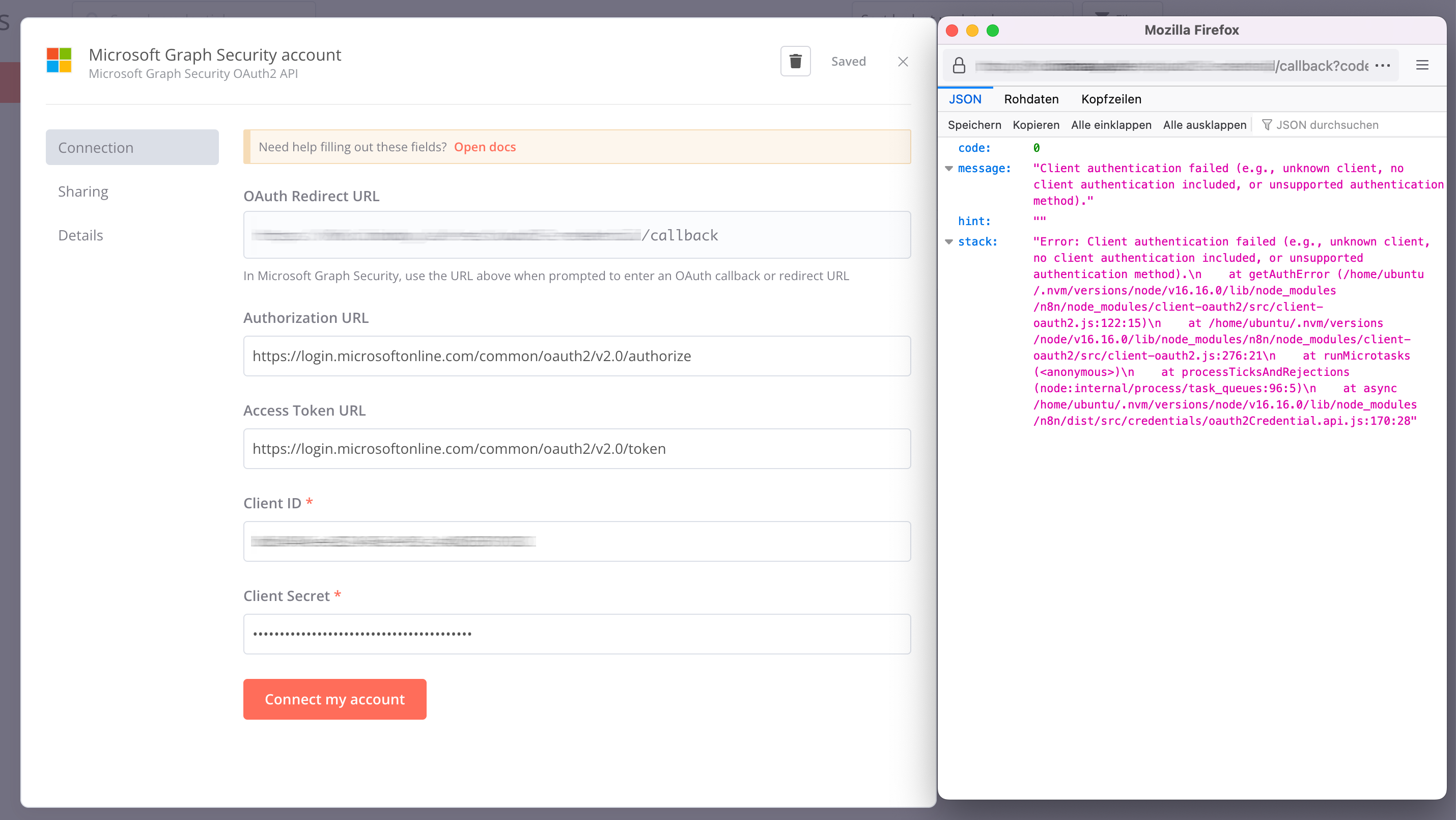
Original question: n8n Microsoft Graph OAuth2 login still fails after admin consent
The error "Need admin approval" in n8n cloud after your admin grants consent in Microsoft Entra usually means the consent was granted for the wrong permission type (Application vs Delegated), or your tenant's user consent settings block the OAuth flow. The fix is to ensure you are requesting Delegated permissions (not Application-level) in n8n, and that your tenant allows user consent. If your admin granted consent for Application permissions but n8n uses Delegated permissions, the consent is irrelevant and the error persists. Below are the exact steps to diagnose and resolve each cause.
The Full Answer
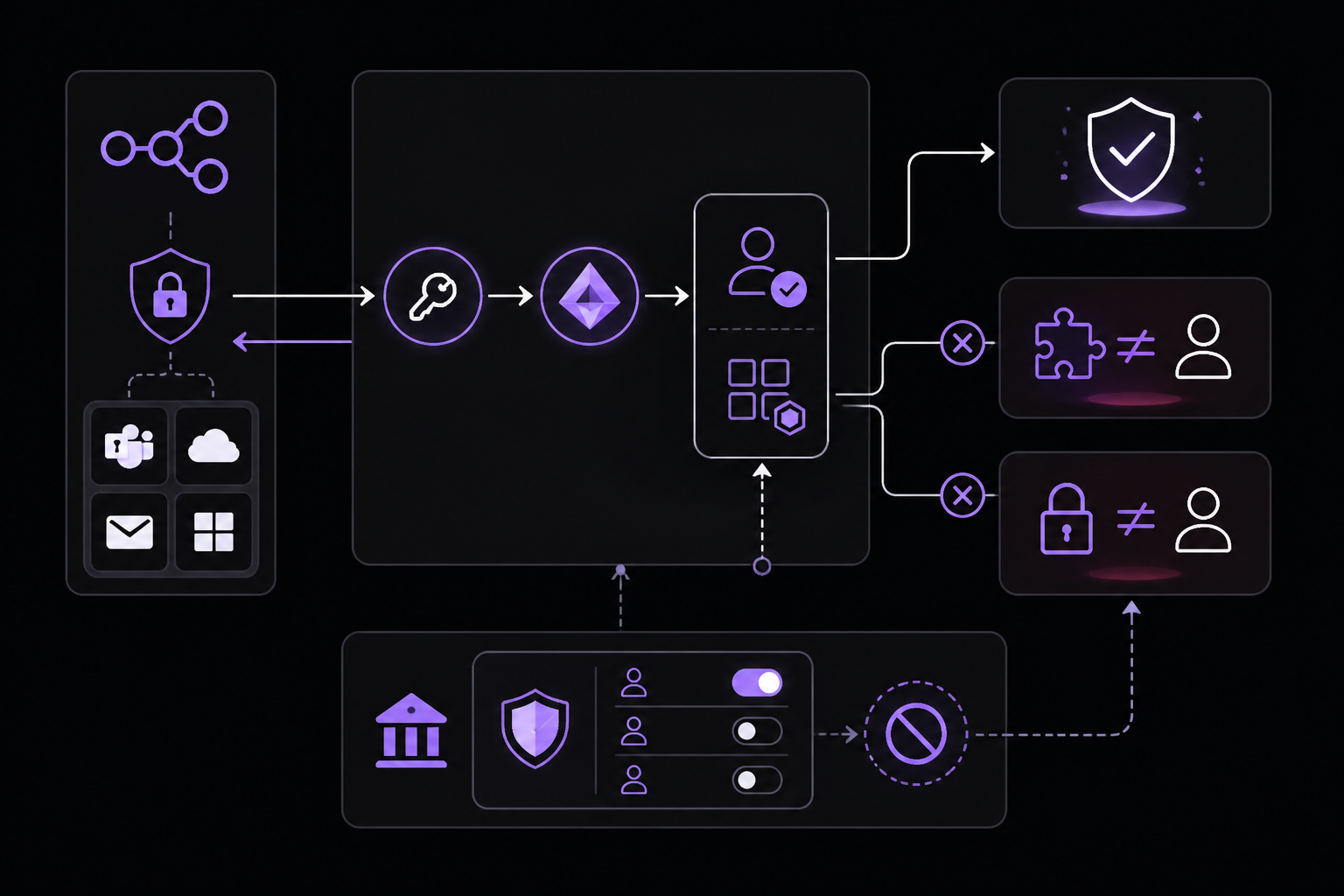
When n8n's Microsoft nodes (Teams, OneDrive, Outlook, etc.) show "Need admin approval" even after an admin grants consent in Microsoft Entra, the problem is almost always a mismatch between the permission type n8n requests and the permission type the admin consented to, or a tenant-level setting that blocks user consent. The error appears because the OAuth2 authorization code grant flow n8n uses requires Delegated permissions, but the admin may have consented to Application permissions, or the tenant may have disabled user consent entirely.
Check User Consent Settings in Your Tenant
According to the accepted Stack Overflow answer by Marc LaFleur, the first thing to verify is whether your tenant blocks user consent. Even if admin consent was granted, the OAuth flow n8n initiates is a user-driven consent flow (the "connect my account" button in n8n triggers an authorization code grant). If the tenant is configured to "Do not allow user consent," the flow will fail regardless of admin consent.
To check this setting:
- Go to the Microsoft Entra admin center (https://entra.microsoft.com).
- Navigate to Enterprise applications > Consent and permissions > User consent settings.
- Look at the User consent for applications option. If it is set to Do not allow user consent, you must change it to Allow user consent for apps from verified publishers, for selected permissions (or a more permissive option) to let n8n complete the OAuth flow.
- Save the change.
This setting is documented under Enterprise apps > Security > Consent and permissions in the Microsoft Entra interface. If your admin changed this setting after granting consent, you may need to re-initiate the OAuth flow in n8n (disconnect and reconnect the credential).
Application vs Delegated Permissions: The Most Common Cause
n8n uses the Authorization Code grant when you click "Connect my account" in a Microsoft node. This grant type uses Delegated permissions, which operate on behalf of the signed-in user. Delegated permissions grant access only to resources the user can already access through the Microsoft UI (e.g., their own OneDrive files, their own Teams messages).
If your admin granted consent for Application permissions (which operate without a signed-in user, like a background service), that consent does not apply to the Delegated permissions flow n8n uses. The error "Need admin approval" will persist because the OAuth request from n8n is asking for Delegated permissions that have not been consented to.
To confirm which permission type was consented to:
- In Microsoft Entra, go to Enterprise applications > All applications and select your n8n app registration.
- Go to Security > Permissions.
- Look at the API permissions tab. If the consented permissions are listed under Application permissions (with a note like "Granted for [your company]"), but n8n is requesting Delegated permissions, you have a mismatch.
To fix this, you need to either:
- Add Delegated permissions to the app registration (e.g.,
Files.ReadWrite.All,User.Read,offline_access) and have the admin grant consent for those Delegated permissions, or - Create a new app registration that uses only Delegated permissions and configure n8n to use that registration.
Marc LaFleur specifically notes: "The delegated version of this scope shouldn't require Admin Consent when operating on behalf of the User as it only provides access to drives/files they could access through the OneDrive UI. If that isn't the case, you likely selected the Application version of the scope which does require Admin Consent."
Configure Scopes Correctly in n8n
Even if the app registration has the right permissions, n8n must request the correct scopes. The scopes are provided as a space-delimited list in the authentication URL. To configure them:
- In n8n, go to Credentials > Microsoft (or the specific node, e.g., Microsoft Teams, Microsoft OneDrive).
- Click Create New or edit an existing credential.
- In the Scopes field, enter the Delegated permissions you need. For example:
This requests read/write access to the user's files, basic profile read, and a refresh token.Files.ReadWrite.All User.Read offline_access - Save the credential and try connecting again.
This is documented under n8n's Manage Credentials page. If you omit scopes, n8n may request default scopes that might not match what was consented to.
Verify Admin Consent Was Granted Correctly
If the above steps don't resolve the issue, double-check that admin consent was actually granted for the correct app and permissions. In Microsoft Entra:
- Go to Enterprise applications > All applications and select the n8n app.
- Go to Security > Permissions.
- Under API permissions, you should see a status of Granted for [your company] next to the Delegated permissions. If you see Not granted, admin consent was not successfully applied.
- If the status shows Granted but the error persists, the consent may have been granted for a different app registration (e.g., the admin used a different tenant app ID). Verify that the Application (client) ID in n8n matches the app registration in Entra.
Common Pitfalls
Admin Consented to the Wrong App Registration
A frequent community-reported issue is that the admin grants consent to a different app registration than the one n8n is configured to use. For example, if you have multiple app registrations for n8n (one for testing, one for production), the admin might consent to the wrong one. Always verify the Application (client) ID in n8n matches the app registration you see in Entra.
Cache or Session Issues
After admin consent is granted, the OAuth flow may still fail because of cached tokens or browser sessions. The original Stack Overflow poster mentioned clearing browser cache and refreshing, but that may not be enough. Try:
- Log out of n8n and log back in.
- Use an incognito/private browser window to test the OAuth flow.
- Disconnect and reconnect the Microsoft credential in n8n (this forces a fresh OAuth request).
Tenant-Level Conditional Access Policies
Some tenants have Conditional Access policies that block OAuth flows from certain apps or IP ranges. If the user consent settings are correct and permissions match, check with your admin whether any Conditional Access policies apply to the n8n app registration. This is not mentioned in the sources but is a known cause for persistent "Need admin approval" errors in enterprise environments.
Using the Wrong Grant Type
n8n's "connect my account" option uses the Authorization Code grant, which requires Delegated permissions. If you are using n8n's Client Credentials grant (for server-to-server scenarios), that uses Application permissions. Make sure you are using the correct credential type in n8n for your use case. The error "Need admin approval" is specific to Delegated permissions flows; if you see it, you are likely using the Authorization Code grant.
Related Questions
How do I create a new Microsoft Entra app registration for n8n?
To create a new app registration, go to Microsoft Entra > App registrations > New registration. Give it a name (e.g., "n8n-prod"), select Accounts in this organizational directory only as the supported account type, and set the redirect URI to https://your-n8n-instance.com/rest/oauth2-credential/callback (for n8n cloud, use https://your-subdomain.app.n8n.cloud/rest/oauth2-credential/callback). After creation, note the Application (client) ID and generate a client secret. Then configure the API permissions as Delegated (e.g., Files.ReadWrite.All, User.Read, offline_access). Finally, enter these details in n8n's credential settings.
Why does n8n need both Delegated and Application permissions?
n8n's Microsoft nodes primarily use Delegated permissions for user-driven operations (e.g., reading a user's emails, sending messages on behalf of the user). Application permissions are used only for server-to-server scenarios, such as when you use n8n's Microsoft Graph node with a service principal. If you are connecting a user account, you only need Delegated permissions. If you see both types in the app registration, ensure the admin grants consent for the Delegated ones, not just the Application ones.
Can I bypass admin consent entirely?
In some tenants, admin consent is required for any app that requests permissions. If your tenant requires admin consent for all apps, you cannot bypass it. However, you can minimize friction by using an app registration that requests only low-privilege Delegated permissions (e.g., User.Read instead of Files.ReadWrite.All). Some organizations allow user consent for low-risk permissions. Check with your admin to see if they can adjust the user consent settings to allow consent for specific permissions.
What does "Need admin approval" mean in n8n?
This error means the OAuth2 flow n8n initiated was blocked because the requested permissions require an admin to consent on behalf of the entire organization. It appears when the tenant has configured user consent to be blocked for certain permissions, or when the app requests Application permissions (which always require admin consent). It can also appear if the admin previously granted consent for a different set of permissions than what n8n is now requesting.
The #1 AI Newsletter
The most important ai updates, guides, and fixes — one weekly email.
No spam, unsubscribe anytime. Privacy policy
Related Answers
Keep exploring
AI resources
Latest error solutions
Skip the manual work
Ready-made AI workflows and automation templates — import and run instead of building from scratch.