n8n Microsoft Graph OAuth2 Fails After Admin Consent: Fix
Error message
n8n Microsoft Graph OAuth2 login still fails after admin consent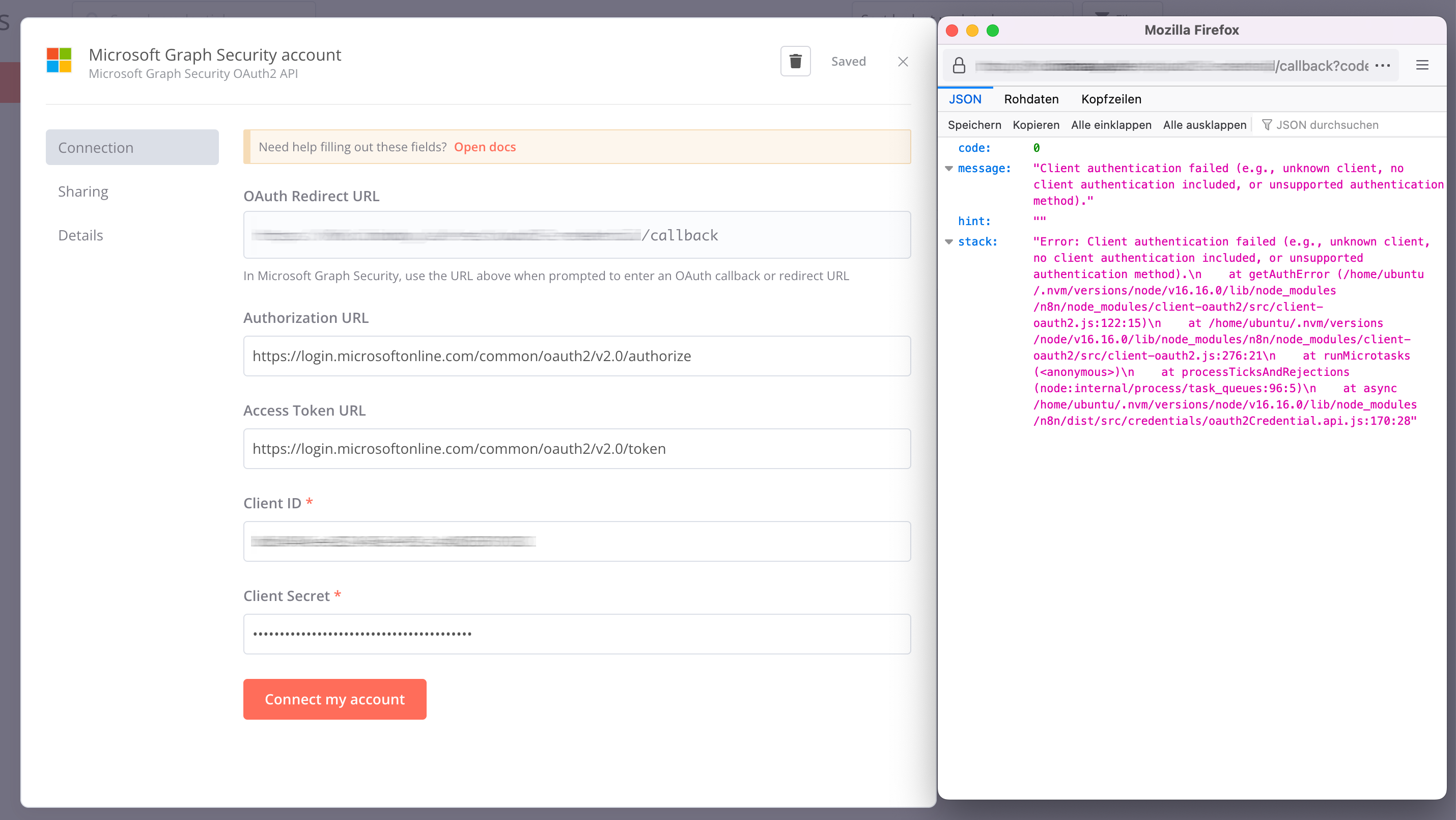
Diagnosis
You've asked your Microsoft Entra admin to grant admin consent for the n8n app, the consent was granted successfully, but n8n still shows the error Need admin approval when you try to connect a Microsoft Graph node (Teams, OneDrive, etc.). This error means the OAuth2 flow is being blocked because the token request is missing a required permission or because the tenant's user consent policy is preventing the delegated consent that n8n's Authorization Code grant relies on. The most common cause is a mismatch between the permissions you selected in the Microsoft app registration and the scopes n8n actually requests, or a tenant setting that blocks user consent entirely.
What Causes This Error
Based on the accepted answer by Marc LaFleur on Stack Overflow, there are several distinct causes, listed from most to least likely:
- User Consent Settings block delegated consent, The tenant may be configured to "Do not allow user consent," which prevents n8n from obtaining the delegated permissions it needs even after admin consent is granted for the app.
- Wrong permission type (Application vs. Delegated), n8n uses the Authorization Code grant with Delegated permissions. If you selected the Application version of a scope (e.g.,
Files.ReadWrite.Allas an application permission instead of a delegated permission), admin consent is required, and the error persists if that consent wasn't granted for the correct permission type. - Scopes not configured in n8n credentials, n8n requires you to specify the scopes as a space-delimited list in the credential settings. If the scopes are missing or incomplete, the authentication URL won't include them, and the token request fails.
- Admin consent not actually granted for the right app/permission, Although you saw a success message, it's possible the consent was granted for a different app or a different permission set than what n8n uses.
How to Fix It
Solution 1: Check and adjust User Consent Settings (most likely)
According to the accepted answer, the tenant may be configured to block user consent. This is a common cause because n8n's "connect my account" option uses the Authorization Code grant, which requires the user to consent to delegated permissions at runtime. Even if admin consent is granted, the user consent policy can still block the interactive consent prompt.
Steps:
- In Microsoft Entra admin center, go to Enterprise applications > Consent and permissions > User consent settings.
- Look for the option Do not allow user consent. If it is selected, change it to Allow user consent for apps (or a more permissive option like "Allow user consent for verified publishers").
- Save the change.
- In n8n, try connecting the Microsoft Graph node again. You may need to refresh the page or clear your browser cache.
What to expect: After enabling user consent, the OAuth2 flow should present a consent prompt, and after you approve it, the connection should succeed.
Note: This setting is tenant-wide and may require admin privileges to change. If you are not an admin, you'll need to ask your admin to make this change.
Solution 2: Verify you're using Delegated permissions, not Application permissions
As the accepted answer explains, n8n uses the Authorization Code grant, which relies on Delegated permissions. If you accidentally selected Application permissions in the app registration, admin consent is required, and the error will persist if that consent wasn't granted for the application permission.
Steps:
- In Microsoft Entra admin center, go to Enterprise applications > select your n8n app > Security > Permissions.
- Review the list of permissions. For each permission, check the Type column. It should say Delegated for permissions that n8n uses.
- If you see any Application permissions that you don't need, remove them.
- If you need to add a delegated permission, go to API permissions in the app registration (not the enterprise application) and add the delegated version of the scope (e.g.,
Files.ReadWrite.Allas a delegated permission). - After changing permissions, you may need to grant admin consent again for the updated permission set.
What to expect: Once the correct delegated permissions are in place, the OAuth2 flow should work without requiring admin consent for those scopes.
Why this works: Delegated permissions allow the app to act on behalf of the signed-in user, and for many scopes (like Files.ReadWrite.All), the user can consent to them themselves. Application permissions, on the other hand, grant the app access to all users' data and always require admin consent.
Solution 3: Configure scopes in n8n credentials
According to the accepted answer, n8n requires you to specify the scopes as part of the authentication URL, and this is documented under Manage Credentials. If the scopes are not configured correctly, the token request will fail.
Steps:
- In n8n, go to Credentials > select your Microsoft Graph credential (or create a new one).
- Find the Scopes field. It should contain a space-delimited list of the delegated scopes you need. For example:
Files.ReadWrite.All User.Read - Make sure the scopes match the delegated permissions you've granted in the app registration.
- Save the credential and try connecting again.
What to expect: When the scopes are correctly set, the authentication URL will include them, and the consent prompt will request exactly those permissions.
Note: If you're using n8n cloud, the scopes are often pre-configured, but you may still need to verify them if you're using a custom app registration.
Solution 4: Double-check that admin consent was actually granted
The accepted answer notes that while this is less likely the issue, it's worth verifying. Sometimes the consent is granted for a different app or a different permission set.
Steps:
- In Microsoft Entra admin center, go to Enterprise applications > select your n8n app > Security > Permissions.
- Look for a column or section that shows Admin consent status. It should indicate that consent has been granted for the required permissions.
- If you see any permissions with a status of Not granted, click Grant admin consent again.
- If the consent was granted for a different app, you'll need to grant it for the correct n8n app.
What to expect: After confirming admin consent is granted for the correct app and permissions, the error should resolve.
If Nothing Works
If none of the above solutions resolve the issue, consider these escalation paths:
- Check n8n community forums: The n8n community (community.n8n.io) has threads about Microsoft Graph OAuth2 issues. Search for your specific error message to see if others have found a workaround.
- Contact n8n support: If you're using n8n cloud, you can contact n8n support directly. They may be able to help with credential configuration or escalate to Microsoft if needed.
- Create a GitHub issue: If you suspect a bug in n8n, you can file an issue on the n8n GitHub repository (github.com/n8n-io/n8n). Include the exact error message, your n8n version, and the steps you've taken.
- Workaround: As a temporary workaround, you can try using a different authentication method, such as a service principal with client credentials (if supported by the node), but note that this may require additional configuration and may not be available for all nodes.
How to Prevent It
To avoid this error in the future, follow these practices based on the accepted answer:
- Always use Delegated permissions for n8n credentials, since n8n uses the Authorization Code grant.
- Configure scopes correctly in n8n as a space-delimited list, matching the delegated permissions in your app registration.
- Ensure user consent is allowed in your tenant, or plan to grant admin consent for the exact delegated permissions n8n requests.
- Regularly audit your app permissions in Microsoft Entra to ensure no unnecessary application permissions are present.
- Document the consent process for your organization so admins know which app and permissions to grant consent for.
By following these steps, you should be able to resolve the Need admin approval error and connect n8n to Microsoft Graph successfully.
The #1 AI Newsletter
The most important ai updates, guides, and fixes — one weekly email.
No spam, unsubscribe anytime. Privacy policy
Related Error Solutions
Keep exploring
AI resources
Latest AI answers
Skip the manual work
Ready-made AI workflows and automation templates — import and run instead of building from scratch.