Cowork Folder Picker Rejects Folders Outside Home Directory on Windows
Error message
[BUG] Cowork: Folder picker rejects folders outside home directory, symlinks/junctions also blocked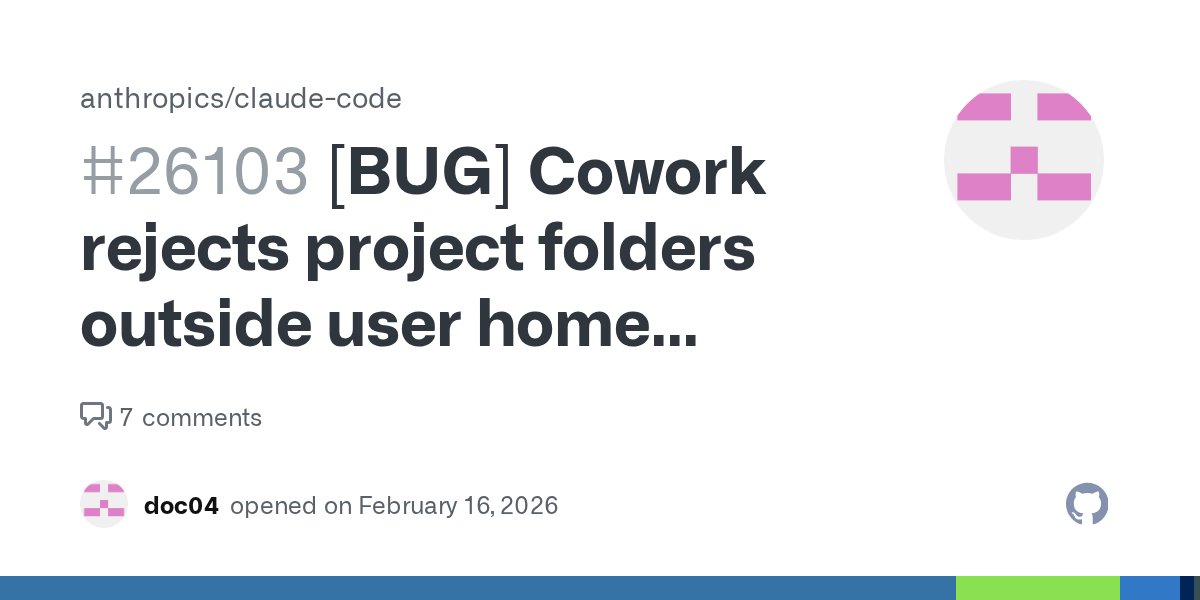
When using Cowork on Windows, the folder picker may reject folders located outside your home directory (C:\Users\<username>) with the error: "Invalid Folder Selection - The selected folder is outside your home directory. Only folders within your home directory can be used." This error also blocks symlinks and NTFS junctions that point to external folders, because the picker resolves them to their real path before validating. The root cause is a validation check that uses os.homedir() to restrict folder selection, which does not account for legitimate Windows configurations like multiple drives, Known Folder Redirection, or symlink-based workflows.
What Causes This Error
Home directory restriction via os.homedir()
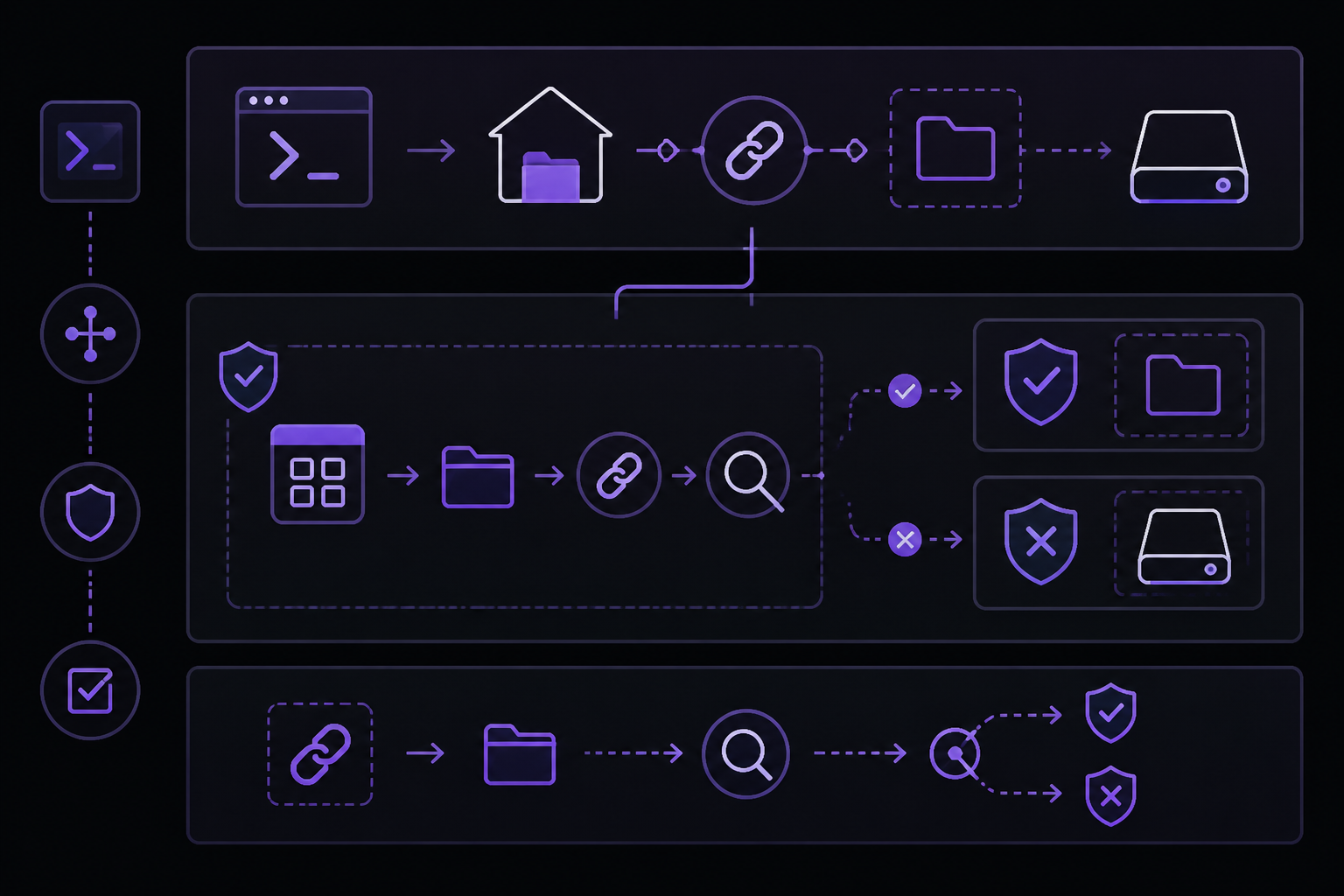
The folder picker in Cowork uses fs.realpath() to resolve the selected folder's path, then compares it against os.homedir(), which returns USERPROFILE (always C:\Users\<username> on Windows). According to the GitHub issue report, this validation rejects any folder whose resolved path does not start with the home directory. This is the primary cause for all users encountering this error.
Symlinks and NTFS junctions are resolved before validation
When you create a symlink or junction inside your home directory that points to an external folder, fs.realpath() resolves it back to the original external path. As a result, the workaround of creating a junction fails with the same error. The GitHub issue author confirmed this: creating a junction with New-Item -ItemType Junction -Path "C:\Users\<username>\CoworkProjects\MyProject" -Target "C:\Projects\MyProject" and then selecting it in Cowork produces the same "Invalid Folder Selection" error.
Known Folder Redirection breaks access to standard user folders
As detailed in the solution comment by Tjeef, the restriction also affects users who have relocated their Documents, Desktop, or Downloads folders to another drive using Windows' built-in Known Folder Redirection. This is a core Windows feature since Vista that allows relocating shell folders to any drive through three independent mechanisms: manual folder properties (right-click Documents -> Properties -> Location), Group Policy Folder Redirection, or OneDrive KFM ("Back up my folders"). Many users relocate these folders to a second drive as basic disk hygiene (smaller SSD for OS, larger drive for data). Since os.homedir() always returns USERPROFILE (C:\Users\<username>), even legitimately relocated standard folders are blocked.
External project folders on separate drives
Windows users commonly keep project files on separate drives or outside their home folder (e.g., C:\Projects\, D:\Dev\). The current validation does not allow selecting any of these paths, which the issue author describes as a significant limitation.
How to Fix It
Solution 1: Use a directory junction with a modified approach (community workaround)
While the GitHub issue confirms that standard junctions fail, some users may have success by ensuring the junction target is also within a path that Cowork can access. However, the issue author explicitly states this fails because fs.realpath() resolves the junction. This workaround is listed for completeness but is not expected to work with the current version.
If you want to test it anyway:
- Open PowerShell as Administrator.
- Create a junction inside your home directory pointing to the external folder:
New-Item -ItemType Junction -Path "C:\Users\<username>\CoworkProjects\MyProject" -Target "C:\Projects\MyProject" - Try to select the junction in Cowork. If it fails, proceed to Solution 2.
Solution 2: Move or copy your project folders into your home directory (official workaround)
The only officially supported workaround is to place your project folders inside C:\Users\<username>\. This is not ideal for users with separate drives or organized folder structures, but it will bypass the validation check.
Steps:
- Move your project folder to
C:\Users\<username>\Projects\(or any subfolder under your home directory). - Open Cowork and select the folder from its new location.
- The error should no longer appear.
If you cannot move the folder (e.g., due to disk space constraints), consider creating a hard link or using a symbolic link with the /J flag (junction) as described in Solution 1, though this is not guaranteed to work.
Solution 3: Wait for an official fix (recommended for affected users)
The GitHub issue is open and has received significant community attention (29 reactions on the solution comment). The suggested fix directions from the community include:
- Querying actual known folder paths via
SHGetKnownFolderPath(or the Node.js equivalent) and accepting any path under those, instead of checking againstos.homedir(). - Accepting any path the user has OS-level read/write access to, since the sandbox/VM can already access these paths once a session starts.
- At minimum, skipping
fs.realpath()resolution so that symlinks/junctions under the home directory work as intended.
You can track the issue at https://github.com/anthropics/claude-code/issues/24964 and subscribe for updates.
If Nothing Works
If none of the above solutions work for your setup:
- Upvote the GitHub issue: Add a reaction to the issue at https://github.com/anthropics/claude-code/issues/24964 to increase visibility. The issue has already been reported and acknowledged by the community.
- File a new bug report: If you have additional details not covered in the existing issue (e.g., specific Known Folder Redirection configurations, OneDrive KFM setups, or Group Policy scenarios), file a new issue at https://github.com/anthropics/claude-code/issues/new with the label
bugand reference issue #24964. - Use an alternative tool: For Windows users who cannot relocate their projects, consider using Claude Code directly from the command line (if available) or another AI coding assistant that does not have this folder restriction.
- Check for related issues: The issue author mentions previous related issues #20382 and #20550 (both closed) and a related issue #25162 about Squirrel-to-MSIX migration failure. Reviewing these may provide additional context or workarounds.
How to Prevent It
Until an official fix is released, the only way to prevent this error is to keep all folders you intend to use with Cowork inside your home directory (C:\Users\<username>\). This includes:
- Project folders
- Documents, Desktop, and Downloads if you have not used Known Folder Redirection
- Any symlinks or junctions (they will be resolved, so they must point to paths within the home directory)
If you use Known Folder Redirection (manual, Group Policy, or OneDrive KFM), you will need to either:
- Disable redirection for the folders you need to access with Cowork (not recommended if you rely on it for backup or organization)
- Create copies of the files you need inside your home directory
- Use a different tool until the fix is released
The community has suggested that the validation should be updated to use SHGetKnownFolderPath or accept any path the user has OS-level access to, but these changes have not been implemented as of the latest version (Claude Desktop February 2026, Cowork research preview).
The #1 Claude Newsletter
The most important claude updates, guides, and fixes — one weekly email.
No spam, unsubscribe anytime. Privacy policy
Related Error Solutions
Keep exploring Claude
Claude resources
Latest AI answers
Skip the manual work
Ready-made AI workflows and automation templates — import and run instead of building from scratch.