Build an SQL Query Generator with Claude and Your Database Schema
Prerequisites
- ✓ Terminal or command prompt
- ✓ Claude subscription (Pro, Max, Team, or Enterprise) or Claude Console account
- ✓ A code project with database schema (SQL DDL or ORM models)
- ✓ Git installed (recommended)
- ✓ Basic SQL knowledge
You will build a custom SQL query generator that uses Claude Code to translate natural language questions into SQL queries against your database schema. This tutorial takes approximately 45 minutes and requires a terminal, a Claude subscription, and a project with a database schema file.
Prerequisites
- A terminal or command prompt open
- A code project with your database schema (SQL DDL files or ORM models)
- A Claude subscription (Pro, Max, Team, or Enterprise) or a Claude Console account
- Claude Code installed (see Step 1)
- Basic familiarity with SQL and your database structure
- Git installed (recommended for tracking changes)
Step 1: Install Claude Code
Claude Code is the terminal-based AI coding assistant that will power your SQL query generator. You need to install it before you can start building.
Native Install (Recommended)
On macOS, Linux, or Windows Subsystem for Linux (WSL), run:
curl -fsSL https://claude.ai/install.sh | bash
On Windows PowerShell, run:
irm https://claude.ai/install.ps1 | iex
On Windows CMD, run:
curl -fsSL https://claude.ai/install.cmd -o install.cmd && install.cmd && del install.cmd
If you see The token '&&' is not a valid statement separator, you are in PowerShell, not CMD. If you see 'irm' is not recognized as an internal or external command, you are in CMD, not PowerShell. Your prompt shows PS C:\ when you are in PowerShell and C:\ without the PS when you are in CMD. If the install command fails with `syntax error near unexpected token ' Troubleshoot installation to match the error to a fix and for alternative install methods. Git for Windows is recommended on native Windows so Claude Code can use the Bash tool. If Git for Windows is not installed, Claude Code uses PowerShell as the shell tool instead. WSL setups do not need Git for Windows. Native installations automatically update in the background to keep you on the latest version.
Alternative Install Methods
Homebrew (macOS/Linux):
brew install --cask claude-code
Homebrew offers two casks. claude-code tracks the stable release channel, which is typically about a week behind and skips releases with major regressions. claude-code@latest tracks the latest channel and receives new versions as soon as they ship. Homebrew installations do not auto-update. Run brew upgrade claude-code or brew upgrade claude-code@latest, depending on which cask you installed, to get the latest features and security fixes.
WinGet (Windows):
winget install Anthropic.ClaudeCode
WinGet installations do not auto-update. Run winget upgrade Anthropic.ClaudeCode periodically to get the latest features and security fixes.
You can also install with apt, dnf, or apk on Debian, Fedora, RHEL, and Alpine.
Verify Installation
To confirm the installation worked, run:
claude --version
The command prints a version number followed by (Claude Code).
Step 2: Log In to Your Account
Claude Code requires an account to use. Start an interactive session with the claude command and you will be prompted to log in on first use:
claude
For Claude subscription or Console accounts, follow the prompts to complete authentication in your browser. To switch accounts later or re-authenticate, type /login inside the running session:
/login
You can log in using any of these account types:
- Claude Pro, Max, Team, or Enterprise (recommended)
- Claude Console (API access with pre-paid credits). On first login, a "Claude Code" workspace is automatically created in the Console for centralized cost tracking.
- Amazon Bedrock, Google Cloud's Agent Platform, or Microsoft Foundry (enterprise cloud providers)
- A self-hosted Claude apps gateway, if your organization runs one: your admin pre-configures the gateway URL, and
/loginopens directly on the Cloud gateway screen for you to sign in with corporate SSO
Once logged in, your credentials are stored and you will not need to log in again.
Step 3: Prepare Your Database Schema File
Claude Code needs to understand your database structure to generate accurate SQL queries. The most reliable way is to provide your schema as a DDL file or a set of ORM model files in your project directory.
Create a file called schema.sql in your project root. This file should contain the CREATE TABLE statements for all tables you want to query. For example, if you have an e-commerce database, your schema might look like:
-- schema.sql
CREATE TABLE users (
    id INT PRIMARY KEY AUTO_INCREMENT,
    email VARCHAR(255) NOT NULL UNIQUE,
    name VARCHAR(100) NOT NULL,
    created_at TIMESTAMP DEFAULT CURRENT_TIMESTAMP
);

CREATE TABLE products (
    id INT PRIMARY KEY AUTO_INCREMENT,
    name VARCHAR(200) NOT NULL,
    price DECIMAL(10,2) NOT NULL,
    category VARCHAR(100),
    stock INT DEFAULT 0,
    created_at TIMESTAMP DEFAULT CURRENT_TIMESTAMP
);

CREATE TABLE orders (
    id INT PRIMARY KEY AUTO_INCREMENT,
    user_id INT NOT NULL,
    total DECIMAL(10,2) NOT NULL,
    status VARCHAR(20) DEFAULT 'pending',
    ordered_at TIMESTAMP DEFAULT CURRENT_TIMESTAMP,
    FOREIGN KEY (user_id) REFERENCES users(id)
);

CREATE TABLE order_items (
    id INT PRIMARY KEY AUTO_INCREMENT,
    order_id INT NOT NULL,
    product_id INT NOT NULL,
    quantity INT NOT NULL,
    price DECIMAL(10,2) NOT NULL,
    FOREIGN KEY (order_id) REFERENCES orders(id),
    FOREIGN KEY (product_id) REFERENCES products(id)
);
If you use an ORM like Django, SQLAlchemy, Prisma, or Sequelize, you can instead point Claude Code to your model files. The key is that the schema is present in your project directory so Claude can read it.
Step 4: Start a Claude Code Session
Open your terminal in the project directory that contains your schema file and start Claude Code:
cd /path/to/your/project
claude
Replace /path/to/your/project with the actual path. You will see the Claude Code prompt with the version, current model, and working directory shown above it. Type /help for available commands or /resume to continue a previous conversation.
Step 5: Ask Claude to Analyze Your Schema
Before generating queries, let Claude understand your database structure. This step is critical because Claude needs to know the table names, columns, relationships, and data types to produce correct SQL.
At the Claude Code prompt, type:
analyze the database schema
Claude will read your schema file and provide a summary. You can also ask more specific questions:
what tables are in the database?
explain the relationships between tables
what columns does the orders table have?
Claude Code reads your project files as needed. You do not have to manually add context. If your schema is spread across multiple files, Claude will find them automatically.
Step 6: Generate Your First SQL Query
Now you can ask Claude to generate SQL queries in natural language. Start with a simple request:
write a SQL query to find all users who have placed an order in the last 30 days
Claude Code will:
- Locate the relevant schema information
- Understand the relationships between users, orders, and order_items
- Generate the SQL query
- Show you the proposed query
- Ask for your approval before making any changes
Expected output (Claude will display something like this):
SELECT DISTINCT u.id, u.name, u.email
FROM users u
JOIN orders o ON u.id = o.user_id
WHERE o.ordered_at >= NOW() - INTERVAL 30 DAY;
You can then ask follow-up questions or request modifications:
add the total amount spent by each user in the last 30 days, sorted by highest spenders first
Claude will update the query accordingly.
Step 7: Create a Custom Skill for SQL Generation
For repeated use, you can create a custom skill in Claude Code that specializes in SQL generation. Skills are defined in YAML frontmatter files and can include hooks for automatic actions.
Create a file called .claude/skills/sql-generator.md in your project:
---
name: sql_generator
description: Generates SQL queries from natural language based on the project's database schema
---

You are an expert SQL query generator. Given a natural language request, you will:

1. Read the database schema from the project files (schema.sql or ORM models)
2. Understand the tables, columns, relationships, and data types
3. Generate a valid SQL query that answers the request
4. Explain the query logic briefly
5. Show the query in a code block with the appropriate SQL dialect (MySQL, PostgreSQL, SQLite, etc.)

Always follow these rules:
- Use proper JOINs based on foreign key relationships
- Use parameterized placeholders (?) for user input values
- Add appropriate WHERE clauses for filtering
- Use aggregate functions (COUNT, SUM, AVG) when needed
- Include ORDER BY for sorted results
- Use LIMIT for pagination when appropriate
- Comment complex parts of the query
To use the skill, type:
/skill sql_generator
Then ask your question. Claude will follow the skill instructions.
Step 8: Add a Hook for Automatic Schema Loading (Advanced)
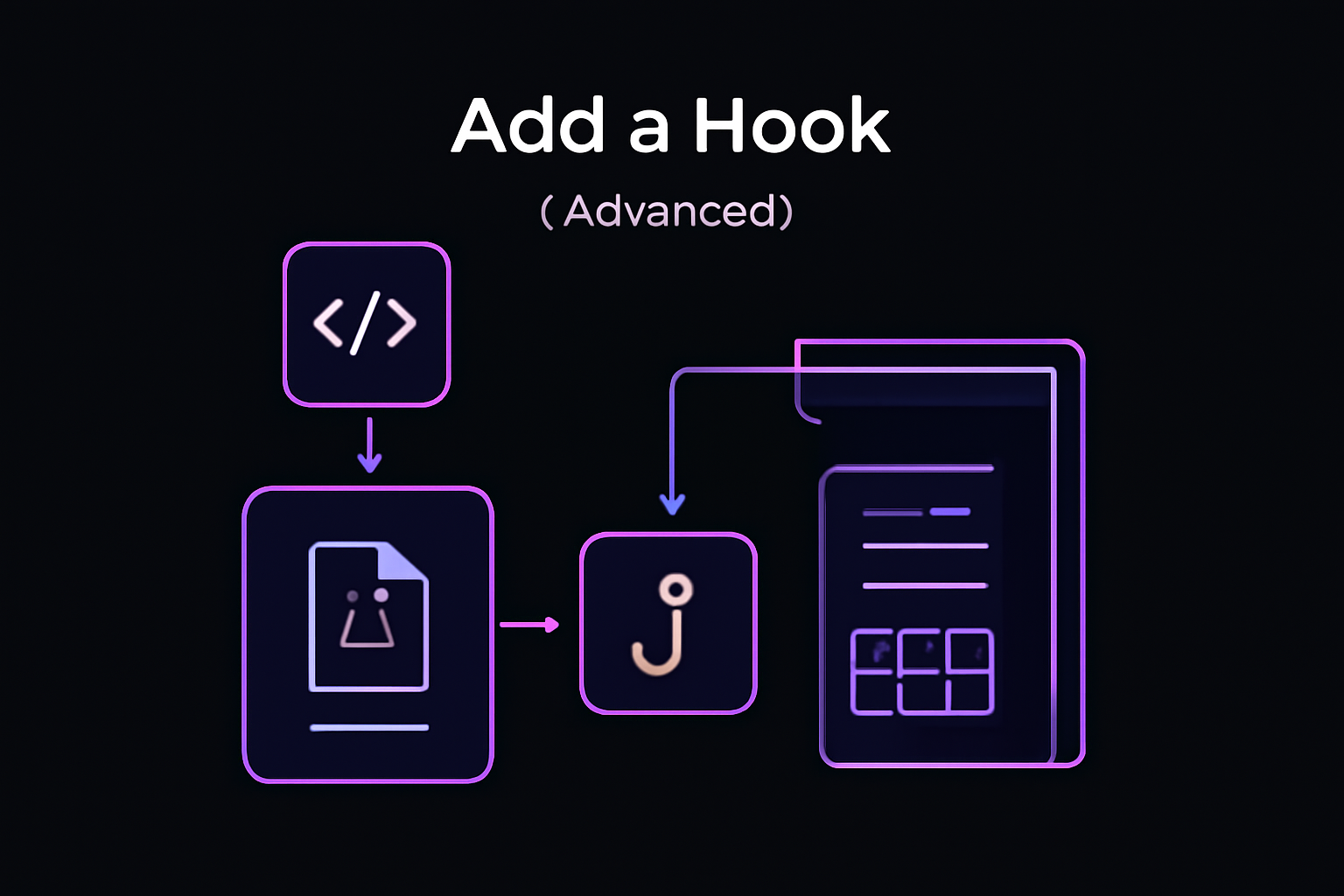
Hooks are user-defined shell commands, HTTP endpoints, or LLM prompts that execute automatically at specific points in Claude Code's lifecycle. You can create a hook that automatically loads your schema whenever a new session starts or when you submit a prompt.
Create a file called .claude/settings.json in your project:
{
  "hooks": {
    "UserPromptSubmit": [
      {
        "hooks": [
          {
            "type": "command",
            "command": "echo 'Remember to reference the database schema in schema.sql for SQL queries.'"
          }
        ]
      }
    ],
    "SessionStart": [
      {
        "matcher": "startup",
        "hooks": [
          {
            "type": "command",
            "command": "cat schema.sql"
          }
        ]
      }
    ]
  }
}
This configuration does two things:
- On every user prompt submission, it reminds Claude to reference the schema.
- On session startup, it prints the schema contents to the conversation context so Claude has it from the beginning.
For a more sophisticated approach, you can create a shell script that parses the schema and outputs it in a format Claude can use directly. Create .claude/hooks/load-schema.sh:
#!/bin/bash
# .claude/hooks/load-schema.sh
# This script reads the schema file and outputs it for Claude to use.

SCHEMA_FILE="${CLAUDE_PROJECT_DIR}/schema.sql"

if [ -f "$SCHEMA_FILE" ]; then
    echo "Loading database schema from $SCHEMA_FILE"
    cat "$SCHEMA_FILE"
else
    echo "No schema.sql found. Searching for ORM model files..."
    # Fallback: look for common ORM model files
    find "${CLAUDE_PROJECT_DIR}" -type f \(
        -name "models.py" -o
        -name "schema.prisma" -o
        -name "*.model.ts"
    \) 2>/dev/null | head -5
fi
Make it executable:
chmod +x .claude/hooks/load-schema.sh
Then update your .claude/settings.json to use the script:
{
  "hooks": {
    "SessionStart": [
      {
        "matcher": "startup",
        "hooks": [
          {
            "type": "command",
            "command": "${CLAUDE_PROJECT_DIR}/.claude/hooks/load-schema.sh"
          }
        ]
      }
    ]
  }
}
Understanding Hook Lifecycle
Hooks fire at specific points during a Claude Code session. When an event fires and a matcher matches, Claude Code passes JSON context about the event to your hook handler. For command hooks, input arrives on stdin. For HTTP hooks, it arrives as the POST request body. Your handler can then inspect the input, take action, and optionally return a decision.
Events fall into three cadences:
- Once per session:
SessionStartandSessionEnd - Once per turn:
UserPromptSubmit,Stop, andStopFailure - On every tool call inside the agentic loop:
PreToolUseandPostToolUse
For your SQL generator, the most useful events are SessionStart (to load the schema at the beginning) and UserPromptSubmit (to remind Claude about the schema before each query).
Hook Configuration Details
Hooks are defined in JSON settings files. The configuration has three levels of nesting:
- Choose a hook event to respond to, like
PreToolUseorStop - Add a matcher group to filter when it fires, like "only for the Bash tool"
- Define one or more hook handlers to run when matched
Hook locations determine scope:
| Location | Scope | Shareable |
|---|---|---|
~/.claude/settings.json | All your projects | No, local to your machine |
.claude/settings.json | Single project | Yes, can be committed to the repo |
.claude/settings.local.json | Single project | No, gitignored when Claude Code creates it |
Matcher Patterns
The matcher field filters when hooks fire. How a matcher is evaluated depends on the characters it contains:
"*","", or omitted: Match all fires on every occurrence of the event- Only letters, digits,
_,-, spaces,,, and|: Exact string, or list of exact strings separated by|or,with optional surrounding whitespace. For example,Bashmatches only the Bash tool;Edit|WriteandEdit, Writeeach match either tool exactly. - Contains any other character: JavaScript regular expression, unanchored. For example,
^Notebookmatches any tool whose name starts withNotebook.
A matcher on the regular-expression path is tested with JavaScript's RegExp.prototype.test, which succeeds on a match anywhere in the value. Edit.* matches both Edit and NotebookEdit; wrap the pattern in ^ and $, as in ^Edit$, when you need a whole-string match.
Comma separators and the surrounding whitespace tolerance require Claude Code v2.1.191 or later. Hyphens in the exact-match set require Claude Code v2.1.195 or later. On earlier versions a hyphenated name like code-reviewer is evaluated as an unanchored regular expression, so it also fires for senior-code-reviewer; anchor it as ^code-reviewer$ on those versions to match only that name.
Hook Handler Types
There are five types of hook handlers:
- Command hooks (
type: "command"): run a shell command. Your script receives the event's JSON input on stdin and communicates results back through exit codes and stdout. - HTTP hooks (
type: "http"): send the event's JSON input as an HTTP POST request to a URL. The endpoint communicates results back through the response body using the same JSON output format as command hooks. - MCP tool hooks (
type: "mcp_tool"): call a tool on an already-connected MCP server. The tool's text output is treated like command-hook stdout. - Prompt hooks (
type: "prompt"): send a prompt to a Claude model for single-turn evaluation. The model returns a yes/no decision as JSON. - Agent hooks (
type: "agent"): spawn a subagent that can use tools like Read, Grep, and Glob to verify conditions before returning a decision. Agent hooks are experimental and may change.
All matching hooks run in parallel, and identical handlers are deduplicated automatically. Command hooks are deduplicated by command string and args, and HTTP hooks are deduplicated by URL. Handlers run in the current directory with Claude Code's environment.
The $CLAUDE_CODE_REMOTE environment variable is set to "true" in remote web environments and not set in the local CLI. As of v2.1.199, $CLAUDE_CODE_BRIDGE_SESSION_ID is set to the Remote Control session ID while the local session has an active Remote Control connection.
Common Hook Handler Fields
These fields apply to all hook types:
| Field | Required | Description |
|---|---|---|
type | yes | "command", "http", "mcp_tool", "prompt", or "agent" |
if | no | Permission rule syntax to filter when this hook runs, such as "Bash(git *)" or "Edit(*.ts)". The hook command only runs if the tool call matches the pattern. Only evaluated on tool events: PreToolUse, PostToolUse, PostToolUseFailure, PermissionRequest, and PermissionDenied. On other events, a hook with if set never runs. |
timeout | no | Seconds before canceling. Defaults: 600 for command, http, and mcp_tool; 30 for prompt; 60 for agent. UserPromptSubmit lowers the command, http, and mcp_tool default to 30, and MessageDisplay lowers it to 10. |
statusMessage | no | Custom spinner message displayed while the hook runs |
once | no | If true, runs once per session then is removed. Only honored for hooks declared in skill frontmatter; ignored in settings files and agent frontmatter. |
The if field holds exactly one permission rule. There is no &&, ||, or list syntax for combining rules; to apply multiple conditions, define a separate hook handler for each.
For Bash patterns, whether your hook command runs depends on the shape of the pattern and the Bash command Claude is invoking. Leading VAR=value assignments are stripped before matching.
if pattern | Bash command | Hook runs? | Why |
|---|---|---|---|
Bash(git *) | FOO=bar git push | yes | leading assignments are stripped; git push matches |
Bash(git *) | npm test && git push | yes | each subcommand is checked; git push matches |
Bash(rm *) | echo $(rm -rf /) | yes | commands inside $() and backticks are checked; rm -rf / matches |
Bash(rm *) | echo $(date) | no | no subcommand matches rm * |
Bash(git push *) | echo $(date) | yes | patterns that specify more than the command name run the hook anyway on $(), backticks, or $VAR |
The filter also fails open, running your hook regardless of pattern, when the Bash command cannot be parsed. Because the if filter is best-effort, use the permission system rather than a hook to enforce a hard allow or deny.
Exec Form vs Shell Form for Command Hooks
A command hook runs as exec form when args is set, and shell form when args is omitted. Set args whenever the hook references a path placeholder, since each element is passed as one argument with no quoting. Omit args when you need shell features like pipes or &&, or when neither concern applies.
Exec form runs when args is present. Claude Code resolves command as an executable on PATH and spawns it directly with args as the argument vector. There is no shell, so each args element is one argument exactly as written, and path placeholders like ${CLAUDE_PLUGIN_ROOT} are substituted into command and into each args element as plain strings. Special characters such as apostrophes, $, and backticks pass through verbatim because there is no shell to interpret them. No shell tokenization happens on any platform.
Shell form runs when args is absent. The command string is passed to a shell: sh -c on macOS and Linux, Git Bash on Windows, or PowerShell when Git Bash is not installed. Set the shell field to choose explicitly. The shell tokenizes the string, expands variables, and interprets pipes, &&, redirects, and globs.
On Windows, exec form requires command to resolve to a real executable such as a .exe. The .cmd and .bat shims that npm, npx, eslint, and other tools install in node_modules/.bin are not executables and cannot be spawned without a shell. To run them in exec form, invoke the underlying script with node directly, for example "command": "node", "args": ["${CLAUDE_PLUGIN_ROOT}/node_modules/eslint/bin/eslint.js"]. The node plus script-path pattern works on every platform because node.exe is a real binary. To run a .cmd or .bat shim by name, use shell form.
This example runs a Node script bundled with a plugin. Exec form passes the resolved script path as one argument with no quoting:
{
  "type": "command",
  "command": "node",
  "args": [
    "${CLAUDE_PLUGIN_ROOT}/scripts/format.js",
    "--fix"
  ]
}
The equivalent shell form needs quoting to handle paths with spaces or special characters:
{
  "type": "command",
  "command": "node \"${CLAUDE_PLUGIN_ROOT}\"/scripts/format.js --fix"
}
Both forms support the same path placeholders, and both export them as the environment variables CLAUDE_PROJECT_DIR, CLAUDE_PLUGIN_ROOT, and CLAUDE_PLUGIN_DATA on the spawned process, so a script can read process.env.CLAUDE_PROJECT_DIR regardless of how it was launched.
Step 9: Generate Complex Queries with Multiple Tables
Once your schema is loaded and Claude understands the relationships, you can ask for complex multi-table queries. Try these examples:
show me the top 5 products by total revenue, including product name, category, and total revenue
Expected output:
SELECT
    p.name,
    p.category,
    SUM(oi.quantity * oi.price) AS total_revenue
FROM products p
JOIN order_items oi ON p.id = oi.product_id
GROUP BY p.id, p.name, p.category
ORDER BY total_revenue DESC
LIMIT 5;
find customers who have spent more than $500 in total, with their email and total spent
Expected output:
SELECT
    u.name,
    u.email,
    SUM(o.total) AS total_spent
FROM users u
JOIN orders o ON u.id = o.user_id
GROUP BY u.id, u.name, u.email
HAVING total_spent > 500
ORDER BY total_spent DESC;
list all orders that contain products from the 'Electronics' category, with order ID, customer name, and order total
Expected output:
SELECT DISTINCT
    o.id AS order_id,
    u.name AS customer_name,
    o.total AS order_total
FROM orders o
JOIN users u ON o.user_id = u.id
JOIN order_items oi ON o.id = oi.order_id
JOIN products p ON oi.product_id = p.id
WHERE p.category = 'Electronics'
ORDER BY o.ordered_at DESC;
Step 10: Use Git to Track Changes
Claude Code makes Git operations conversational. This is useful for tracking changes to your schema, queries, or hook configurations.
what files have I changed?
commit my changes with a descriptive message
You can also prompt for more complex Git operations:
create a new branch called feature/sql-generator
show me the last 5 commits
help me resolve merge conflicts
Verifying It Works
To confirm your SQL query generator is functioning correctly:
-
Test with a known query: Ask Claude to generate a query you already know the answer to. For example, "how many users are in the database?" should produce
SELECT COUNT(*) FROM users;. -
Test with a join query: Ask for a query that requires joining two or more tables. Verify that the JOIN conditions use the correct foreign key columns.
-
Test with aggregation: Ask for a query that uses GROUP BY and HAVING. Verify the aggregate functions are correct.
-
Test edge cases: Ask for queries with NULL handling, date ranges, or subqueries. Claude should handle these correctly based on the schema.
-
Check the hook: Start a new session and verify that the schema is loaded automatically. You should see the schema content printed at the start of the session.
-
Check the skill: Type
/skill sql_generatorand verify that Claude follows the skill instructions for query generation.
Common Problems
Problem 1: Claude does not find the schema file
Cause: The schema file is not in the project directory or has a different name.
Fix: Ensure schema.sql is in the root of your project directory. You can also explicitly tell Claude where the schema is:
read the database schema from schema.sql
Problem 2: Hook does not fire
Cause: The hook configuration has a syntax error or the matcher pattern is incorrect.
Fix: Verify your .claude/settings.json is valid JSON. Check that the matcher pattern matches the event. For SessionStart, the matcher value should be "startup" for a new session or "resume" for a resumed session. If you omit the matcher or use "*", the hook fires on every occurrence of the event.
Problem 3: Hook script fails silently
Cause: The script is not executable or has a path issue.
Fix: Make the script executable with chmod +x .claude/hooks/load-schema.sh. Ensure the shebang line is correct (#!/bin/bash). Check that jq is installed if your script uses it for JSON parsing. The official documentation states: "This script and the Bash examples on this page that parse JSON input use jq, so install jq and make sure it is on your PATH before trying them."
Problem 4: Claude generates incorrect SQL
Cause: The schema is incomplete or Claude misunderstands the relationships.
Fix: Provide a more detailed schema with explicit foreign key constraints. Add comments to your schema file explaining business logic. You can also ask Claude to explain its reasoning:
show me the tables and columns you are using and explain why you chose those joins
Problem 5: Permission denied when running hooks
Cause: The hook script does not have execute permissions.
Fix: Run chmod +x /path/to/your/hook/script.sh. If the issue persists, check that the script path is correct and that the script is not blocked by system security settings.
Problem 6: Hook timeout
Cause: The hook takes longer than the default timeout.
Fix: Increase the timeout value in the hook configuration. The default is 600 seconds for command hooks, but UserPromptSubmit lowers it to 30 seconds. Add "timeout": 120 to your hook handler to give it more time.
Problem 7: Claude does not use the skill
Cause: The skill file is not in the correct location or has incorrect frontmatter.
Fix: Ensure the skill file is at .claude/skills/sql-generator.md. Verify the frontmatter is valid YAML with the required name and description fields. Type /list-skills to see available skills.
Next Steps
-
Extend the schema: Add more tables and relationships to your schema file, then test Claude's ability to generate queries across the expanded schema. This will help you understand how Claude handles complex join paths.
-
Create a query validation hook: Build a hook that runs generated SQL against a test database to validate syntax and performance. Use the
PostToolUseevent to catch queries after Claude writes them to a file. -
Build a dashboard generator: Extend the skill to not only generate SQL but also create visualization code (charts, graphs) using the query results. Ask Claude to output both the SQL and a Python/JavaScript snippet to render the data.
-
Integrate with MCP servers: If you have an MCP server that provides database access, create hooks that use MCP tools to execute queries directly and return results. The official documentation shows how to match MCP tools:
mcp__memory__.*matches all tools from thememoryserver. -
Add a CLAUDE.md file: Create a
CLAUDE.mdfile in your project root with instructions for Claude about your database conventions, naming patterns, and preferred SQL dialect. This file is loaded into context at session start and helps Claude generate more accurate queries from the beginning.
The #1 Claude Newsletter
The most important claude updates, guides, and fixes — one weekly email.
No spam, unsubscribe anytime. Privacy policy
Related Tutorials
Keep exploring Claude
Claude resources
Latest AI answers
Skip the manual work
Ready-made AI workflows and automation templates — import and run instead of building from scratch.