Set up Claude Code for a team: shared CLAUDE.md, hooks, and CI
Prerequisites
- ✓ Claude Code CLI installed
- ✓ Git repository
- ✓ Git installed
- ✓ Basic JSON/YAML knowledge
- ✓ Claude subscription or Anthropic Console account (for CI)
This tutorial walks you through configuring Claude Code for team use: creating a shared CLAUDE.md file, setting project-level settings and hooks, and integrating Claude Code into your CI pipeline. You will learn how to enforce consistent coding standards across your team, automate code review, and manage permissions at scale. The entire setup takes about 30 minutes.
Prerequisites
- Claude Code CLI installed (native install, Homebrew, or WinGet). See the overview for installation instructions.
- A GitHub or GitLab repository where your team collaborates.
- Git installed on your local machine.
- Basic familiarity with JSON and YAML configuration files.
- Access to your repository's root directory.
- (Optional) A Claude subscription or Anthropic Console account for CI integration.
Step 1: Create a shared CLAUDE.md file
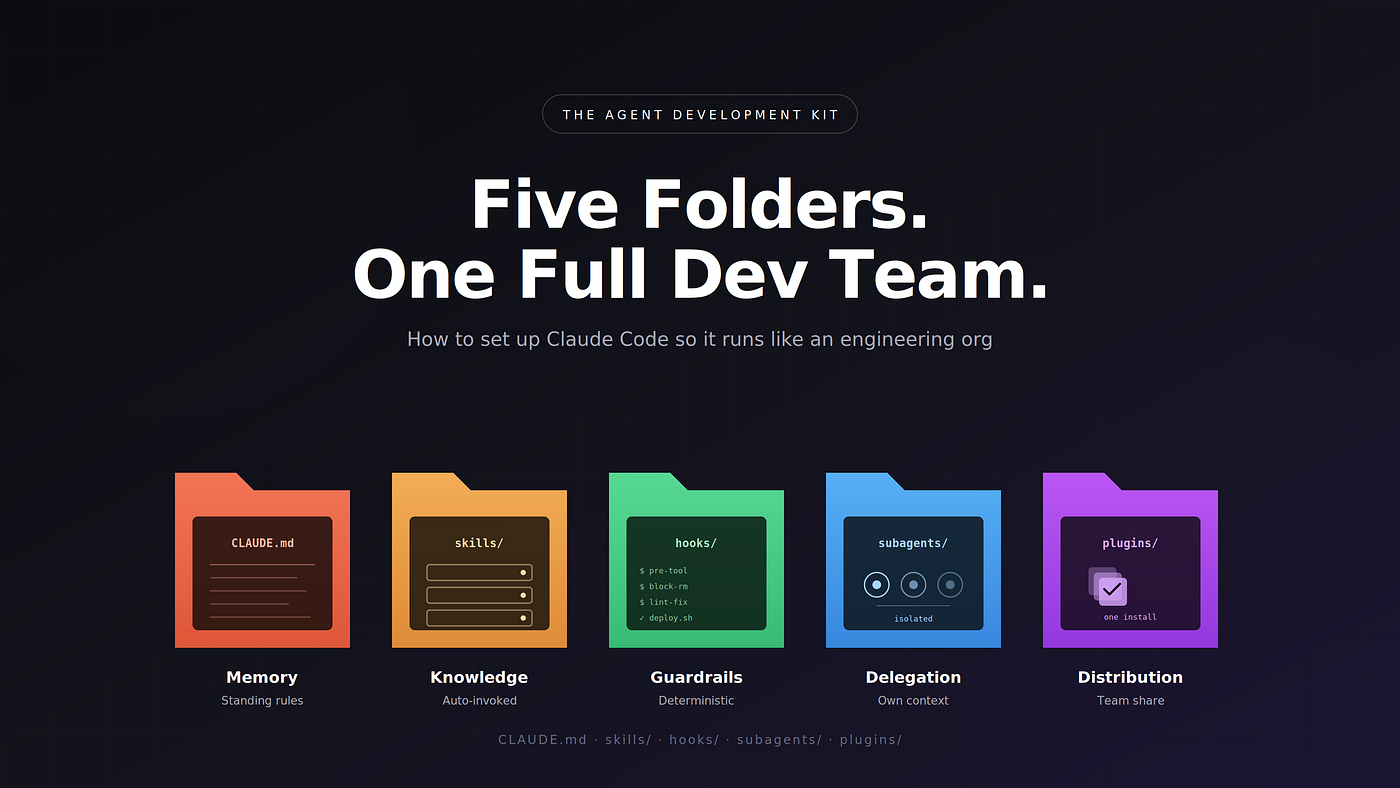
The CLAUDE.md file is a markdown file placed in your project root that Claude Code reads at the start of every session. It sets coding standards, architecture decisions, preferred libraries, and review checklists. According to the official documentation, "CLAUDE.md is a markdown file you add to your project root that Claude Code reads at the start of every session. Use it to set coding standards, architecture decisions, preferred libraries, and review checklists."
Create a file named CLAUDE.md in your project root. Here is an example from the documentation:
# Project Guidelines

## Coding Standards
- Use TypeScript for all new files
- Follow the existing ESLint configuration
- Write unit tests for all new functions
- Use async/await over callbacks

## Architecture Decisions
- The frontend uses React with Next.js
- The backend is a Node.js Express API
- Database access goes through Prisma ORM
- Authentication uses Auth0

## Preferred Libraries
- State management: Zustand
- HTTP client: Axios
- Testing: Vitest
- Date handling: date-fns

## Review Checklist
- [ ] Code compiles without errors
- [ ] Tests pass
- [ ] No console.log statements left in
- [ ] Error handling is in place
- [ ] Documentation is updated
Why this matters: The CLAUDE.md file gives every team member a consistent set of instructions that Claude Code follows. When a developer starts a session, Claude reads this file and applies the rules to every action it takes. This reduces the chance of style drift across the team.
What you should see: When you run claude in your project directory, Claude Code loads the CLAUDE.md file. You can verify this by running /status inside a Claude Code session. The "Memory sources" line lists the CLAUDE.md file if it was loaded successfully.
Step 2: Configure project-level settings
Project-level settings live in .claude/settings.json at the repository root. These settings are checked into source control and shared with every collaborator. The official documentation states: "Project settings are saved in your project directory: .claude/settings.json for settings that are checked into source control and shared with your team."
Create the directory and file:
mkdir -p .claude
Then create .claude/settings.json with the following content:
{
  "$schema": "https://json.schemastore.org/claude-code-settings.json",
  "permissions": {
    "allow": [
      "Bash(npm run lint)",
      "Bash(npm run test *)",
      "Read(~/.zshrc)"
    ],
    "deny": [
      "Bash(curl *)",
      "Read(./.env)",
      "Read(./.env.*)",
      "Read(./secrets/**)"
    ]
  },
  "env": {
    "CLAUDE_CODE_ENABLE_TELEMETRY": "1",
    "OTEL_METRICS_EXPORTER": "otlp"
  },
  "companyAnnouncements": [
    "Welcome to Acme Corp! Review our code guidelines at docs.acme.com",
    "Reminder: Code reviews required for all PRs",
    "New security policy in effect"
  ]
}
Explanation of each section:
$schema: Points to the official JSON schema for Claude Code settings. Adding it enables autocomplete and inline validation in VS Code, Cursor, and any other editor that supports JSON schema validation. The published schema is updated periodically and may not include settings added in the most recent CLI releases, so a validation warning on a recently documented field does not necessarily mean your configuration is invalid.permissions: Defines what Claude Code is allowed to do. Theallowarray lists commands and file reads that are permitted without asking. Thedenyarray lists commands and file reads that are blocked. In this example,npm run lintandnpm run test *are allowed, while anycurlcommand and reading.envfiles or thesecrets/directory are denied.env: Environment variables that Claude Code sets in its session. Here, telemetry is enabled and OpenTelemetry metrics are exported via OTLP.companyAnnouncements: Messages displayed to users at startup. If multiple announcements are provided, they will be cycled through at random.
After you edit a settings file, run /status inside Claude Code to confirm it was loaded. The "Setting sources" line lists each settings source loaded for the current session; a source appears once it loads with at least one setting, so a file with broken JSON does not appear even if it contains settings.
Step 3: Set up hooks for automation
Hooks let you run shell commands before or after Claude Code actions. The official documentation says: "Hooks let you run shell commands before or after Claude Code actions, like auto-formatting after every file edit or running lint before a commit."
Hooks are configured in the project-level .claude/settings.json file. Add a hooks section:
{
  "hooks": {
    "PreToolUse": [
      {
        "matcher": {
          "type": "file",
          "pattern": "*.ts"
        },
        "command": "npx eslint --fix {{file}}"
      }
    ],
    "PostToolUse": [
      {
        "matcher": {
          "type": "file",
          "pattern": "*.ts"
        },
        "command": "npx prettier --write {{file}}"
      }
    ],
    "ConfigChange": [
      {
        "command": "echo 'Settings changed'"
      }
    ]
  }
}
Explanation:
PreToolUse: Runs before a tool is used. In this example, before Claude Code edits a.tsfile, ESLint runs to fix any lint issues.PostToolUse: Runs after a tool is used. Here, after editing a.tsfile, Prettier formats the file.ConfigChange: Fires when settings files change. This hook runs a command that echoes a message.
The matcher object specifies when the hook runs. The type can be "file" to match file patterns, and the pattern is a glob pattern. The {{file}} placeholder is replaced with the actual file path at runtime.
You can also use HTTP hooks by setting allowedHttpHookUrls in your settings. The documentation says: "allowedHttpHookUrls Allowlist of URL patterns that HTTP hooks may target. Supports * as a wildcard. When set, hooks with non-matching URLs are blocked. Undefined = no restrictions, empty array = block all HTTP hooks." To allow HTTP hooks to a specific endpoint:
{
  "allowedHttpHookUrls": ["https://hooks.example.com/*"]
}
Step 4: Configure CI integration
Claude Code can be integrated into your CI pipeline using GitHub Actions or GitLab CI/CD. The official documentation mentions: "In CI, you can automate code review and issue triage with GitHub Actions or GitLab CI/CD."
GitHub Actions example
Create a file at .github/workflows/claude-code-review.yml:
name: Claude Code Review

on:
  pull_request:
    types: [opened, synchronize]

jobs:
  review:
    runs-on: ubuntu-latest
    steps:
      - uses: actions/checkout@v4
        with:
          fetch-depth: 0
      - name: Install Claude Code
        run: |
          curl -fsSL https://claude.ai/install.sh | bash
      - name: Run code review
        run: |
          claude -p "Review the changes in this PR for security issues, code quality, and adherence to project standards. Provide a summary of any issues found."
        env:
          ANTHROPIC_API_KEY: ${{ secrets.ANTHROPIC_API_KEY }}
GitLab CI/CD example
Create a file at .gitlab-ci.yml:
claude-code-review:
  image: node:20
  script:
    - curl -fsSL https://claude.ai/install.sh | bash
    - claude -p "Review the changes in this merge request for security issues, code quality, and adherence to project standards. Provide a summary of any issues found."
  only:
    - merge_requests
  variables:
    ANTHROPIC_API_KEY: $ANTHROPIC_API_KEY
Why this matters: Running Claude Code in CI ensures every pull request or merge request gets an automated code review. This catches issues early and enforces consistency without requiring a human reviewer for every change.
What you should see: When a pull request is opened or updated, the CI pipeline triggers. Claude Code runs the review and outputs its findings in the CI logs. You can configure the output to post as a comment on the PR using GitHub Actions or GitLab CI/CD features.
Step 5: Manage permissions at scale
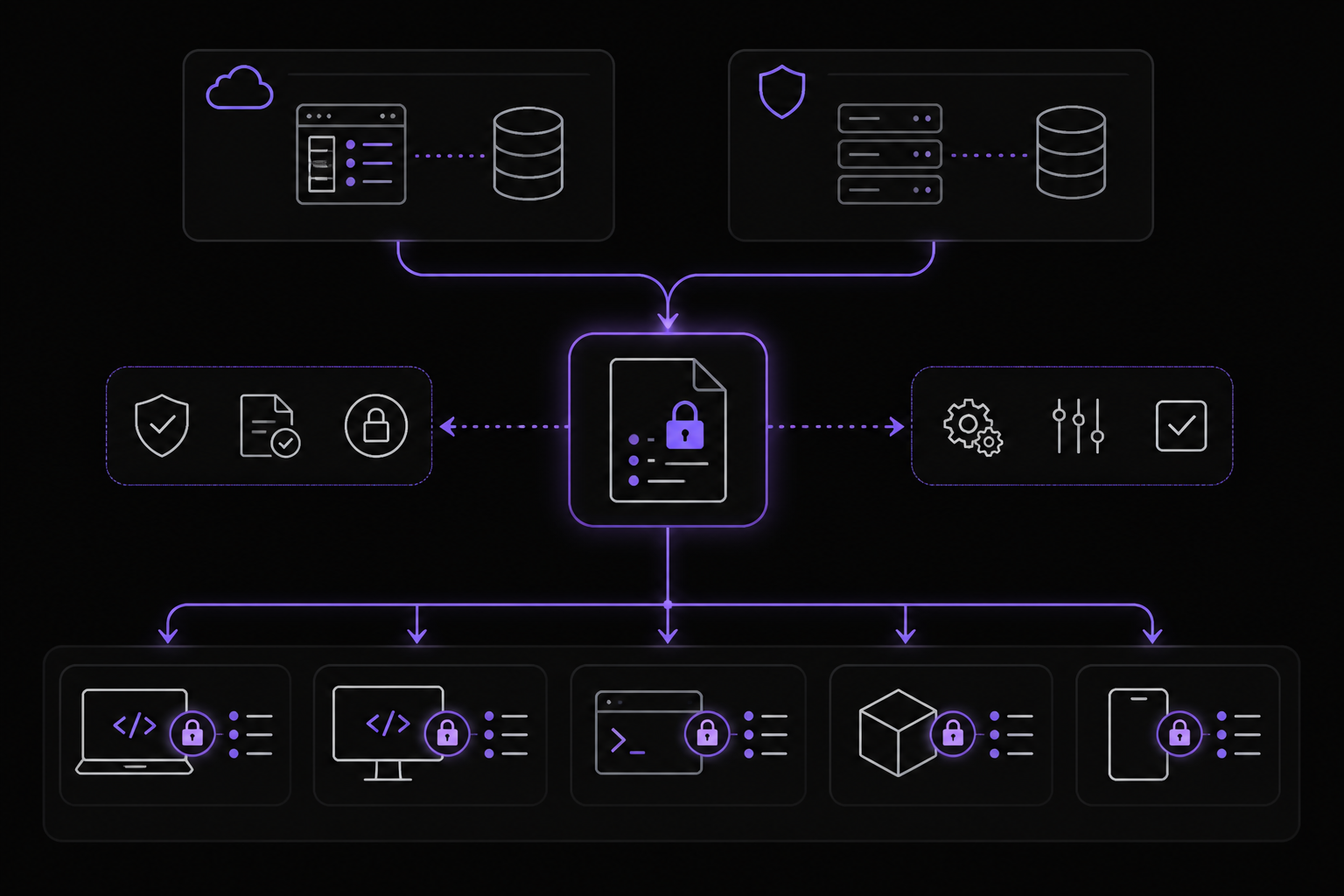
For organizations that need centralized control, Claude Code supports managed settings. These are deployed by IT/DevOps and cannot be overridden by user or project settings. The documentation explains: "Managed scope is for: Security policies that must be enforced organization-wide, Compliance requirements that can't be overridden, Standardized configurations deployed by IT/DevOps."
Managed settings can be delivered through:
- Server-managed settings: delivered remotely at sign-in, either from Anthropic's servers via the claude.ai admin console or from a self-hosted Claude apps gateway.
- MDM/OS-level policies: deployed through native device management on macOS and Windows.
- File-based:
managed-settings.jsondeployed to system directories.
Example managed-settings.json:
{
  "allowManagedPermissionRulesOnly": true,
  "allowManagedHooksOnly": true,
  "allowedMcpServers": [
    { "serverName": "github" }
  ],
  "deniedMcpServers": [
    { "serverName": "filesystem" }
  ],
  "claudeMd": "Always run make lint before committing.",
  "companyAnnouncements": [
    "Security policy: All code must pass lint before commit."
  ]
}
Explanation:
allowManagedPermissionRulesOnly: Prevents user and project settings from definingallow,ask, ordenypermission rules. Only rules in managed settings apply.allowManagedHooksOnly: Only managed hooks, SDK hooks, and hooks from plugins force-enabled in managed settingsenabledPluginsare loaded. User, project, and all other plugin hooks are blocked.allowedMcpServers: When set, this is an allowlist of MCP servers users can configure. Undefined means no restrictions, empty array means lockdown.deniedMcpServers: Denylist of MCP servers that are explicitly blocked. Denylist takes precedence over allowlist.claudeMd: CLAUDE.md-style instructions injected as organization-managed memory. Only honored when set in managed or policy settings and ignored in user, project, and local settings.
File-based managed settings also support a drop-in directory at managed-settings.d/ in the same system directory alongside managed-settings.json. This lets separate teams deploy independent policy fragments without coordinating edits to a single file. Following the systemd convention, managed-settings.json is merged first as the base, then all *.json files in the drop-in directory are sorted alphabetically and merged on top. Later files override earlier ones for scalar values, arrays are concatenated and de-duplicated, and objects are deep-merged. Hidden files starting with . are ignored. Use numeric prefixes to control merge order, for example 10-telemetry.json and 20-security.json.
Step 6: Use environment variables for sensitive configuration
Environment variables can be used to configure Claude Code without exposing sensitive values in settings files. The documentation lists several environment variables that can be set in the env section of settings or directly in your shell.
Key environment variables from the documentation:
CLAUDE_CODE_ENABLE_TELEMETRY: Set to"1"to enable telemetry.DISABLE_AUTO_COMPACT: Set to"true"to disable automatic conversation compaction.CLAUDE_CODE_DISABLE_AUTO_MEMORY: Set to"true"to disable auto memory.DISABLE_AUTOUPDATER: Set to"true"to disable auto-updates.CLAUDE_CODE_SKIP_PROMPT_HISTORY: Set to"true"to disable transcript writes.CLAUDE_CODE_USE_POWERSHELL_TOOL: Set to"1"to enable the PowerShell tool on platforms where it is off by default.CLAUDE_CODE_API_KEY_HELPER_TTL_MS: Sets the refresh interval for the API key helper.MAX_THINKING_TOKENS: Set to"0"to disable extended thinking.
To set these in your project settings, add them to the env object in .claude/settings.json:
{
  "env": {
    "CLAUDE_CODE_ENABLE_TELEMETRY": "1",
    "DISABLE_AUTO_COMPACT": "true",
    "MAX_THINKING_TOKENS": "0"
  }
}
For sensitive values like API keys, use the apiKeyHelper setting to run a custom command that generates an auth value. The documentation says: "apiKeyHelper Custom command, run through the system shell (/bin/sh on macOS and Linux, cmd on Windows), to generate an auth value. This value will be sent as X-Api-Key and Authorization: Bearer headers for model requests."
Example:
{
  "apiKeyHelper": "/bin/generate_temp_api_key.sh"
}
Step 7: Configure hooks for CI
In CI, you can use hooks to run additional checks. For example, you might want to run a hook that posts a comment to a pull request after a review. This is done using HTTP hooks.
First, set up the allowedHttpHookUrls in your settings:
{
  "allowedHttpHookUrls": ["https://api.github.com/repos/myorg/myrepo/issues/*/comments"]
}
Then, configure a hook that sends a POST request to the GitHub API:
{
  "hooks": {
    "PostToolUse": [
      {
        "matcher": {
          "type": "file",
          "pattern": "*"
        },
        "command": "curl -X POST -H 'Authorization: token $GITHUB_TOKEN' -d '{\"body\":\"Claude Code review completed\"}' https://api.github.com/repos/myorg/myrepo/issues/${{PR_NUMBER}}/comments"
      }
    ]
  }
}
Note: This example uses a placeholder ${{PR_NUMBER}} which you would need to replace with the actual PR number from your CI environment.
Step 8: Test your configuration
After setting up your CLAUDE.md, settings, and hooks, test everything works:
-
Start a Claude Code session in your project:
cd your-project claude -
Run
/statusto verify settings are loaded. Look for:- "Memory sources" listing your CLAUDE.md file
- "Setting sources" listing your
.claude/settings.jsonfile - Any hooks that were loaded
-
Test a permission rule: Try to read a file that is denied, like
.env:Read .envClaude Code should block this action and show a message indicating the permission was denied.
-
Test a hook: Edit a
.tsfile and verify that the hook runs (e.g., ESLint fixes the file). -
Test CI integration: Push a branch and open a pull request. Check the CI logs to see Claude Code's review output.
Verifying It Works
To confirm your team setup is functioning correctly:
-
CLAUDE.md loaded: Run
/statusin a Claude Code session. The "Memory sources" line should include your CLAUDE.md file. If it does not appear, check that the file is in the project root and is valid markdown. -
Settings applied: Run
/statusand check the "Setting sources" line. It should list.claude/settings.json(project scope) and any other active settings files. If a file with broken JSON does not appear, fix the JSON syntax. -
Hooks firing: Make a change to a file that matches a hook pattern. The hook should execute. For example, if you have a
PostToolUsehook that runsprettier, the file should be formatted after the edit. -
CI review working: Open a pull request. The CI pipeline should trigger and Claude Code should output a review. Check the CI logs for the review content.
-
Permission rules enforced: Try to run a denied command like
curl. Claude Code should block it and show a permission error. If it does not, check that the deny rule is correctly formatted in your settings.
Common Problems
CLAUDE.md not loaded
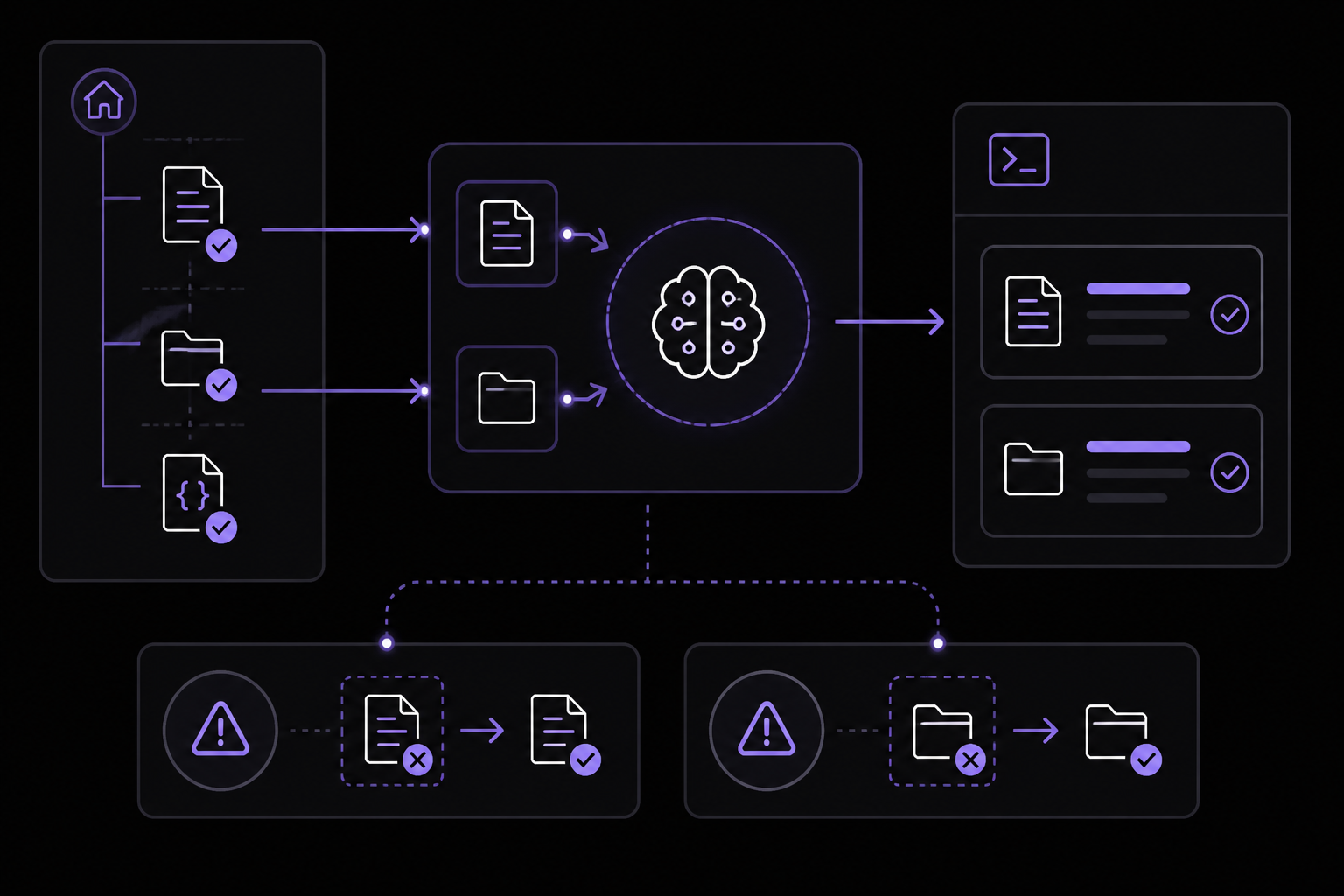
Symptom: /status does not show the CLAUDE.md file in "Memory sources".
Cause: The file might not be in the project root, or it might have an incorrect name. The file must be named exactly CLAUDE.md (case-sensitive) and placed in the project root directory.
Fix: Verify the file exists at the root of your git repository. Run ls CLAUDE.md from the project root. If it is missing, create it as described in Step 1.
Settings file not recognized
Symptom: /status does not show .claude/settings.json in "Setting sources".
Cause: The file might have invalid JSON. The documentation states: "User, project, and local settings files remain strict: a file that fails validation is rejected as a whole and reported."
Fix: Validate your JSON using a linter or by running claude doctor. The claude doctor command lists invalid entries with their source and field. Fix any syntax errors.
Hooks not executing
Symptom: Hooks defined in settings do not run.
Cause: The hook matcher pattern might not match the files being edited, or the hook command might have an error.
Fix: Check the hook configuration. Ensure the matcher pattern is correct. Test the hook command manually in your terminal. Also check that disableAllHooks is not set to true in any settings scope. The documentation notes: "disableAllHooks Disable all hooks."
Permission rules not enforced
Symptom: Denied commands or file reads are allowed.
Cause: The permission rules might be in the wrong scope, or the rules might be incorrectly formatted. Permission rules merge across scopes, so a rule in user settings might override a project-level deny.
Fix: Check the priority order: managed (highest), command line arguments, local, project, user (lowest). If a user setting allows a command that a project setting denies, the project setting wins. However, if a local setting allows it, the local setting wins over project. Use /status to see which settings are active. If you need to enforce a deny across the organization, use managed settings with allowManagedPermissionRulesOnly: true.
CI integration fails
Symptom: The CI pipeline fails when running Claude Code.
Cause: The ANTHROPIC_API_KEY might not be set, or the installation command might fail.
Fix: Ensure the ANTHROPIC_API_KEY secret is configured in your CI environment. For GitHub Actions, add it as a repository secret. For GitLab CI/CD, add it as a CI/CD variable. Also verify that the installation command works in your CI environment. The native install script requires curl and bash to be available.
HTTP hooks blocked
Symptom: HTTP hooks do not execute and show an error.
Cause: The hook URL is not in the allowedHttpHookUrls allowlist.
Fix: Add the URL pattern to allowedHttpHookUrls in your settings. The documentation says: "When set, hooks with non-matching URLs are blocked. Undefined = no restrictions, empty array = block all HTTP hooks." Ensure the pattern uses * as a wildcard correctly.
Managed settings not applied
Symptom: Managed settings are not taking effect.
Cause: The managed settings file might be in the wrong location, or the file might have invalid entries. The documentation notes: "Managed settings parse tolerantly. When a managed configuration contains an entry that fails schema validation, Claude Code strips that entry, records a warning, and enforces every remaining valid policy."
Fix: Run claude doctor to list stripped entries with their source and field. Check that the file is in the correct system directory:
- macOS:
/Library/Application Support/ClaudeCode/ - Linux and WSL:
/etc/claude-code/ - Windows:
C:\Program Files\ClaudeCode\
The legacy Windows path C:\ProgramData\ClaudeCode\managed-settings.json is no longer supported as of v2.1.75. If you deployed settings to that location, migrate files to C:\Program Files\ClaudeCode\managed-settings.json.
Next Steps
-
Create skills for repeatable workflows: Package common tasks like
/review-pror/deploy-stagingas skills that your team can share. Skills are defined in your settings and can include custom prompts and tool restrictions. -
Set up auto memory: Enable auto memory so Claude Code saves learnings across sessions. This helps the tool remember build commands, debugging insights, and project-specific conventions without manual CLAUDE.md updates.
-
Explore MCP servers: Connect Claude Code to external tools using the Model Context Protocol. For example, connect to Jira, Slack, or Google Drive to give Claude access to your team's documentation and issue trackers.
-
Configure remote control and channels: Allow team members to continue sessions from their phones or receive push notifications when long tasks finish. Set up channels to route events from Telegram, Discord, or iMessage into Claude Code sessions.
The #1 Claude Newsletter
The most important claude updates, guides, and fixes — one weekly email.
No spam, unsubscribe anytime. Privacy policy
Related Tutorials
Keep exploring Claude
Claude resources
Latest AI answers
Skip the manual work
Ready-made AI workflows and automation templates — import and run instead of building from scratch.