Automate code review with Claude Code and GitHub Actions
Prerequisites
- ✓ GitHub account with admin access to a repository
- ✓ Claude subscription (Pro, Max, Team, Enterprise) or Anthropic Console account
- ✓ Git installed locally
- ✓ Terminal or command prompt
- ✓ A code project to work with
- ✓ Basic familiarity with YAML and GitHub Actions
You will build a GitHub Actions workflow that runs Claude Code to automatically review pull requests, triage issues, and enforce code quality standards across your repository. This tutorial takes about 30 minutes to complete, including installation, workflow setup, and verification.
Prerequisites
- A GitHub account with admin access to a repository (public or private)
- A Claude subscription (Pro, Max, Team, or Enterprise) or an Anthropic Console account with pre-paid credits
- Git installed on your local machine (Git for Windows recommended on native Windows)
- A terminal or command prompt open
- A code project to work with (any language or framework)
- Basic familiarity with YAML syntax and GitHub Actions concepts
Step 1: Install Claude Code on your local machine
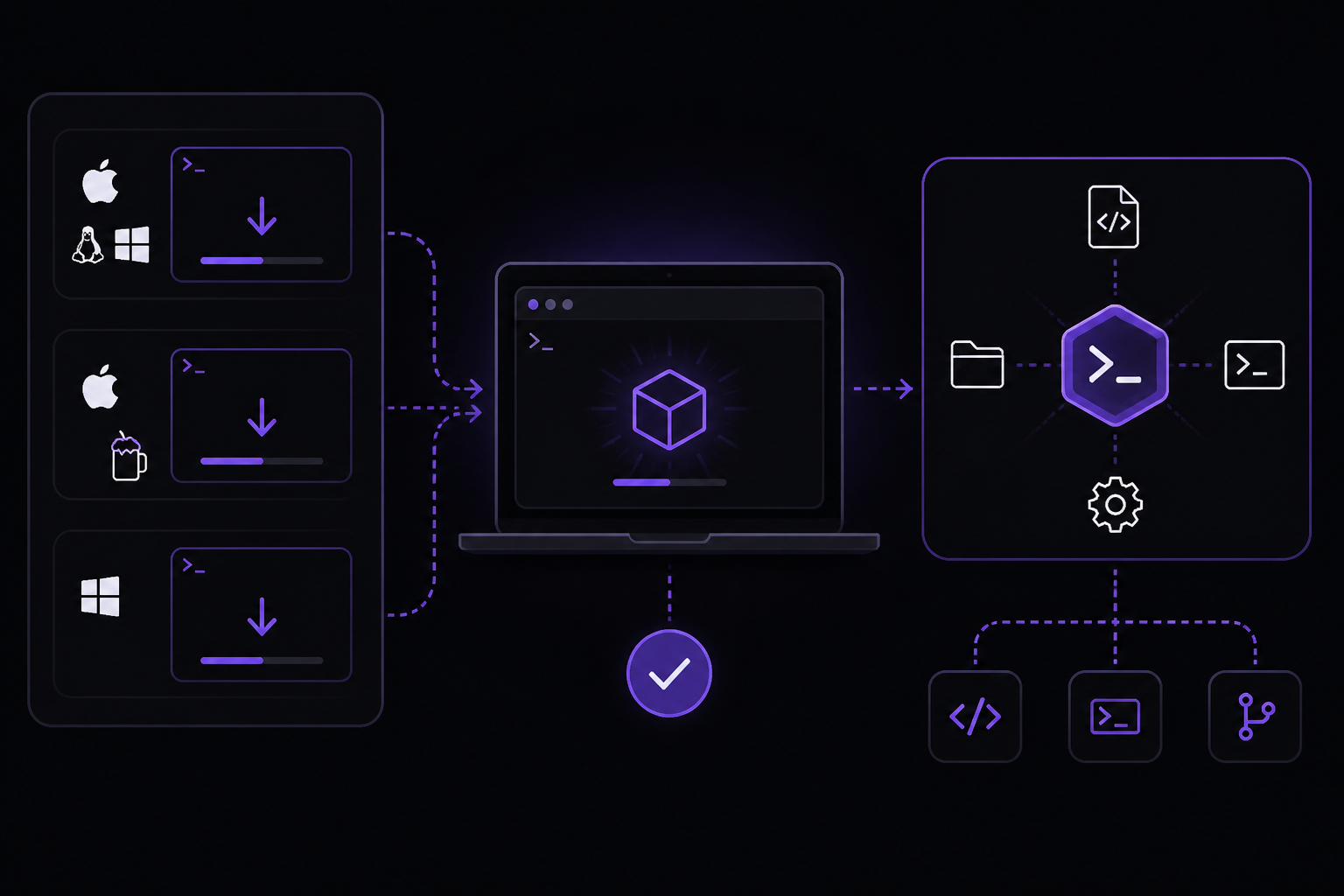
Claude Code is an agentic coding tool that reads your codebase, edits files, runs commands, and integrates with your development tools. You need it installed locally to test your workflow before pushing to CI, and to authenticate your account.
Choose one of the following installation methods based on your operating system.
macOS, Linux, or WSL (native install, recommended)
Open your terminal and run:
curl -fsSL https://claude.ai/install.sh | bash
This installs the latest stable version of Claude Code. Native installations automatically update in the background to keep you on the latest version.
macOS with Homebrew
brew install --cask claude-code
Homebrew offers two casks. claude-code tracks the stable release channel, which is typically about a week behind and skips releases with major regressions. claude-code@latest tracks the latest channel and receives new versions as soon as they ship. Homebrew installations do not auto-update. Run brew upgrade claude-code or brew upgrade claude-code@latest periodically to get the latest features and security fixes.
Windows with WinGet
winget install Anthropic.ClaudeCode
WinGet installations do not auto-update. Run winget upgrade Anthropic.ClaudeCode periodically to get the latest features and security fixes.
Windows with PowerShell or CMD
If you prefer the native install script on Windows, use the appropriate command for your shell.
PowerShell:
irm https://claude.ai/install.ps1 | iex
CMD:
curl -fsSL https://claude.ai/install.cmd -o install.cmd && install.cmd && del install.cmd
If you see The token '&&' is not a valid statement separator, you are in PowerShell, not CMD. If you see 'irm' is not recognized as an internal or external command, you are in CMD, not PowerShell. Your prompt shows PS C:\ when you are in PowerShell and C:\ without the PS when you are in CMD. If the install command fails with syntax error near unexpected token ', refer to the installation troubleshooting guide to match the error to a fix and for alternative install methods.
Git for Windows is recommended on native Windows so Claude Code can use the Bash tool. If Git for Windows is not installed, Claude Code uses PowerShell as the shell tool instead. WSL setups do not need Git for Windows.
Linux package managers (apt, dnf, apk)
You can also install with apt, dnf, or apk on Debian, Fedora, RHEL, and Alpine. Refer to the advanced setup documentation for the specific commands.
Verify the installation
Run the following command to confirm Claude Code installed correctly:
claude --version
The command prints a version number followed by (Claude Code). If you see an error, revisit the installation steps or check the troubleshooting guide.
Step 2: Log in to your Claude account
Claude Code requires an account to use. Start an interactive session with the claude command and you will be prompted to log in on first use:
claude
For Claude subscription or Console accounts, follow the prompts to complete authentication in your browser. Once logged in, your credentials are stored on your system and you will not need to log in again.
You can log in using any of these account types:
- Claude Pro, Max, Team, or Enterprise (recommended)
- Claude Console (API access with pre-paid credits). On first login, a "Claude Code" workspace is automatically created in the Console for centralized cost tracking.
- Amazon Bedrock, Google Cloud's Agent Platform, or Microsoft Foundry (enterprise cloud providers)
- A self-hosted Claude apps gateway, if your organization runs one: your admin pre-configures the gateway URL, and
/loginopens directly on the Cloud gateway screen for you to sign in with corporate SSO
To switch accounts later or re-authenticate, type /login inside the running session:
/login
After logging in, type /exit or press Ctrl+D twice to exit the session.
Step 3: Create a GitHub Actions workflow file
Now you will create a GitHub Actions workflow that runs Claude Code on every pull request. The workflow will review the code changes, check for issues, and post a comment with the review results.
In your repository, create the file .github/workflows/claude-code-review.yml. You can do this through the GitHub web interface, or locally with:
mkdir -p .github/workflows
Open the file in your editor and add the following content:
name: Claude Code Review

on:
  pull_request:
    types: [opened, synchronize, reopened]
  issues:
    types: [opened]

jobs:
  review:
    runs-on: ubuntu-latest
    permissions:
      contents: read
      pull-requests: write
      issues: write
    steps:
      - uses: actions/checkout@v4
        with:
          fetch-depth: 0

      - name: Install Claude Code
        run: |
          curl -fsSL https://claude.ai/install.sh | bash

      - name: Run code review on PR
        if: github.event_name == 'pull_request'
        env:
          ANTHROPIC_API_KEY: ${{ secrets.ANTHROPIC_API_KEY }}
        run: |
          git fetch origin ${{ github.base_ref }} --depth=1
          changed_files=$(git diff --name-only origin/${{ github.base_ref }}...HEAD)
          echo "Changed files:"
          echo "$changed_files"
          echo "$changed_files" | claude -p "Review these changed files for bugs, security issues, and code quality problems. Provide a concise summary with specific file:line references for each issue found. If the code looks good, say so." --print

      - name: Post review comment
        if: github.event_name == 'pull_request'
        uses: actions/github-script@v7
        with:
          script: |
            const fs = require('fs');
            const review = fs.readFileSync('review_output.txt', 'utf8');
            github.rest.issues.createComment({
              issue_number: context.issue.number,
              owner: context.repo.owner,
              repo: context.repo.repo,
              body: `## Claude Code Review\n\n${review}`
            });

      - name: Triage issue
        if: github.event_name == 'issues'
        env:
          ANTHROPIC_API_KEY: ${{ secrets.ANTHROPIC_API_KEY }}
        run: |
          issue_body="${{ github.event.issue.body }}"
          echo "$issue_body" | claude -p "Analyze this issue report. Suggest a root cause, potential fix, and any additional information needed. Provide a response suitable for posting as a comment." --print > triage_output.txt

      - name: Post triage comment
        if: github.event_name == 'issues'
        uses: actions/github-script@v7
        with:
          script: |
            const fs = require('fs');
            const triage = fs.readFileSync('triage_output.txt', 'utf8');
            github.rest.issues.createComment({
              issue_number: context.issue.number,
              owner: context.repo.owner,
              repo: context.repo.repo,
              body: `## Claude Code Triage\n\n${triage}`
            });
This workflow does the following:
- Triggers on pull request events (opened, synchronized, reopened) and issue creation
- Checks out the full git history with
fetch-depth: 0so Claude can see the diff - Installs Claude Code using the native install script
- For pull requests: gets the list of changed files, pipes them into Claude Code with a review prompt, and posts the result as a comment
- For issues: pipes the issue body into Claude Code for triage and posts the analysis as a comment
Why fetch-depth: 0?
The actions/checkout action defaults to a shallow clone with only the latest commit. Setting fetch-depth: 0 ensures Claude Code has access to the full git history, which is necessary for comparing branches and understanding the context of changes.
Step 4: Add your Anthropic API key as a GitHub secret
For Claude Code to run in GitHub Actions, it needs an API key. The workflow references secrets.ANTHROPIC_API_KEY.
- Go to your Anthropic Console (console.anthropic.com) and create an API key with the appropriate permissions. If you are using a Claude subscription, you can generate an API key from your account settings.
- In your GitHub repository, navigate to Settings > Secrets and variables > Actions.
- Click New repository secret.
- Name it
ANTHROPIC_API_KEYand paste your API key value. - Click Add secret.
If you are using a Claude Console account, a "Claude Code" workspace is automatically created on first login for centralized cost tracking. Make sure your API key is associated with that workspace or has the necessary permissions.
Step 5: Commit and push the workflow file
Commit the workflow file to your repository and push it to the default branch (usually main or master):
git add .github/workflows/claude-code-review.yml
git commit -m "Add Claude Code review workflow"
git push origin main
Step 6: Test the workflow with a pull request
Create a new branch, make a change, and open a pull request to trigger the workflow.
git checkout -b test-claude-review
# Make a simple change, e.g., add a comment or a small function
echo "// Test change for Claude review" >> README.md
git add README.md
git commit -m "Test Claude Code review"
git push origin test-claude-review
Then open a pull request on GitHub from test-claude-review to main. Within a few seconds, the workflow should start. You can watch its progress under the Actions tab of your repository.
Step 7: Test the workflow with an issue
Create a new issue in your repository with a descriptive title and body. For example:
Title: Login page shows blank screen on wrong credentials Body: When I enter incorrect credentials on the login page, the page goes blank instead of showing an error message. This happens in Chrome 120 on Windows 11.
After you submit the issue, the workflow triggers and Claude Code analyzes the report. It posts a comment with a suggested root cause, potential fix, and any additional information needed.
Verifying It Works
After the workflow completes, check the following:
-
Pull request comment: On the pull request page, you should see a comment from
github-actionswith the heading "## Claude Code Review" followed by Claude's analysis of the changed files. The analysis should include specific file:line references for any issues found, or a statement that the code looks good. -
Issue comment: On the issue page, you should see a comment from
github-actionswith the heading "## Claude Code Triage" containing Claude's root cause analysis and suggested next steps. -
Workflow logs: Go to the Actions tab, click on the workflow run, and expand each step to see the output. The "Run code review on PR" step should show the list of changed files and Claude's review text.
-
Local test: You can also test the review prompt locally by running:
git diff main --name-only | claude -p "Review these changed files for bugs, security issues, and code quality problems. Provide a concise summary with specific file:line references for each issue found. If the code looks good, say so." --print
This should produce a similar review in your terminal.
Common Problems
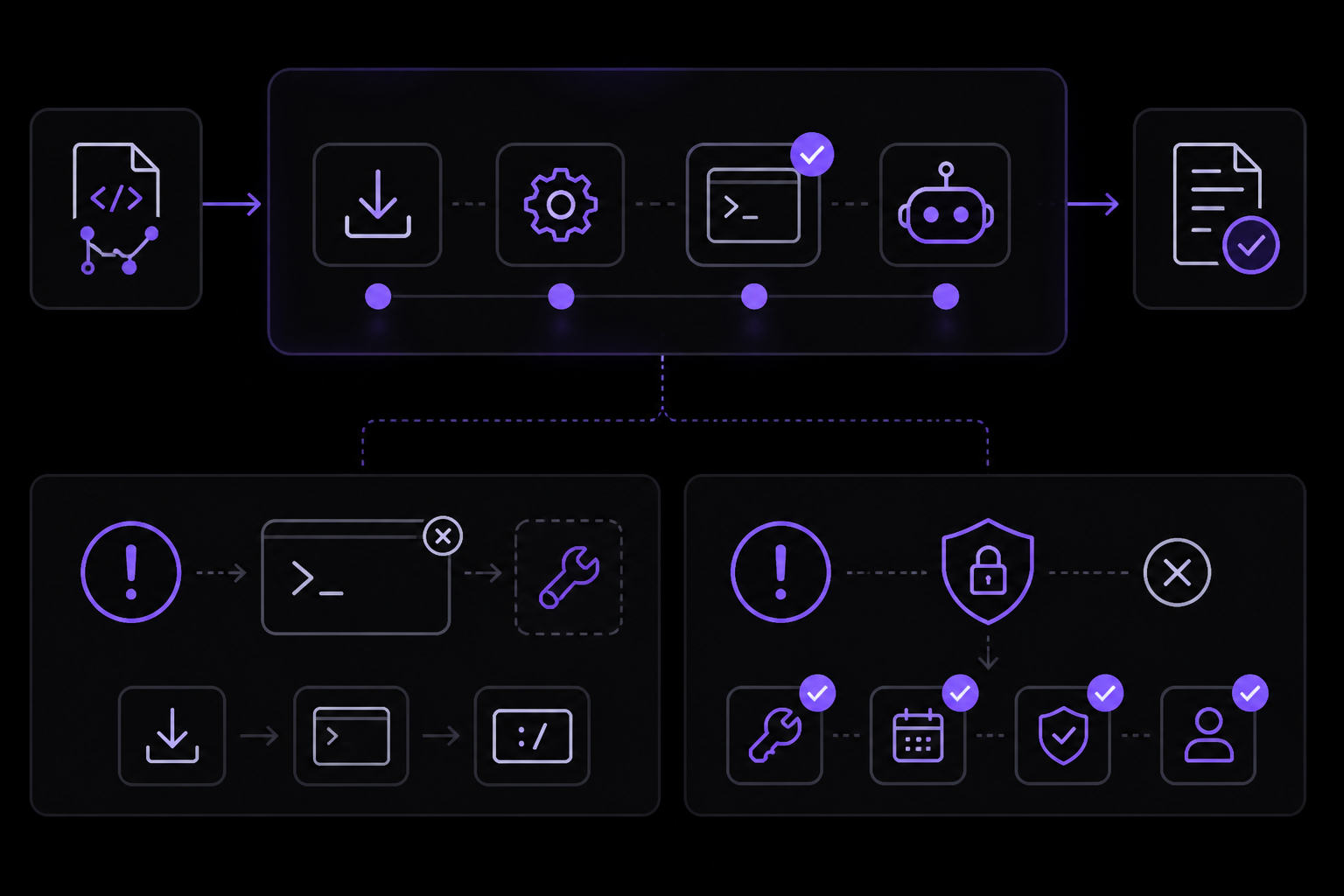
Workflow fails with "claude: command not found"
The install script may not have added Claude Code to the PATH in the GitHub Actions runner. Make sure the install step runs before the review step. If the issue persists, add the Claude Code binary location to the PATH explicitly:
- name: Install Claude Code
  run: |
    curl -fsSL https://claude.ai/install.sh | bash
    echo "$HOME/.claude/bin" >> $GITHUB_PATH
API key not recognized
If you see authentication errors, verify that:
- The secret name in GitHub matches exactly
ANTHROPIC_API_KEY(case-sensitive) - The API key is valid and not expired
- The API key has the necessary permissions for Claude Code
- If using a Claude Console account, the key is associated with the correct workspace
Workflow does not trigger on pull requests
Check that the workflow file is in the default branch (main/master) and that the on.pull_request event is correctly configured. The workflow triggers on opened, synchronize (new commits pushed), and reopened events. If you want to trigger on draft PRs, add types: [opened, synchronize, reopened, ready_for_review].
Review output is empty or truncated
Claude Code may produce a very long review that exceeds GitHub's comment length limit (65536 characters). To handle this, you can truncate the output or split it into multiple comments. A community-reported workaround is to pipe the output through head -c 60000 before writing to the file:
- name: Run code review on PR
  env:
    ANTHROPIC_API_KEY: ${{ secrets.ANTHROPIC_API_KEY }}
  run: |
    git fetch origin ${{ github.base_ref }} --depth=1
    changed_files=$(git diff --name-only origin/${{ github.base_ref }}...HEAD)
    echo "$changed_files" | claude -p "Review these changed files for bugs, security issues, and code quality problems. Provide a concise summary with specific file:line references for each issue found. If the code looks good, say so." --print | head -c 60000 > review_output.txt
Claude Code asks for approval in CI
By default, Claude Code asks for approval before making changes. In CI, you want it to run without interactive prompts. The --print flag in the workflow ensures Claude Code outputs the review text directly to stdout without requiring approval. If you need Claude to actually edit files in CI (for example, auto-fixing lint errors), you need to set the permission mode to acceptEdits using the --mode flag:
claude -p "fix lint errors in these files" --mode acceptEdits --print
This is a community-reported approach. Test it carefully in a non-production branch first.
Git for Windows not found on native Windows runners
If you are using a Windows GitHub Actions runner, the workflow may fail if Git for Windows is not installed. The official documentation recommends Git for Windows on native Windows so Claude Code can use the Bash tool. If Git for Windows is not installed, Claude Code uses PowerShell as the shell tool instead. WSL setups do not need Git for Windows. To ensure compatibility, use ubuntu-latest as the runner, which is the recommended approach for this workflow.
Next Steps
-
Customize the review prompt: Modify the
-pargument to enforce your team's coding standards, check for specific security patterns, or require certain test coverage. You can also create aCLAUDE.mdfile in your repository root with persistent instructions that Claude Code reads at the start of every session. -
Add automated fixes: Extend the workflow to let Claude Code auto-fix lint errors or apply suggested changes. Use the
--mode acceptEditsflag and have Claude commit the fixes directly to the PR branch. Be sure to add appropriate permissions and safety checks. -
Integrate with Slack or other tools: Use the Model Context Protocol (MCP) to connect Claude Code to your team's communication tools. You can route bug reports from Slack to pull requests, or send review summaries to a dedicated channel.
-
Schedule recurring reviews: Use GitHub Actions scheduled triggers (
on.schedule) to run Claude Code on a regular basis for tasks like weekly dependency audits, security scans, or codebase health reports. You can also use Claude Code's Routines feature for recurring tasks that run on Anthropic-managed infrastructure.
The #1 Claude Newsletter
The most important claude updates, guides, and fixes — one weekly email.
No spam, unsubscribe anytime. Privacy policy
Related Tutorials
Keep exploring Claude
Claude resources
Latest AI answers
Skip the manual work
Ready-made AI workflows and automation templates — import and run instead of building from scratch.