Fix Anthropic API 400 Error: Tool Use Concurrency Issues in Claude Code
Error message
API Error: 400 due to tool use concurrency issues. Run /rewind to recover the conversation. - [Bug] Anthropic API Error: Unexpected 400 Bad Request Response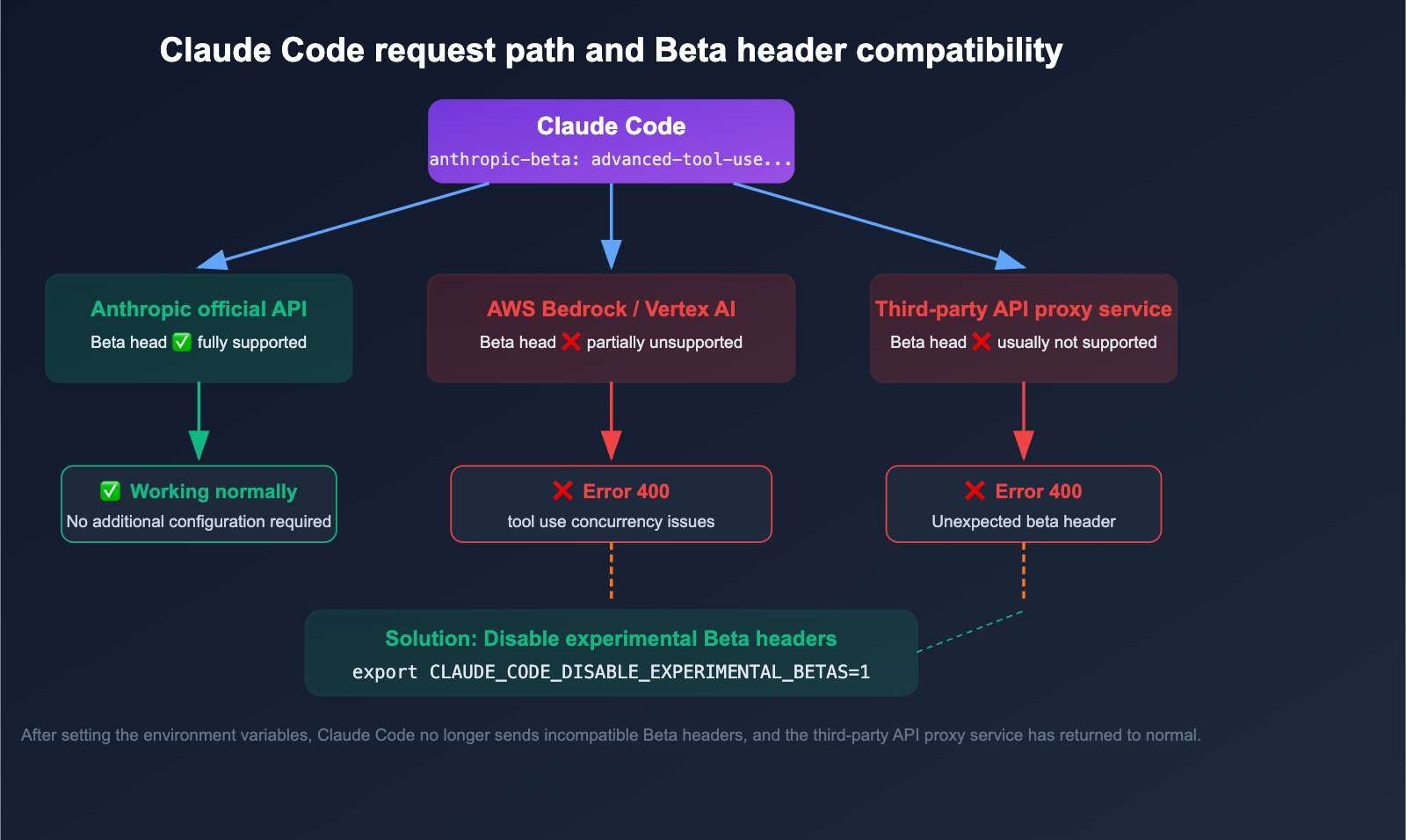
This error occurs when Claude Code encounters a 400 Bad Request response from the Anthropic API, typically due to tool use concurrency issues or malformed JSON in tool inputs. The most common cause is the API receiving invalid or incomplete tool call data, often triggered by rapid parallel tool invocations or corrupted conversation state. The exact error message appears as "Unexpected 400 Bad Request Response" in the API logs, accompanied by JSON parsing errors like SyntaxError: Unexpected token '/' or Error: Error normalizing tool input with "received": "undefined" for required fields like file_path and content.
What Causes This Error
Tool Input Normalization Failures
The most frequently reported cause, documented in the GitHub issue (Source 2), is the API rejecting tool calls because the tool input object is missing required fields. The error log shows:
{
  "code": "invalid_type",
  "expected": "string",
  "received": "undefined",
  "path": ["file_path"],
  "message": "Required"
}
This happens when Claude Code attempts to use a tool (like a file editing tool) but the tool input does not contain the expected file_path or content strings. According to the bug report, this occurs during concurrent tool use sessions where multiple tool calls are made in rapid succession, and some tool inputs are not fully populated before being sent to the API.
JSON Parsing Errors in Conversation State
The GitHub issue (Source 2) also reports SyntaxError: Unexpected token '/' and SyntaxError: Unterminated string in JSON errors. These indicate that the conversation history file or the API request payload contains malformed JSON. The error Unexpected token '/' suggests a file path string (like /Users/ale...) is being parsed as JSON, which happens when the conversation state serialization fails and a raw file path leaks into the JSON structure. The Unterminated string in JSON at position 1697 error points to a truncated or corrupted JSON string, often from a previous incomplete write operation.
Concurrency Race Conditions
While the official documentation (Source 1) does not explicitly mention concurrency limits, the GitHub issue (Source 2) strongly correlates the 400 error with tool use concurrency. When Claude Code spawns multiple agents or makes parallel tool calls (as described in the "Run agent teams" section of Source 1), the API may receive overlapping requests that create race conditions in tool input validation. The error logs show multiple errors occurring within minutes of each other, suggesting a burst of concurrent tool activity overwhelms the input validation.
Corrupted Session State
The GitHub issue (Source 2) shows the error occurring after a session has been running for some time (timestamps span from 00:35 to 02:42). This pattern suggests that the session state accumulates corruption over time, especially when the Language not supported while highlighting code warning appears. This warning indicates that Claude Code's syntax highlighter encountered an unsupported language identifier, which may cause the tool output to be malformed when fed back into the API.
Node.js Version or CLI Installation Issues
The error stack traces in Source 2 reference Node.js v20.19.4 installed via nvm. While not definitively a cause, the official documentation (Source 1) recommends native installation methods (curl/irm scripts) over npm-based installations. The GitHub issue reporter used @anthropic-ai/claude-code from npm, which may have different update behavior or dependency resolution compared to the native install.
How to Fix It
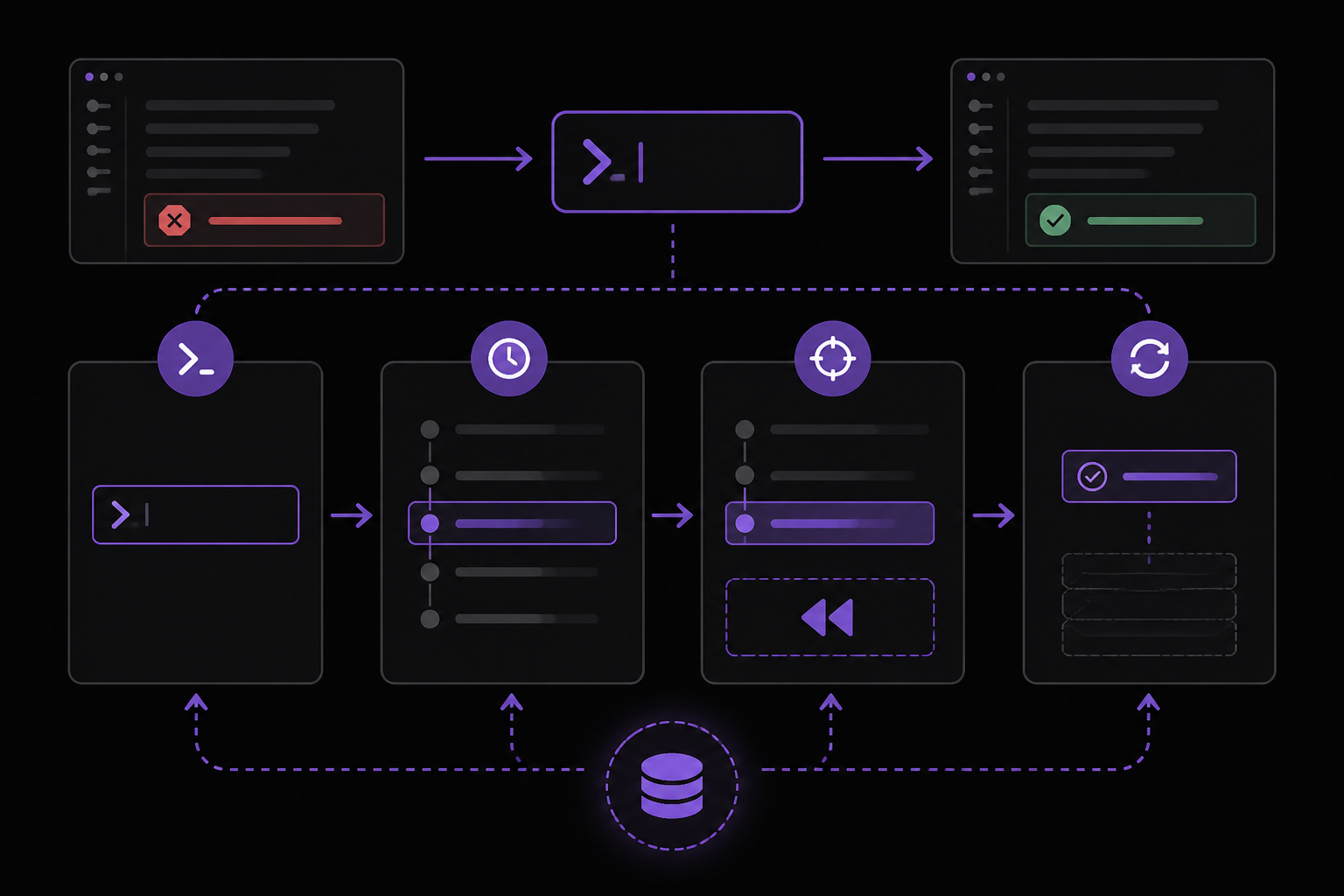
Solution 1: Run /rewind to Recover Conversation State
This is the primary fix recommended in the GitHub issue (Source 2) title itself. The /rewind command restores the conversation to a previous checkpoint, discarding the corrupted state that caused the 400 error.
Steps:
- When you see the 400 error in Claude Code, type
/rewindat the prompt and press Enter. - Claude Code will show you a list of recent conversation checkpoints with timestamps.
- Select a checkpoint from before the error started occurring (usually the most recent stable one before the first error timestamp).
- Confirm the rewind. The session will reload from that checkpoint.
- Retry the operation that caused the error.
What to expect: The /rewind command discards the corrupted JSON state and restores a clean conversation history. After rewinding, tool calls should serialize correctly. If the error persists, you may need to rewind further back.
Solution 2: Restart Claude Code Session
If /rewind does not resolve the issue, a full session restart clears all in-memory state and forces a fresh API connection.
Steps:
- Exit Claude Code by typing
/exitor pressing Ctrl+C/Cmd+C. - Verify the process has terminated:
ps aux | grep claude(should show no running Claude Code processes). - Restart Claude Code in your project directory:
cd your-project && claude - If you were using a specific task or context, you may need to re-describe your goal.
Why this works: A full restart clears any corrupted conversation state that persists across /rewind attempts. The official documentation (Source 1) notes that Claude Code reads CLAUDE.md at the start of every session, so your project instructions will be reloaded fresh.
Solution 3: Reinstall Claude Code Using Native Method
The GitHub issue (Source 2) reporter used an npm-based installation (@anthropic-ai/claude-code). The official documentation (Source 1) recommends native installation methods for better stability and automatic updates.
For macOS, Linux, or WSL:
curl -fsSL https://claude.ai/install.sh | bash
For Windows PowerShell:
irm https://claude.ai/install.ps1 | iex
For Windows CMD:
curl -fsSL https://claude.ai/install.cmd -o install.cmd && install.cmd && del install.cmd
Important: Ensure you are in the correct shell. The official documentation (Source 1) warns: "If you see The token '&&' is not a valid statement separator, you're in PowerShell, not CMD. If you see 'irm' is not recognized as an internal or external command, you're in CMD, not PowerShell." Your prompt shows PS C:\ when in PowerShell and C:\ without PS when in CMD.
After reinstallation: Native installations auto-update in the background. Verify the version: claude --version. Then restart your session.
Solution 4: Reduce Tool Use Concurrency
If the error occurs during multi-agent or parallel task execution, reducing concurrency can prevent race conditions in tool input validation.
Steps:
- Avoid spawning multiple background agents simultaneously. The official documentation (Source 1) describes agent teams where a lead agent coordinates work. Use this pattern instead of launching independent parallel sessions.
- If using
/loopfor quick polling (Source 1), increase the delay between iterations to reduce API call frequency. - For scheduled tasks (Source 1), stagger their start times to avoid overlapping API calls.
- If using the CLI with piped input (e.g.,
tail -200 app.log | claude -p "..."), process input in smaller batches.
Why this works: The GitHub issue (Source 2) shows multiple errors occurring within minutes, suggesting that concurrent tool calls overload the input validation pipeline. Serializing tool use reduces the chance of incomplete tool inputs being sent to the API.
Solution 5: Clear Corrupted Session Cache
The JSON parsing errors in Source 2 indicate that the session cache file may be corrupted. Clearing it forces Claude Code to rebuild the conversation state.
Steps:
- Locate the Claude Code cache directory. On macOS/Linux, it is typically
~/.claude/or~/.config/claude/. On Windows, it is%APPDATA%\Claude\. - Exit Claude Code completely.
- Back up the cache directory:
cp -r ~/.claude ~/.claude.backup - Delete the cache directory:
rm -rf ~/.claude - Restart Claude Code. It will recreate the cache with a clean state.
Caveat: This will clear all session history and saved memories. The official documentation (Source 1) mentions that Claude Code builds "auto memory" across sessions. You will lose that accumulated context.
Solution 6: Update Node.js (If Using npm Installation)
If you must use the npm installation method (not recommended by Source 1), ensure your Node.js version is compatible.
Steps:
- Check your Node.js version:
node --version - The GitHub issue (Source 2) shows v20.19.4. If you are on an older version (below 18.x), update:
nvm install --lts(if using nvm) or download from nodejs.org. - Reinstall Claude Code:
npm uninstall -g @anthropic-ai/claude-code && npm install -g @anthropic-ai/claude-code
Note: The official documentation (Source 1) does not specify a minimum Node.js version for npm installations. This fix is community-reported from the GitHub issue analysis.
Solution 7: Check for Language Identifier Issues in Code Highlighting
The error log in Source 2 includes Error: Language not supported while highlighting code, falling back to markdown. This warning may precede the 400 error if the unsupported language causes malformed tool output.
Steps:
- Review your conversation for any code blocks with uncommon or misspelled language identifiers (e.g.,
pythonn` instead ofpython`). - If you see such blocks, edit them to use standard language tags (javascript, python, bash, json, etc.).
- Run
/rewindto a point before the unsupported language was introduced. - If the error persists, the issue may be in Claude Code's internal tool output. Restart the session (Solution 2).
If Nothing Works
Escalate to Anthropic Support
If none of the above solutions resolve the 400 error, report the issue through official channels:
- Feedback ID: The GitHub issue (Source 2) includes a feedback ID (
21c957ff-1170-4fc2-9688-db8454c622bf). When contacting support, include your own feedback ID, which you can find by running/feedbackin Claude Code or checking the error logs. - GitHub Issues: File a new issue at https://github.com/anthropics/claude-code/issues with your error logs, platform info (macOS/Windows/Linux), terminal type, and Claude Code version.
- Anthropic Console: If you have an Anthropic Console account, check the API logs at console.anthropic.com for the exact 400 response body, which may contain more details than the CLI error.
Workarounds
- Use the Web or Desktop App: The official documentation (Source 1) states that Claude Code runs on multiple surfaces. If the CLI is producing persistent 400 errors, try the web version at claude.ai/code or the desktop app. These surfaces may handle concurrency differently.
- Use Teleport: If you started a task on the web or mobile app, you can pull it into the terminal with
claude --teleport(requires claude.ai subscription per Source 1). This may bypass the corrupted local state. - Simplify the Task: Break your request into smaller, sequential steps. Instead of "write tests for the auth module, run them, and fix any failures," do each step separately. This reduces the number of concurrent tool calls.
How to Prevent It
Use Native Installation
The official documentation (Source 1) recommends native installation (curl/irm scripts) over Homebrew, WinGet, or npm. Native installations auto-update and are less likely to have dependency conflicts that cause JSON parsing issues.
Keep Claude Code Updated
- Native install: Updates happen automatically in the background.
- Homebrew: Run
brew upgrade claude-codeorbrew upgrade claude-code@latestperiodically (Source 1). - WinGet: Run
winget upgrade Anthropic.ClaudeCodeperiodically (Source 1). - npm: Run
npm update -g @anthropic-ai/claude-code(not recommended by Source 1).
Use CLAUDE.md for Consistent Context
The official documentation (Source 1) recommends adding a CLAUDE.md file to your project root. This file sets coding standards, architecture decisions, and preferred libraries. When Claude Code reads this file at the start of every session, it reduces the need for repeated tool calls that might trigger concurrency issues.
Avoid Rapid Parallel Tool Calls
When using agent teams (Source 1), let the lead agent coordinate subtasks rather than launching all agents simultaneously. The lead agent pattern assigns work sequentially or in controlled batches, reducing the chance of race conditions in tool input validation.
Monitor Error Logs Proactively
If you see the Language not supported while highlighting code warning (Source 2), address it immediately by correcting language identifiers in your prompts or code blocks. This warning often precedes more serious JSON parsing errors.
Use /rewind Regularly
Make /rewind part of your workflow when you notice unusual behavior. The GitHub issue (Source 2) title explicitly recommends this command for recovery. Running it preemptively after a large batch of tool calls can clear accumulated state before it becomes corrupted.
Schedule Tasks with Staggered Timing
If using scheduled tasks or routines (Source 1), avoid scheduling them to run at the same time. Stagger start times by at least 5-10 minutes to prevent overlapping API calls that could trigger the 400 error.
Verify Shell Environment
On Windows, ensure you are using the correct shell. The official documentation (Source 1) notes that Git for Windows is recommended so Claude Code can use the Bash tool. If Git for Windows is not installed, Claude Code falls back to PowerShell, which may handle JSON serialization differently. Install Git for Windows from https://gitforwindows.org/ and restart Claude Code.
The #1 Claude Newsletter
The most important claude updates, guides, and fixes — one weekly email.
No spam, unsubscribe anytime. Privacy policy
Related Error Solutions
Keep exploring Claude
Claude resources
Latest AI answers
Skip the manual work
Ready-made AI workflows and automation templates — import and run instead of building from scratch.