Fix AskUserQuestion "No response after 60s" timeout in Claude Code
Error message
[BUG] AskUserQuestion: "No response after 60s — continued without an answer"
The error "No response after 60s, continued without an answer" appears when Claude Code's AskUserQuestion tool receives no response within 60 seconds. The tool then auto-returns a message telling the model to "proceed using your best judgment based on the context so far." This behavior was introduced silently in Claude Code version 2.1.198 and is a consent regression: the safety gate that should wait indefinitely for human input now expires and lets the agent continue without approval.
What Causes This Error
A hardcoded 60-second timeout on AskUserQuestion
According to the GitHub issue discussion (Source 2), the AskUserQuestion tool has a built-in 60-second timeout. When no selection arrives within that window, the tool returns this verbatim message:
No response after 60s, the user may be away from keyboard. Proceed using your best judgment based on the context so far; you can re-ask this question later if it's still relevant.
The user who reported the bug (Source 2) confirmed by asking Claude directly: the tool schema has no timeout parameter, no "60s" field, and nothing about response timing. The timeout is hardcoded into the Claude Code CLI binary and cannot be controlled through the tool's own parameters.
The timeout was introduced silently
As documented in Source 3, this behavior shipped in Claude Code version 2.1.198 without any changelog entry, release note, or announcement. The user who reported the regression (Source 2) stated it worked in version 2.1.196 and broke in 2.1.198. The official changelog at https://code.claude.com/docs/en/changelog contained no mention of this change.
The timeout defeats the purpose of AskUserQuestion
The community commenter (Source 3) explains the core problem: "AskUserQuestion exists for exactly one reason: to stop the agent and get a human decision. Someone decided the consent gate should answer itself after 60 seconds and tell the model the user 'may be away from keyboard, proceed using your best judgment.' That is not a feature. That is the safety mechanism being quietly rewired to defeat its own purpose."
Every confirmation prompt is now a suggestion
Because the timeout applies to all AskUserQuestion calls, every confirmation prompt (plan approvals, commit confirmations, destructive-action gates) silently expires after 60 seconds. The model then proceeds on its own. Community members in the GitHub thread (Source 3) reported the agent starting code changes they never approved.
The official documentation contradicts the behavior
Source 3 points out that the SDK documentation states interactive input waits indefinitely, while the CLI times out at 60 seconds. This is a documented inconsistency between the SDK and the CLI behavior.
The timeout is too short for complex questions
Source 3 argues that 60 seconds is insufficient: "Reading a three-part architectural question and actually thinking about it takes longer than a minute. This times out people who are at the keyboard, thinking." The feature's own premise is wrong because it penalizes users who are actively engaged but need time to consider a complex question.
The environment variable workaround has broken semantics
Source 3 reveals that the only workaround had to be reverse-engineered out of the compiled binary: CLAUDE_AFK_TIMEOUT_MS. This environment variable is undocumented and unannounced. Worse, setting it to 0 means "fire instantly" instead of "off" (infinite timeout). The community discovered this by decompiling the product.
A previous feature request was closed as "not planned"
Source 3 notes that issue #30740 asked for a configurable or disable-able timeout and was closed with the status "not planned." This means the developers had prior awareness that users wanted control over this behavior and chose not to implement it.
How to Fix It
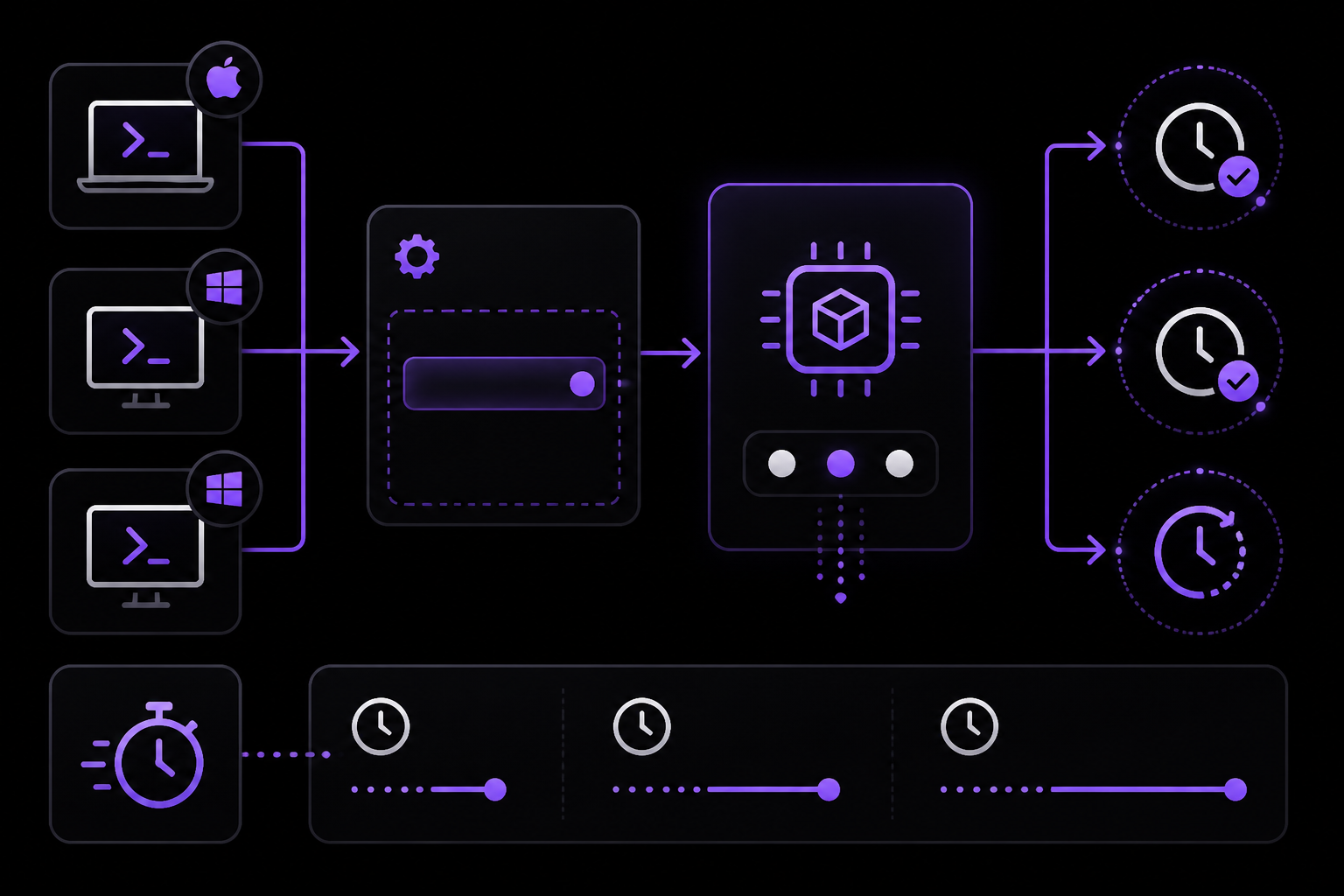
Solution 1: Set the CLAUDE_AFK_TIMEOUT_MS environment variable (community-discovered workaround)
This is the only known workaround to change the timeout duration. It was discovered by the community through reverse-engineering the compiled binary (Source 3).
Step 1: Set the environment variable before starting Claude Code
On macOS and Linux:
export CLAUDE_AFK_TIMEOUT_MS=300000
claude
On Windows (Command Prompt):
set CLAUDE_AFK_TIMEOUT_MS=300000
claude
On Windows (PowerShell):
$env:CLAUDE_AFK_TIMEOUT_MS = "300000"
claude
Step 2: Understand the value you set
The value is in milliseconds. Common values:
300000= 5 minutes (300,000 ms)600000= 10 minutes (600,000 ms)1800000= 30 minutes (1,800,000 ms)3600000= 60 minutes (3,600,000 ms)
Important caveat about the value 0: Source 3 explicitly warns that setting CLAUDE_AFK_TIMEOUT_MS=0 causes the timeout to fire instantly, not to disable it. Do not use 0 expecting infinite timeout. The community has not discovered a value that disables the timeout entirely.
Step 3: Verify the variable is set
Inside Claude Code, you can check that the environment variable is picked up by running:
/env
Look for CLAUDE_AFK_TIMEOUT_MS in the output. If it appears with your value, the workaround is active.
Why this works: The Claude Code CLI binary reads CLAUDE_AFK_TIMEOUT_MS at startup and uses it to override the hardcoded 60-second default. Setting a higher value gives you more time to respond before the tool auto-advances.
Solution 2: Use the askUserQuestionTimeout setting (official, from Claude Code v2.1.200)
According to the official documentation (Source 1), starting from Claude Code version 2.1.200, there is a proper configuration setting called askUserQuestionTimeout. This setting controls the idle time before an unanswered AskUserQuestion dialog auto-continues.
Step 1: Set the timeout via /config
Inside an interactive Claude Code session, run:
/config
This opens the Settings interface. Navigate to the "Question auto-continue timeout" option. The documentation (Source 1) states this appears in /config as "Question auto-continue timeout" and writes the key to user settings.
Step 2: Choose a timeout value
The setting accepts these values:
"never"(default before v2.1.200): Questions wait until you answer them."60s": 60 seconds (the problematic default in v2.1.198 and v2.1.199)"5m": 5 minutes"10m": 10 minutes
Step 3: Set the value directly (from v2.1.181+)
If you are using Claude Code v2.1.181 or later, you can change a single option without opening the interface by passing key=value to /config:
/config askUserQuestionTimeout=5m
Or to restore the indefinite wait:
/config askUserQuestionTimeout=never
Step 4: Edit the settings file directly
You can also set this in your user settings file at ~/.claude/settings.json:
{
  "askUserQuestionTimeout": "5m"
}
Important scope restriction: Source 1 explicitly states that askUserQuestionTimeout is "Not read from project or local settings." It only works from user settings (~/.claude/settings.json) or managed settings. Do not put it in .claude/settings.json or .claude/settings.local.json because it will be ignored.
Why this works: This is the official setting designed to address the problem. It was added in response to the community backlash (the GitHub issue was filed against v2.1.198, and v2.1.200 added the setting). Setting it to "never" restores the pre-v2.1.198 behavior where questions wait indefinitely.
Solution 3: Downgrade to a version before the timeout was introduced
If you cannot use the environment variable workaround (Solution 1) and are on a version before v2.1.200 where askUserQuestionTimeout is not available, you can downgrade to version 2.1.196 or earlier.
Step 1: Find the previous version
Check the Claude Code releases or changelog to identify version 2.1.196 or earlier. The user who reported the bug (Source 2) confirmed that 2.1.196 worked correctly.
Step 2: Install the older version
If you installed via npm:
npm install -g @anthropic-ai/claude-code@2.1.196
If you installed via another method, consult the installation instructions for that method to install a specific version.
Step 3: Pin the version to prevent auto-update
To prevent Claude Code from auto-updating to a version with the timeout, set the autoUpdatesChannel to "stable" or disable auto-updates entirely:
{
  "autoUpdatesChannel": "stable"
}
Or to disable auto-updates entirely, set the environment variable:
export DISABLE_AUTOUPDATER=true
Why this works: Versions before 2.1.198 did not have the hardcoded 60-second timeout. The AskUserQuestion tool waited indefinitely for a response, which is the expected behavior for a consent gate.
Solution 4: Use the SDK instead of the CLI (workaround)
Source 3 notes that the SDK documentation states interactive input waits indefinitely. If you are building an application that uses Claude Code's capabilities, you can use the SDK directly instead of the CLI.
Step 1: Install the SDK
npm install @anthropic-ai/sdk
Step 2: Implement AskUserQuestion with indefinite wait
When using the SDK, the AskUserQuestion tool should wait indefinitely for a response, matching the documented behavior. This avoids the CLI's 60-second timeout entirely.
Why this works: The timeout is specific to the Claude Code CLI binary. The SDK has different timeout behavior and, according to the documentation, waits indefinitely for interactive input.
Disagreement between sources about the fix
There is a clear disagreement between the sources about how to fix this:
- Source 1 (official documentation) presents
askUserQuestionTimeoutas the proper solution, available from v2.1.200. It does not mentionCLAUDE_AFK_TIMEOUT_MSat all. - Source 3 (community comment) presents
CLAUDE_AFK_TIMEOUT_MSas the only workaround, discovered by reverse-engineering the binary. It criticizes the official response as insufficient.
This disagreement exists because:
CLAUDE_AFK_TIMEOUT_MSis an undocumented environment variable that was discovered by the community before the officialaskUserQuestionTimeoutsetting existed.askUserQuestionTimeoutis the official setting added in v2.1.200, but it only accepts specific string values ("60s", "5m", "10m", "never") and does not accept arbitrary millisecond values likeCLAUDE_AFK_TIMEOUT_MSdoes.- The community commenter (Source 3) argues that the timeout should be opt-in, not configurable by default, and that the default should remain "never" (indefinite wait).
Which fix to use:
- If you are on Claude Code v2.1.200 or later, use Solution 2 (
askUserQuestionTimeout) as it is the official, documented setting. - If you are on v2.1.198 or v2.1.199, use Solution 1 (
CLAUDE_AFK_TIMEOUT_MS) as the workaround. - If you need a value other than the four options provided by
askUserQuestionTimeout, use Solution 1 (CLAUDE_AFK_TIMEOUT_MS) with a custom millisecond value. - If you want to restore the pre-v2.1.198 behavior entirely, use Solution 3 (downgrade) or Solution 4 (SDK).
If Nothing Works
File a GitHub issue
If neither the environment variable workaround nor the official setting resolves the problem, file a new issue on the Claude Code GitHub repository at https://github.com/anthropics/claude-code/issues. Include:
- Your Claude Code version (run
claude --version) - Your platform (macOS, Linux, Windows, AWS Bedrock)
- Your terminal/shell (VS Code integrated terminal, iTerm2, etc.)
- The exact error message
- Steps to reproduce
- Whether you have set
CLAUDE_AFK_TIMEOUT_MSoraskUserQuestionTimeoutand what values you used
Use the /doctor command
Run the /doctor command inside Claude Code to check for configuration issues:
/doctor
This may reveal if your settings files have invalid entries or if the timeout setting is being overridden by managed settings.
Check managed settings
If you are in an organization that deploys managed settings (Source 1), your IT department may have set policies that affect the timeout. Check with your administrator whether askUserQuestionTimeout is being overridden by managed settings. Managed settings have the highest priority and cannot be overridden by user or project settings.
Workaround: Stay at the keyboard and respond quickly
Until a permanent fix is available, the only guaranteed workaround is to respond to AskUserQuestion prompts within 60 seconds. If you need more time, use the environment variable workaround (Solution 1) to increase the timeout to a comfortable value.
Workaround: Use the SDK for critical operations
For operations where consent is absolutely required (e.g., destructive commands, financial transactions), consider using the SDK instead of the CLI. The SDK's AskUserQuestion tool waits indefinitely, as documented.
How to Prevent It
Set askUserQuestionTimeout to "never" proactively
If you are on Claude Code v2.1.200 or later, set the timeout to "never" in your user settings before you encounter the issue:
{
  "askUserQuestionTimeout": "never"
}
This restores the pre-v2.1.198 behavior where questions wait indefinitely for your answer.
Set CLAUDE_AFK_TIMEOUT_MS in your shell profile
To ensure the environment variable workaround is always active, add it to your shell profile:
For bash (~/.bashrc or ~/.bash_profile):
export CLAUDE_AFK_TIMEOUT_MS=300000
For zsh (~/.zshrc):
export CLAUDE_AFK_TIMEOUT_MS=300000
For PowerShell ($PROFILE):
$env:CLAUDE_AFK_TIMEOUT_MS = "300000"
Pin your Claude Code version
If you prefer to stay on a version without the timeout, pin your version and disable auto-updates:
{
  "autoUpdatesChannel": "stable"
}
Or disable auto-updates entirely:
export DISABLE_AUTOUPDATER=true
Monitor the changelog for changes to AskUserQuestion
Check the official changelog at https://code.claude.com/docs/en/changelog before updating Claude Code. If a future update changes the timeout behavior, the changelog should (ideally) document it. However, Source 3 notes that the original timeout shipped without any changelog entry, so this is not a guarantee.
Use the /config command to verify your settings
After setting askUserQuestionTimeout, run /status inside Claude Code to confirm it was loaded. The "Setting sources" line lists each settings source loaded for the current session. If your setting does not appear, check that:
- The settings file has valid JSON (no trailing commas, no comments)
- The setting is in the correct scope (user settings only, not project or local)
- You are on Claude Code v2.1.200 or later
Test the timeout behavior before relying on it
Before running a critical operation that depends on AskUserQuestion for consent, test the timeout behavior:
- Start a Claude Code session
- Ask Claude to do something that triggers an
AskUserQuestionprompt - Wait 60 seconds (or your configured timeout) without responding
- Observe whether the tool auto-advances or waits
This will confirm that your configuration is working as expected before you rely on it in a production scenario.
Understand the scope of the setting
Source 1 explicitly states that askUserQuestionTimeout is "Not read from project or local settings." It only works from user settings (~/.claude/settings.json) or managed settings. If you are collaborating on a project and want all team members to have the same timeout, you cannot set it in .claude/settings.json. Each team member must set it in their own user settings, or your IT department must deploy it via managed settings.
For organizations: deploy via managed settings
If you are an administrator managing Claude Code across an organization, you can set askUserQuestionTimeout in managed settings to enforce a consistent timeout policy. According to Source 1, managed settings can be deployed via:
- Server-managed settings (from Anthropic's servers or a self-hosted gateway)
- MDM/OS-level policies (Jamf, Kandji, Intune, Group Policy)
- File-based deployment (
managed-settings.json)
Example managed settings file:
{
  "askUserQuestionTimeout": "5m"
}
This ensures all users in the organization have a 5-minute timeout, and individual users cannot override it (managed settings have the highest priority).
The #1 Claude Newsletter
The most important claude updates, guides, and fixes — one weekly email.
No spam, unsubscribe anytime. Privacy policy
Related Error Solutions
Keep exploring Claude
Claude resources
Latest AI answers
Skip the manual work
Ready-made AI workflows and automation templates — import and run instead of building from scratch.