Fix: Cannot Call createTranscription from Node.js Due to File API in OpenAI SDK
Error message
[Whisper] cannot call `createTranscription` function from Node.js due to File API
Diagnosis
You are trying to call the createTranscription function from the OpenAI Node.js SDK and getting a compilation error because the first argument expects a File object, which is a browser-only API. The exact error message is a TypeScript compilation error similar to: Argument of type 'Buffer' is not assignable to parameter of type 'File'. This happens because the SDK's type definition for createTranscription (and the newer audio.transcriptions.create) requires a File instance, which does not exist in Node.js. The most common cause is using fs.readFile to load an audio file into a Buffer and passing that Buffer directly to the transcription function.
What Causes This Error
1. Passing a Buffer or ReadStream Directly (Most Common)
The OpenAI Node SDK, as of version 3.2.1 (the version reported in the original GitHub issue), defined the createTranscription method with a file: File parameter. The File interface is part of the browser's File API (specified by the W3C) and is not available in Node.js by default. When you use fs.readFile to read an audio file, you get a Buffer object. Passing that Buffer directly to the function causes a TypeScript compilation error because Buffer is not assignable to File. The same issue applies to fs.createReadStream which produces a ReadStream object.
2. Using an Older Version of the SDK (v3.x)
The original bug report was filed against openai v3.2.1. In that version, the createTranscription method was a top-level method on the OpenAIApi class (or similar), and its signature explicitly required a File. Later versions of the SDK (v4.x) introduced a new, namespaced API (openai.audio.transcriptions.create) but the underlying requirement for a File-like object remained. If you are using an older version, the fix may involve either upgrading or using a workaround specific to that version.
3. Not Using the toFile Utility (for v4.x)
In the v4.x SDK, the openai package exports a toFile utility function that converts a Buffer, ReadStream, or Blob into a File-like object that the SDK can accept. If you are on v4.x and not using toFile, you will get the same error. The SDK's type definitions expect a File type, and without toFile, you have no way to satisfy that requirement from Node.js.
4. Missing File Extension or MIME Type
Even if you manage to pass a File-like object, the API may reject the request if the file does not have a recognizable extension or MIME type. The Whisper API expects audio files in common formats like flac, m4a, mp3, mp4, mpeg, mpga, oga, ogg, wav, or webm. If the file object lacks a proper name property with an extension, or if the extension is not in the supported list, the API may return a 400 error.
5. Using fs.readFile with an Incorrect Path
A simpler but related issue: if the path provided to fs.readFile is incorrect or the file does not exist, readFile will throw an error before you even get to the transcription call. This is not a File API issue per se, but it is a common stumbling block when setting up the audio input.
How to Fix It
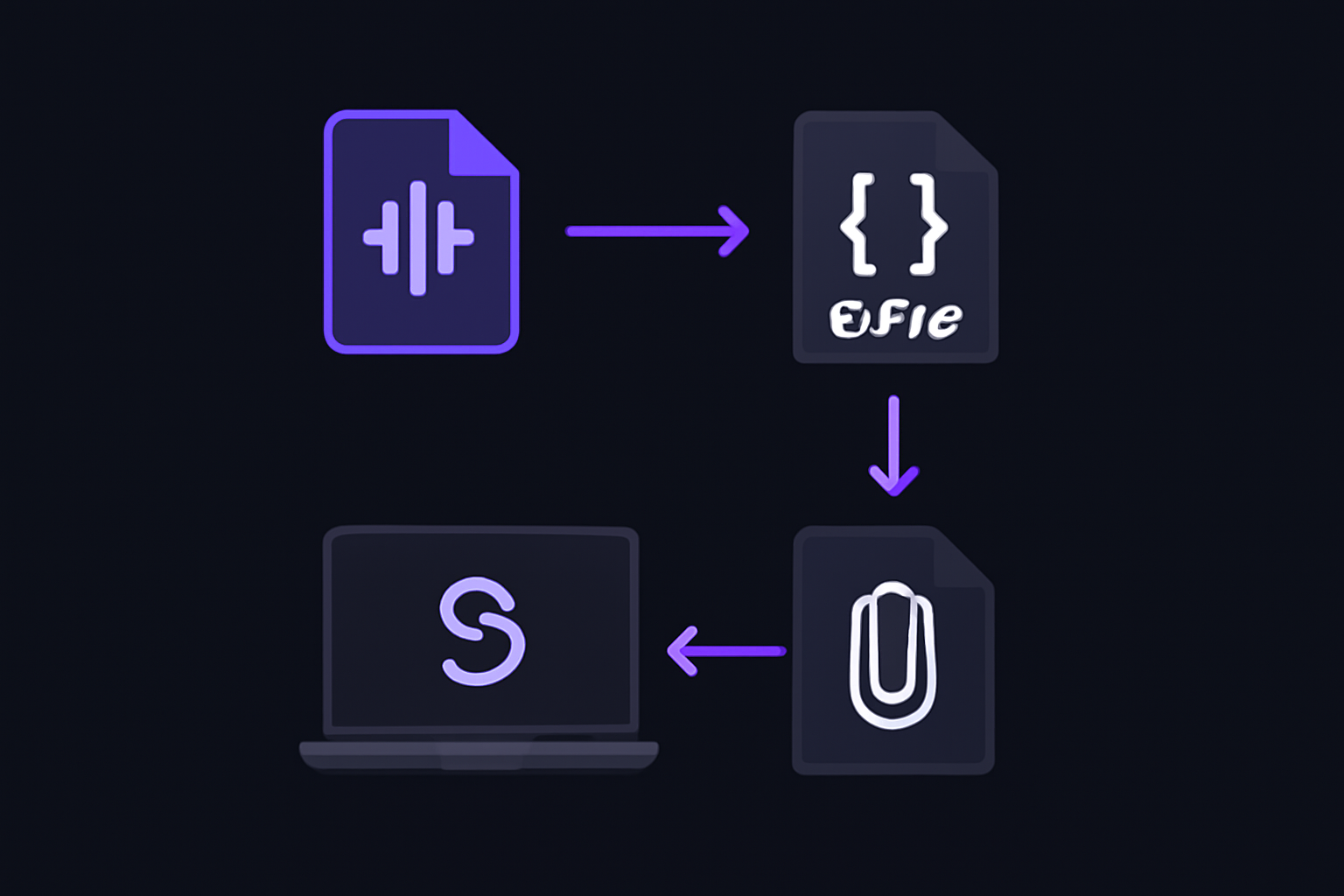
Solution 1: Use the toFile Utility (Recommended for SDK v4.x+)
This is the most straightforward fix for anyone using the OpenAI Node SDK version 4.53.2 or later. The toFile function is exported directly from the openai package and can convert a Buffer, ReadableStream, or Blob into a File-like object that the SDK accepts.
Prerequisites:
- OpenAI Node SDK version ^4.53.2 (the version mentioned in the solution comment)
- Node.js 18.x or later (for
ReadableStreamsupport, thoughBufferworks on older versions) - An audio file in a supported format (e.g.,
audio.wav,audio.mp3)
Steps:
-
Install or upgrade the OpenAI SDK:
npm install openai@latest -
Import
toFilefrom theopenaipackage:import OpenAI, { toFile } from "openai"; import fs from "fs"; -
Read the audio file into a
Bufferusingfs.readFile:const audioBuffer = await fs.promises.readFile("path/to/audio.wav"); -
Convert the
Bufferto aFile-like object usingtoFile. You must provide a filename with an extension. The extension tells the SDK (and the API) what MIME type to use.const audioFile = await toFile(audioBuffer, "audio.wav"); -
Call the transcription API:
const openai = new OpenAI();
const transcription = await openai.audio.transcriptions.create({
  model: "whisper-1",
  file: audioFile,
  response_format: "text",
});
console.log(transcription);
What to expect when it works:
The transcription variable will contain the transcribed text as a string (if response_format is "text") or as an object with a text property (if response_format is "json" or default).
Edge cases:
- If your audio is in a
ReadableStream(e.g., from a network request or a file stream), you can pass the stream directly totoFile:const stream = fs.createReadStream("path/to/audio.wav"); const audioFile = await toFile(stream, "audio.wav"); - The
toFilefunction is asynchronous and returns aPromise<File>. - If you omit the filename or use an extension that is not supported (e.g.,
.txt), the API may return a 400 error. Stick to one of the supported extensions:flac,m4a,mp3,mp4,mpeg,mpga,oga,ogg,wav,webm.
Attribution: This solution was reported by community member elumixor in the GitHub issue discussion (comment on issue #77, with 2 reactions). The original credit for the technique goes to a blog post by AJones Codes.
Solution 2: Create a Temporary File and Use fs.createReadStream (Works on v3.x and v4.x)
If you are on an older version of the SDK (v3.x) or prefer not to use the toFile utility, you can write the audio buffer to a temporary file and then pass a ReadStream to the SDK. The SDK's createTranscription method (v3.x) or audio.transcriptions.create (v4.x) can accept a ReadStream as the file parameter, provided the stream has a path property that the SDK can use to determine the file name.
Prerequisites:
- Node.js 14.x or later
- The
fsandosmodules
Steps:
-
Read the audio file into a buffer:
import fs from "fs"; import path from "path"; import os from "os"; import OpenAI from "openai"; const audioBuffer = await fs.promises.readFile("path/to/audio.wav"); -
Create a temporary file path:
const tempDir = os.tmpdir(); const tempFilePath = path.join(tempDir, "audio_temp.wav"); -
Write the buffer to the temporary file:
await fs.promises.writeFile(tempFilePath, audioBuffer); -
Create a read stream from the temporary file:
const audioStream = fs.createReadStream(tempFilePath); -
Call the transcription API with the stream:
const openai = new OpenAI(); const transcription = await openai.audio.transcriptions.create({ model: "whisper-1", file: audioStream, response_format: "text", }); console.log(transcription); -
(Optional) Clean up the temporary file after the transcription completes:
await fs.promises.unlink(tempFilePath);
What to expect when it works:
The SDK will read the stream, determine the filename from the stream's path property, and send the file to the Whisper API. The transcription will be returned as a string or object depending on response_format.
Edge cases:
- If you are on a system with limited disk space or high concurrency, creating temporary files may cause issues. Use a unique filename per request (e.g., include a timestamp or UUID) to avoid collisions.
- The temporary file must have a supported extension. If your original file has an unsupported extension, rename it during the write step (e.g., change
.mp4to.wavif the content is actually WAV audio). - This approach works on both v3.x and v4.x of the SDK, but the exact method name differs. On v3.x, the call would be
openai.createTranscription(audioStream, "whisper-1").
Attribution: This is a widely used workaround that predates the toFile utility. It is mentioned in various community discussions and Stack Overflow answers as a reliable fallback.
Solution 3: Use a Blob with toFile (For In-Memory Audio from Non-File Sources)
If your audio data comes from an in-memory source (e.g., a database, a network response, or a user upload in a web framework), you can create a Blob and then convert it using toFile.
Prerequisites:
- OpenAI SDK v4.x
- Node.js 18.x or later (for the global
Blobconstructor)
Steps:
-
Create a
Blobfrom your audio data:import OpenAI, { toFile } from "openai"; // Assume audioData is a Buffer or Uint8Array const audioBlob = new Blob([audioData], { type: "audio/wav" }); -
Convert the
Blobto aFile-like object:const audioFile = await toFile(audioBlob, "audio.wav"); -
Proceed with the transcription call as in Solution 1.
What to expect when it works:
The Blob is converted to a File-like object and sent to the API. The MIME type you provide in the Blob constructor helps the API identify the format, but the file extension in the filename is also used.
Edge cases:
- Not all Node.js versions have a global
Blobconstructor. If you are on Node.js 16.x or earlier, you may need to use a polyfill or thebuffermodule'sBlob(available fromnode:buffer). - The MIME type should match the actual audio format. Common MIME types:
audio/wav,audio/mpeg,audio/ogg,audio/mp4.
Solution 4: Upgrade from SDK v3.x to v4.x and Use the New API
If you are still on the v3.x SDK, upgrading to v4.x gives you access to the toFile utility and the cleaner audio.transcriptions.create API. The v3.x SDK is no longer maintained, and the v4.x SDK includes many improvements.
Steps:
-
Uninstall the old version and install the latest:
npm uninstall openai npm install openai@latest -
Update your import statements. In v4.x, the default import is
OpenAI(a class), notOpenAIApi:import OpenAI from "openai"; const openai = new OpenAI(); -
Replace the old
createTranscriptioncall with the new namespaced API:// Old (v3.x): // const response = await openai.createTranscription(file, "whisper-1"); // New (v4.x): const response = await openai.audio.transcriptions.create({ model: "whisper-1", file: await toFile(buffer, "audio.wav"), }); -
Use
toFileas described in Solution 1.
What to expect when it works: The upgrade resolves the type mismatch and gives you access to the full v4.x feature set, including better error messages and streaming support.
Attribution: The official OpenAI documentation (Source 1) shows the v4.x API for file uploads using fs.createReadStream in the context of the Responses API, but the same pattern applies to audio transcriptions. The GitHub issue (Source 3) was filed against v3.2.1, and the solution comment (Source 4) explicitly references API version ^4.53.2.
Solution 5: Use a Polyfill for the File API (Not Recommended)
In theory, you could install a polyfill like file-api or node-fetch to provide a File constructor in Node.js. However, this is not recommended because:
- The polyfill may not be fully compatible with the SDK's expectations.
- The SDK's
toFileutility is designed specifically for this purpose and is more reliable. - Polyfills add unnecessary dependencies and potential security issues.
If you must use this approach, you would do something like:
import { File } from "node-fetch";
// or import from a polyfill package
const audioFile = new File([audioBuffer], "audio.wav");
const transcription = await openai.audio.transcriptions.create({
  model: "whisper-1",
  file: audioFile,
});
Attribution: This approach is mentioned in various community forums but is not endorsed by the official documentation or the GitHub issue resolution.
If Nothing Works
1. Verify Your API Key and Billing
Ensure that your OPENAI_API_KEY environment variable is set correctly. The SDK reads this automatically. Also check that your OpenAI account has billing set up and that you have not exceeded your usage quota. A 401 or 429 error indicates authentication or rate-limiting issues, not a File API problem.
2. Check the Audio File Format
The Whisper API supports the following audio formats: flac, m4a, mp3, mp4, mpeg, mpga, oga, ogg, wav, webm. If your file has a different extension (e.g., .aac, .wma), convert it to a supported format first. You can use tools like ffmpeg:
ffmpeg -i input.aac output.wav
3. Check the File Size
The Whisper API has a file size limit of 25 MB. If your audio file is larger, you must split it into chunks or use a different approach (e.g., the OpenAI audio preprocessing API, if available).
4. Use the REST API Directly
If the SDK continues to give you trouble, you can call the Whisper API directly using fetch or axios. This bypasses the SDK's type system entirely.
import fs from "fs";
import FormData from "form-data";

const form = new FormData();
form.append("model", "whisper-1");
form.append("file", fs.createReadStream("path/to/audio.wav"));

const response = await fetch("https://api.openai.com/v1/audio/transcriptions", {
  method: "POST",
  headers: {
    Authorization: `Bearer ${process.env.OPENAI_API_KEY}`,
    ...form.getHeaders(),
  },
  body: form,
});

const data = await response.json();
console.log(data.text);
Attribution: This is a standard REST API approach documented in the OpenAI API reference.
5. File a GitHub Issue
If you have tried all the solutions above and the error persists, file a new issue on the OpenAI Node SDK GitHub repository (https://github.com/openai/openai-node/issues). Include:
- Your Node.js version
- Your SDK version (
npm list openai) - A minimal reproduction script
- The exact error message and stack trace
6. Check Community Resources
The original GitHub issue (Source 3) and its comments (Source 4) are good places to look for additional workarounds. Stack Overflow and the OpenAI community forum also have many discussions about this specific error.
How to Prevent It
1. Always Use toFile for Node.js Audio Input
Make it a habit to use the toFile utility whenever you need to pass audio data to the Whisper API from Node.js. This avoids the File API mismatch entirely.
2. Keep the SDK Updated
Regularly update the OpenAI SDK to the latest version. The toFile utility was introduced in v4.x, and future versions may add more convenience methods. Use npm outdated openai to check for updates.
3. Use Environment Variables for Configuration
Store your API key in an environment variable (OPENAI_API_KEY) rather than hardcoding it. The SDK reads this automatically, reducing the chance of configuration errors.
4. Validate Audio Files Before Calling the API
Before calling the transcription API, validate that the file exists, is under 25 MB, and has a supported extension. This prevents wasted API calls and helps you catch errors early.
import fs from "fs";
import path from "path";

function validateAudioFile(filePath: string): boolean {
  const supportedExtensions = ["flac", "m4a", "mp3", "mp4", "mpeg", "mpga", "oga", "ogg", "wav", "webm"];
  const ext = path.extname(filePath).slice(1).toLowerCase();
  if (!supportedExtensions.includes(ext)) {
    console.error(`Unsupported audio format: ${ext}`);
    return false;
  }
  const stats = fs.statSync(filePath);
  const maxSize = 25 * 1024 * 1024; // 25 MB
  if (stats.size > maxSize) {
    console.error(`File too large: ${stats.size} bytes (max 25 MB)`);
    return false;
  }
  return true;
}
5. Use TypeScript Strict Mode
If you are using TypeScript, enable strict mode in your tsconfig.json. This will catch type mismatches at compile time, including the File vs Buffer issue, before you run the code.
6. Read the SDK Documentation
The official OpenAI documentation (Source 1) provides examples for uploading files in the context of the Responses API. While it does not directly cover audio transcriptions, the same fs.createReadStream pattern applies. The embeddings documentation (Source 2) shows how to use the SDK for other tasks, reinforcing the importance of following the SDK's expected input types.
By following these practices, you can avoid the File API error and build reliable audio transcription pipelines with the OpenAI Node SDK.
The #1 Chatgpt Newsletter
The most important chatgpt updates, guides, and fixes — one weekly email.
No spam, unsubscribe anytime. Privacy policy
Related Error Solutions
Keep exploring ChatGPT
ChatGPT resources
Latest AI answers
Skip the manual work
Ready-made AI workflows and automation templates — import and run instead of building from scratch.