Fix MCP Server Connection Failures with npx on Windows in Claude Code
Error message
MCP servers fail to connect with `npx` on Windows
When you configure an MCP server in Claude Code using npx on Windows, the server may fail to connect. The exact error message varies by Claude Code version: before v2.1.202, you may see command: expected string, received undefined; in later versions, Claude Code reports MCP server "<name>" has a "url" but no "type"; add "type": "http" (or "sse" / "ws") to this entry if the configuration is misread, or the server simply appears as failed in /mcp with no tools loaded. The root cause is a known issue in how Claude Desktop launches subprocesses on Windows when the command involves npx, combined with configuration syntax that Claude Code misinterprets on that platform.
What Causes This Error
1. Claude Desktop subprocess launch issue with npx on Windows
According to a solution comment on the GitHub issue (source 4), the core problem is a bug in how Claude Desktop spawns subprocesses on Windows when the command is npx. The issue is tracked in the TypeScript SDK pull request https://github.com/modelcontextprotocol/typescript-sdk/pull/68, which aims to fix the subprocess launch mechanism. Until that fix is integrated, npx commands that work on macOS and Linux may fail silently or with confusing errors on Windows.
2. Missing or incorrect type field in MCP server configuration
Claude Code requires a type field in the JSON configuration for HTTP, SSE, and WebSocket servers. If you configure a server in .mcp.json or ~/.claude.json with a url but no type, Claude Code treats the entry as a stdio server and attempts to parse the url as a command, which fails. The official documentation (source 2) states: "A JSON entry that has a url but no type is a configuration error, because Claude Code reads an entry with no type as a stdio server. Claude Code skips that server and reports MCP server "<name>" has a "url" but no "type"; add "type": "http" (or "sse" / "ws") to this entry." Before v2.1.202, this misconfiguration was reported as command: expected string, received undefined.
3. Incorrect use of -- separator in claude mcp add command
When adding a stdio server via the CLI, the -- (double dash) must separate Claude's own options from the server command and arguments. If you omit --, Claude Code tries to parse the server's flags as its own options, which can cause the server to fail to start. The documentation (source 2) gives this example: claude mcp add --transport stdio myserver -- npx server. Without --, npx server would be misinterpreted.
4. Environment variable not set or incorrect
Some MCP servers require environment variables (e.g., API keys) passed via --env flags. If these are missing or misnamed, the server may start but fail to authenticate or connect to its backend. The documentation (source 2) shows the correct syntax: claude mcp add --env AIRTABLE_API_KEY=YOUR_KEY --transport stdio airtable -- npx -y airtable-mcp-server.
5. Reserved server name conflict
Claude Code reserves certain server names: workspace, claude-in-chrome, computer-use, Claude Preview, and Claude Browser. If your configuration uses one of these names, Claude Code skips it at load time and shows a warning. The claude mcp add command rejects a reserved name with an error. Before v2.1.205, Claude Browser was not reserved, so older configurations may have used it without issue.
6. Workspace trust not granted
Project-scoped servers from .mcp.json that are awaiting approval appear in claude mcp list and claude mcp get <name> as ⏸ Pending approval (run claude to approve). You must run claude interactively in the project directory and accept the workspace trust dialog. As of v2.1.196, claude mcp list and claude mcp get read .mcp.json approvals only from settings files that are not checked into the repository until you trust the workspace. A cloned repository cannot approve its own servers: enableAllProjectMcpServers or enabledMcpjsonServers committed to the project's .claude/settings.json is ignored in an untrusted folder.
7. Network or firewall blocking the server's initial connection
For HTTP or SSE servers, Claude Code retries the initial connection up to three times on transient errors such as a 5xx response, a connection refused, or a timeout, then marks the server as failed. Authentication and not-found errors are not retried because they require a configuration change to resolve. If your Windows firewall or corporate proxy blocks outbound connections to the MCP server's URL, the connection will fail.
How to Fix It
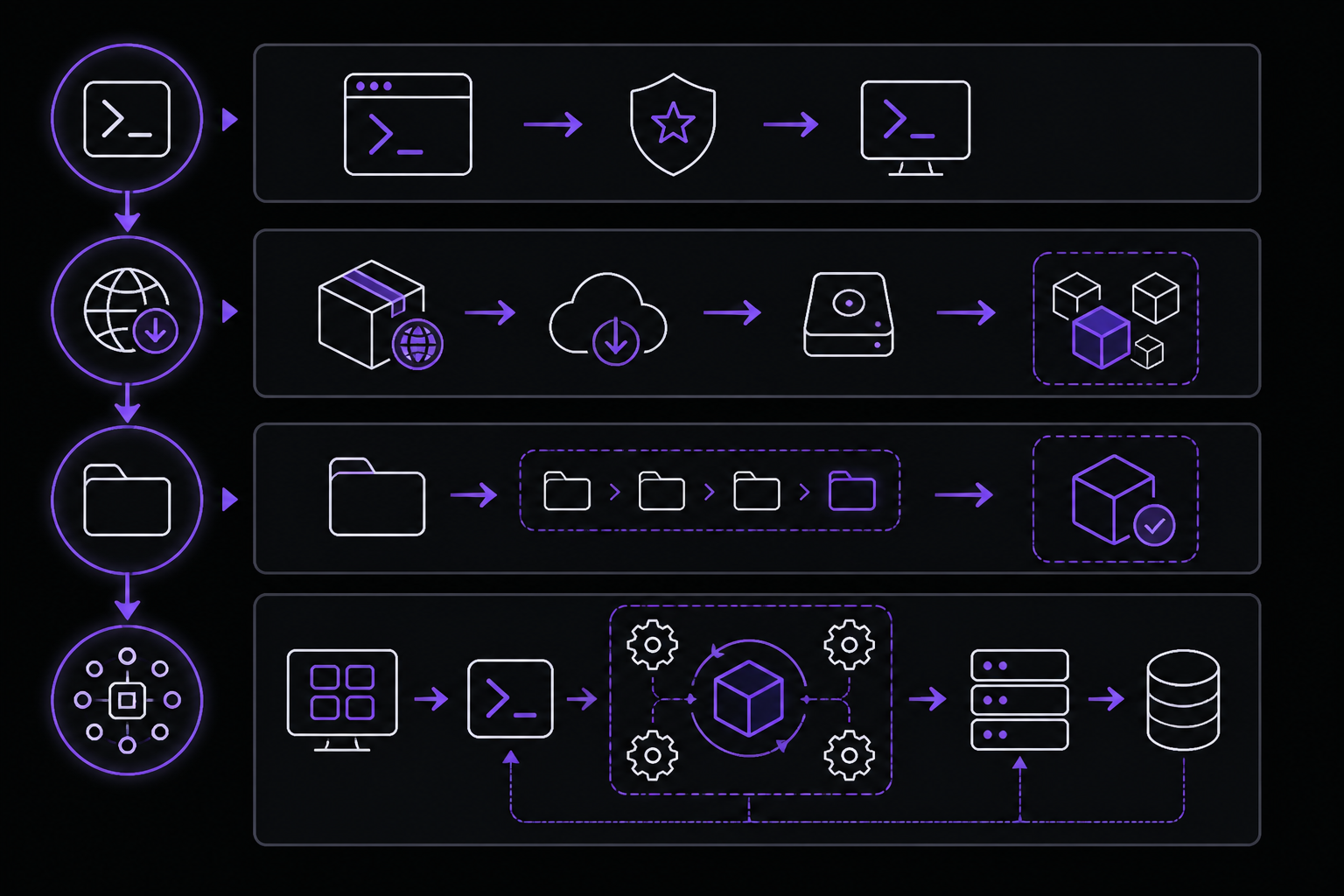
Solution 1: Use node directly instead of npx (recommended workaround)
This is the primary workaround confirmed by the GitHub issue solution comment (source 4). Instead of relying on npx to download and run the server package on each invocation, install the package globally with npm and invoke it directly with node.
Steps:
- Open a terminal (PowerShell or CMD) as Administrator.
- Install the MCP server package globally. For example, for the Airtable MCP server:
npm install -g airtable-mcp-server - Find the installed path. On Windows, global packages are typically installed in
%APPDATA%\npm\node_modules\<package-name>. You can confirm the path with:npm root -g - Add the server to Claude Code using the
nodecommand directly. Use the full path to the server's main script, or if the package has a bin entry, use the command name directly (since global bin folders are in your PATH). For example:
Or if the package registers a command (check the package'sclaude mcp add --transport stdio airtable -- node "%APPDATA%\npm\node_modules\airtable-mcp-server\build\index.js"package.jsonbinfield), you can often use:
The second form works becauseclaude mcp add --transport stdio airtable -- airtable-mcp-servernpm install -gadds the package's bin directory to your PATH. - Verify the server is listed:
claude mcp list - Start Claude Code in your project:
cd your-project claude - Check server status with
/mcpinside Claude Code. The server should appear as connected with its tools listed.
Why this works: The npx subprocess launch issue on Windows is specific to how Claude Desktop spawns npx. By using node directly, you bypass the problematic subprocess spawning path. The globally installed package is already on disk, so no download is needed at runtime.
Caveat: If the MCP server package has native dependencies that require compilation (e.g., node-pty, sharp), ensure you have the Windows build tools installed (npm install --global windows-build-tools as Administrator). Most MCP servers are pure JavaScript and do not require this.
Solution 2: Use the correct JSON configuration syntax with type field
If you prefer to configure the server manually in .mcp.json or ~/.claude.json, ensure the type field is present for HTTP, SSE, or WebSocket servers. The official documentation (source 2) states: "When configuring MCP servers via JSON in .mcp.json, ~/.claude.json, or claude mcp add-json, the type field accepts streamable-http as an alias for http."
For an HTTP server:
{
  "mcpServers": {
    "notion": {
      "type": "http",
      "url": "https://mcp.notion.com/mcp"
    }
  }
}
For an SSE server (deprecated, but still works):
{
  "mcpServers": {
    "asana": {
      "type": "sse",
      "url": "https://mcp.asana.com/sse"
    }
  }
}
For a WebSocket server:
{
  "mcpServers": {
    "events-server": {
      "type": "ws",
      "url": "wss://mcp.example.com/socket",
      "headers": {
        "Authorization": "Bearer YOUR_TOKEN"
      }
    }
  }
}
For a stdio server (no type field needed, but command and args are required):
{
  "mcpServers": {
    "airtable": {
      "command": "npx",
      "args": ["-y", "airtable-mcp-server"],
      "env": {
        "AIRTABLE_API_KEY": "YOUR_KEY"
      }
    }
  }
}
Important: If you use npx in the command field on Windows, you may still hit the subprocess launch bug. Consider using the node workaround from Solution 1 even in JSON configuration:
{
  "mcpServers": {
    "airtable": {
      "command": "node",
      "args": ["C:\\Users\\YourUser\\AppData\\Roaming\\npm\\node_modules\\airtable-mcp-server\\build\\index.js"],
      "env": {
        "AIRTABLE_API_KEY": "YOUR_KEY"
      }
    }
  }
}
Solution 3: Use claude mcp add with correct -- separator
When adding a stdio server via the CLI, always use -- to separate Claude's options from the server command. The official documentation (source 2) provides this template:
claude mcp add [options] name -- command [args...]
Correct example:
claude mcp add --transport stdio myserver -- npx -y some-mcp-server
Incorrect (missing --):
claude mcp add --transport stdio myserver npx -y some-mcp-server
This would cause Claude Code to try to parse npx and -y as its own flags.
With environment variables:
claude mcp add --env KEY=value --transport stdio myserver -- python server.py --port 8080
Note on --env placement: The --env flag accepts multiple KEY=value pairs. If the server name comes directly after --env, the CLI reads the name as another pair and rejects it. Always place at least one other option between --env and the server name, as shown above.
Solution 4: Grant workspace trust for project-scoped servers
If your MCP server is defined in the project's .mcp.json and appears as ⏸ Pending approval, you need to trust the workspace.
- Open a terminal in the project directory.
- Run
claudeinteractively (not with-por non-interactive mode). - Accept the workspace trust dialog when prompted.
- After trusting, the server should connect automatically. Verify with
/mcp.
For automated setups: You can pre-approve servers by adding entries to your user-level settings file (~/.claude/settings.json) or managed settings. For example:
{
  "enableAllProjectMcpServers": true
}
Or to approve specific servers:
{
  "enabledMcpjsonServers": ["airtable", "notion"]
}
These settings in ~/.claude/settings.json apply even in untrusted folders. Settings in the project's .claude/settings.json are ignored until the folder is trusted.
Solution 5: Check for reserved server names
If your server configuration uses a reserved name, rename it. The reserved names are:
workspaceclaude-in-chromecomputer-useClaude PreviewClaude Browser
Use claude mcp remove <name> to remove the conflicting configuration, then add it again with a different name:
claude mcp add --transport stdio my-custom-server -- npx -y some-mcp-server
Solution 6: Increase startup timeout for slow servers
Some MCP servers, especially those with large dependencies or slow startup, may fail to connect within the default timeout. Set the MCP_TIMEOUT environment variable before starting Claude Code:
set MCP_TIMEOUT=30000
claude
Or in PowerShell:
$env:MCP_TIMEOUT=30000
claude
This sets a 30-second timeout (in milliseconds). The default is not explicitly documented but is typically around 10 seconds.
Solution 7: Use HTTP transport instead of stdio for remote servers
If the MCP server is a remote service (e.g., Notion, Asana), use the HTTP transport instead of stdio. This avoids the subprocess launch issue entirely because the server runs on a remote host, not locally.
claude mcp add --transport http notion https://mcp.notion.com/mcp
For servers that require authentication:
claude mcp add --transport http secure-api https://api.example.com/mcp --header "Authorization: Bearer your-token"
If Nothing Works
Check the Claude Code version
Some fixes are version-dependent. Check your version with:
claude --version
- If you are on v2.1.202 or later, the error message for missing
typefield is descriptive. Earlier versions showedcommand: expected string, received undefined. - If you are on v2.1.196 or later, workspace trust is enforced for
.mcp.jsonapprovals. - If you are on v2.1.205 or later,
Claude Browseris a reserved name. - If you are on v2.1.207 or later, untracked
.claude/settings.local.jsonrequires workspace trust. - If you are on v2.1.208 or later, an empty
urlfield shows asnot configuredinstead of prompting to reconnect. - If you are on v2.1.211 or later, plugin servers in web sessions reconnect on demand.
- If you are on v2.1.212 or later, long tool calls auto-background after two minutes.
- If you are on v2.1.214 or later, transient errors during capability refresh do not clear the tool list.
Update Claude Code
Ensure you are on the latest version. For WinGet installations:
winget upgrade Anthropic.ClaudeCode
For native installations, updates happen automatically in the background. If you suspect an update issue, reinstall using the official script:
irm https://claude.ai/install.ps1 | iex
Check the server's logs
If the server starts but fails to connect to its backend, check its output. For stdio servers, you can run the command manually in a terminal to see error messages:
npx -y airtable-mcp-server
If the server prints errors about missing environment variables or network issues, fix those first.
Use the /mcp panel for diagnostics
Inside Claude Code, run /mcp to see the status of all configured servers. The panel shows:
- Connected servers with tool counts
- Failed servers with error messages
- Servers awaiting approval
- Servers with no tools (flagged as advertising the tools capability but exposing none)
If a server shows as failed, the error message often indicates the cause (e.g., connection refused, authentication failed, timeout).
Report the issue
If the subprocess launch issue persists despite using the node workaround, report it on the GitHub issue tracker:
- Original issue: https://github.com/modelcontextprotocol/servers/issues/40
- Related SDK fix: https://github.com/modelcontextprotocol/typescript-sdk/pull/68
Include your Claude Code version, Windows version (e.g., Windows 10, Windows 11), and the exact error message from /mcp.
Alternative: Use WSL (Windows Subsystem for Linux)
If none of the above solutions work, consider running Claude Code inside WSL. The official documentation (source 1) notes: "WSL setups do not need Git for Windows." WSL provides a Linux-compatible environment where npx works without the subprocess launch issue. Install Claude Code in WSL using the Linux installation command:
curl -fsSL https://claude.ai/install.sh | bash
Then configure MCP servers as you would on Linux. Note that files on the Windows filesystem are accessible from WSL via /mnt/c/, but performance is better if you keep your project inside the WSL filesystem (/home/yourname/).
How to Prevent It
Use node instead of npx for stdio servers on Windows
As a general practice on Windows, install MCP server packages globally with npm install -g and invoke them with node or the command name directly. This avoids the npx subprocess launch bug entirely.
Always specify the type field for non-stdio servers
When configuring HTTP, SSE, or WebSocket servers in JSON, always include the type field. Use "type": "http" (or "streamable-http" as an alias) for HTTP servers, "type": "sse" for SSE servers, and "type": "ws" for WebSocket servers. Stdio servers do not need a type field.
Use the -- separator consistently
When using claude mcp add for stdio servers, always include -- before the server command. This is a hard requirement, not optional.
Pre-approve servers in user settings
To avoid workspace trust prompts, add approvals to ~/.claude/settings.json:
{
  "enableAllProjectMcpServers": true
}
Or for selective approval:
{
  "enabledMcpjsonServers": ["server1", "server2"]
}
Keep Claude Code updated
Regularly update Claude Code to get the latest fixes. For WinGet:
winget upgrade Anthropic.ClaudeCode
For native installations, updates are automatic. For Homebrew:
brew upgrade claude-code
Test server configuration in isolation
Before adding a server to Claude Code, test the command in a terminal. For stdio servers, run the exact command you plan to use (e.g., npx -y airtable-mcp-server) and verify it starts without errors. For HTTP servers, use curl or a similar tool to check that the URL responds.
Use environment variables for sensitive data
Instead of hardcoding API keys in .mcp.json (which may be committed to version control), use environment variables passed via --env flags or set in your shell profile. For example:
claude mcp add --env AIRTABLE_API_KEY=%AIRTABLE_API_KEY% --transport stdio airtable -- npx -y airtable-mcp-server
In PowerShell:
claude mcp add --env AIRTABLE_API_KEY=$env:AIRTABLE_API_KEY --transport stdio airtable -- npx -y airtable-mcp-server
This keeps secrets out of configuration files and makes it easier to rotate keys without editing configs.
The #1 Claude Newsletter
The most important claude updates, guides, and fixes — one weekly email.
No spam, unsubscribe anytime. Privacy policy
Related Error Solutions
Keep exploring Claude
Claude resources
Latest AI answers
Skip the manual work
Ready-made AI workflows and automation templates — import and run instead of building from scratch.