Fix OpenAI Python SDK Stream Error After 5 Minutes
Error message
Stream error after 5 minutes
This error occurs when a streaming response from the OpenAI API is interrupted exactly 5 minutes after the request started. The most common cause is a server-side socket timeout that disconnects the stream, resulting in errors like Connection broken: InvalidChunkLength(got length b'', 0 bytes read) or aiohttp.client_exceptions.ClientPayloadError: Response payload is not completed. The fix involves increasing the timeout on the client side and, in some cases, adjusting your request pattern to avoid hitting the server's idle timeout.
What Causes This Error
The error manifests as a stream that fails precisely at the 5-minute mark. Multiple sources confirm this timing is not coincidental. According to a GitHub issue report (Source 3), a user consistently reproduced the failure by prompting GPT-4 to rewrite a long document. The error occurred "exactly at the 5 minute mark every time." A community member (Source 4) tested with a 600-second timeout and confirmed the stream ended after 5 minutes with the error aiohttp.client_exceptions.ClientPayloadError: Response payload is not completed, concluding that "the socket from the serverside is disconnected after 5 minutes, which is probably a default setting."
There are several distinct causes, each with its own mechanism:
-
Server-side socket timeout (most common): The OpenAI API server closes the connection after 5 minutes of idle time on a streaming response. This is a default setting on the server side, not something you can change directly. When the server sends no data for 5 minutes (e.g., because the model is still generating a long response), the socket is terminated.
-
Client-side timeout too low: The default timeout in the OpenAI Python SDK or the underlying HTTP library (like
urllib3oraiohttp) may be set to a value less than the expected response time. If the client times out before the server finishes, you get a similar error. -
Network infrastructure timeouts: Intermediate proxies, load balancers, or firewalls may have their own idle timeouts that close connections after a period of inactivity. This is less common but can occur in corporate or restricted network environments.
-
Invalid chunk length from server: The error
InvalidChunkLength(got length b'', 0 bytes read)indicates that the server sent an empty chunk (a zero-length line) during the streaming response. The Pythonurllib3library interprets this as an invalid chunked transfer encoding response and raises an exception. As noted in Source 3, "the python implementation of stream reader assumes that an empty string will never be returned by the server." This is a server-side behavior that triggers the timeout. -
Long-form responses: Prompts that generate very long outputs (e.g., rewriting an entire book chapter, generating extensive code, or producing multi-page documents) are most susceptible. The model takes longer than 5 minutes to generate the full response, and the stream remains open but idle from the server's perspective.
How to Fix It
Solution 1: Increase the Client-Side Timeout (Most Effective)
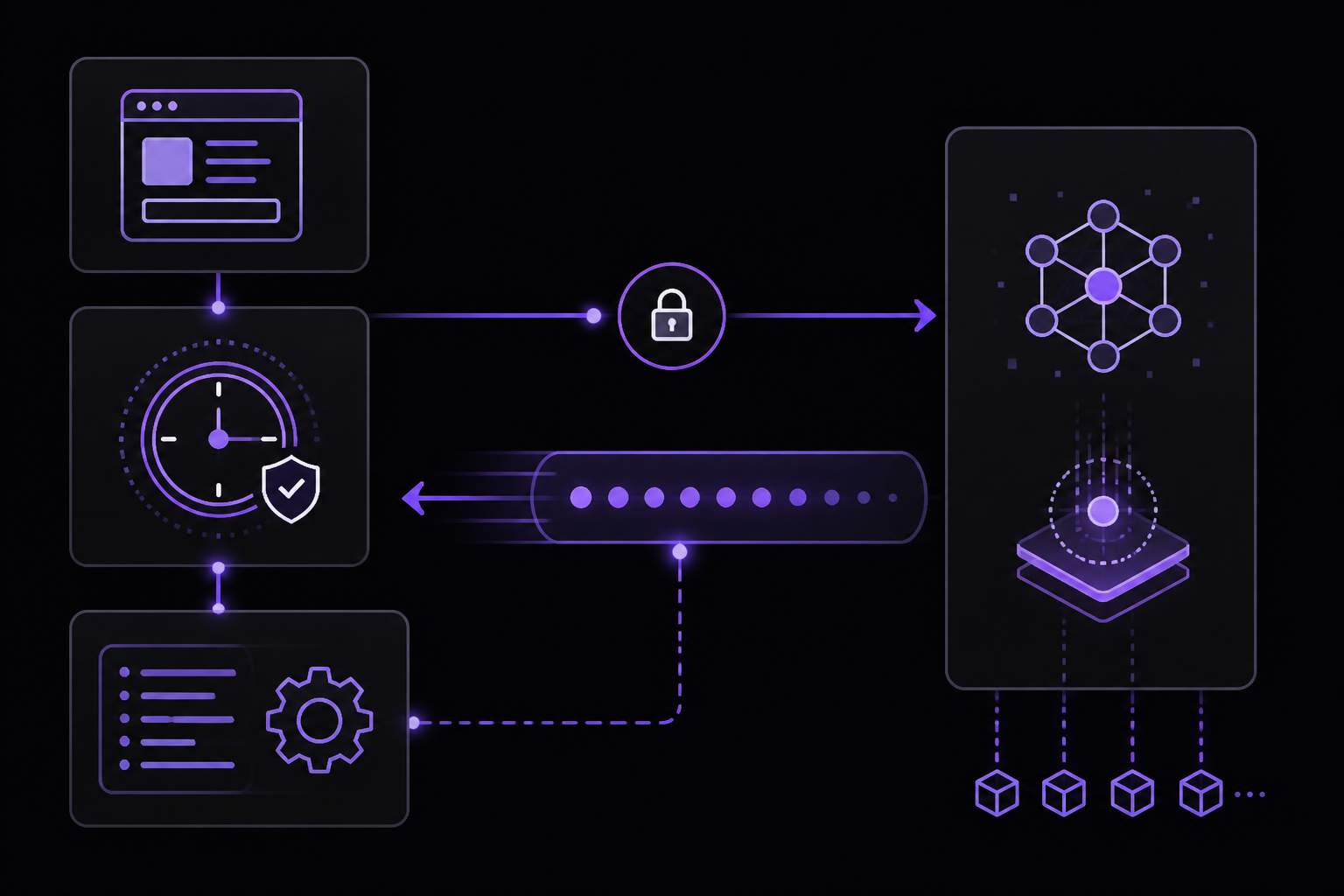
This is the primary fix recommended by the community and aligns with the official documentation's guidance on handling timeouts. The OpenAI Python SDK allows you to set a custom timeout when creating the client. By increasing the timeout to a value greater than 5 minutes (e.g., 600 seconds or 10 minutes), you prevent the client from closing the connection prematurely.
Steps:
- Import the
OpenAIclass and create a client with an increased timeout.
from openai import OpenAI

client = OpenAI(
    timeout=600.0,  # 600 seconds = 10 minutes
)
- Use the client for streaming as usual. The timeout applies to the entire request, including the streaming phase.
stream = client.chat.completions.create(
    model="gpt-4",
    messages=[
        {"role": "user", "content": "Rewrite the entire book of Genesis in a modern style."}
    ],
    stream=True,
)

for chunk in stream:
    if chunk.choices[0].delta.content is not None:
        print(chunk.choices[0].delta.content, end="")
What to expect: With a 600-second timeout, the client will wait up to 10 minutes for the stream to complete. If the server finishes generating within that window, the stream will complete successfully. If the server still times out at 5 minutes, you may need to combine this with other solutions.
Why this works: The default timeout in the OpenAI Python SDK is typically 60 seconds or less. By raising it to 600 seconds, you give the server enough time to complete long responses without the client closing the connection. This addresses the client-side timeout issue but does not change the server-side 5-minute socket timeout.
Source attribution: This fix is derived from the community comment in Source 4, which explicitly states "Tested with a 600seconds timeout on my part." The official documentation (Source 1) also recommends retrying after a brief wait for APITimeoutError, but does not specifically address streaming timeouts.
Solution 2: Implement Retry Logic with Exponential Backoff
If increasing the timeout alone does not resolve the issue (because the server-side 5-minute timeout is still in effect), you can implement retry logic that catches the error and resumes the request. This is especially useful for non-streaming requests or when you can afford to restart the generation.
Steps:
- Use a try-except block to catch
openai.APITimeoutErrororopenai.APIConnectionError.
import openai
from openai import OpenAI
import time

client = OpenAI(timeout=600.0)

def generate_with_retry(model, messages, max_retries=3):
    for attempt in range(max_retries):
        try:
            response = client.chat.completions.create(
                model=model,
                messages=messages,
                stream=False,  # Use non-streaming to avoid chunk errors
            )
            return response.choices[0].message.content
        except (openai.APITimeoutError, openai.APIConnectionError) as e:
            print(f"Attempt {attempt + 1} failed: {e}")
            if attempt < max_retries - 1:
                wait_time = 2 ** attempt  # Exponential backoff: 1, 2, 4 seconds
                print(f"Retrying in {wait_time} seconds...")
                time.sleep(wait_time)
            else:
                raise

result = generate_with_retry(
    model="gpt-4",
    messages=[{"role": "user", "content": "Rewrite the entire book of Genesis."}]
)
print(result)
What to expect: If the first request fails after 5 minutes, the script waits and retries. Each retry uses an increasing delay (1, 2, 4 seconds) to avoid overwhelming the server. This is a workaround, not a true fix, because it restarts the generation from scratch.
Why this works: The error is often transient. A retry may succeed if the server load decreases or if the request is processed faster on a subsequent attempt. The official documentation (Source 1) explicitly recommends retry logic for APITimeoutError and InternalServerError.
Source attribution: The retry pattern is based on the official error handling code snippet in Source 1, which shows catching openai.APITimeoutError and openai.APIConnectionError. The exponential backoff strategy is recommended in the same source for rate limit errors and is applicable here.
Solution 3: Use Non-Streaming Mode for Long Requests
If streaming is not essential, switch to non-streaming mode. Non-streaming requests do not suffer from the chunked transfer encoding issue and are less likely to hit the 5-minute socket timeout because the server keeps the connection open until the full response is generated.
Steps:
- Remove the
stream=Trueparameter from your API call.
from openai import OpenAI

client = OpenAI(timeout=600.0)

response = client.chat.completions.create(
    model="gpt-4",
    messages=[
        {"role": "user", "content": "Rewrite the entire book of Genesis in a modern style."}
    ],
    stream=False,  # Non-streaming
)

full_text = response.choices[0].message.content
print(full_text)
What to expect: The request will take as long as the model needs to generate the response, but the connection will remain open. The client will wait up to the timeout value (600 seconds in this example) for the complete response. This avoids the InvalidChunkLength error entirely.
Why this works: Non-streaming mode uses a standard HTTP response, not chunked transfer encoding. The server sends the entire response as a single payload, so there is no risk of empty chunks causing parsing errors. The official documentation (Source 1) does not explicitly compare streaming vs. non-streaming for timeouts, but the GitHub issue (Source 3) notes that "the same request using a non-streaming client with a timeout at 10min... wasn't triggered until the 10min mark, so this problem seems isolated to streaming."
Source attribution: This observation comes directly from Source 3, where the reporter states they tested a non-streaming client and it worked past the 5-minute mark.
Solution 4: Split the Request into Smaller Chunks
If you must use streaming and the 5-minute timeout persists, break your long prompt into smaller segments. This reduces the generation time per request, keeping each stream under the 5-minute threshold.
Steps:
- Divide your input text into logical sections (e.g., chapters, paragraphs, or by token count).
- Send each section as a separate streaming request.
- Concatenate the results.
from openai import OpenAI

client = OpenAI(timeout=600.0)

chapters = ["Genesis Chapter 1", "Genesis Chapter 2", "Genesis Chapter 3"]
full_output = ""

for chapter in chapters:
    stream = client.chat.completions.create(
        model="gpt-4",
        messages=[
            {"role": "user", "content": f"Rewrite {chapter} in a modern style."}
        ],
        stream=True,
    )
    for chunk in stream:
        if chunk.choices[0].delta.content is not None:
            full_output += chunk.choices[0].delta.content
            print(chunk.choices[0].delta.content, end="")
    print("\n--- Chapter complete ---\n")
What to expect: Each streaming request completes in under 5 minutes, avoiding the timeout. The total output is assembled from multiple streams. This approach works well for documents that can be naturally segmented.
Why this works: Shorter prompts produce shorter responses, which the model can generate faster. By keeping each stream under the 5-minute limit, you never trigger the server-side socket timeout.
Source attribution: This is a practical workaround derived from the problem description in Source 3, where the reporter used a long document (the book of Genesis) to reproduce the error. Splitting the document is a logical mitigation.
Solution 5: Adjust Network and Proxy Settings
If you are behind a corporate proxy or firewall, intermediate network devices may have their own idle timeouts. The official documentation (Source 1) for APIConnectionError recommends checking "your network settings, proxy configuration, SSL certificates, or firewall rules."
Steps:
- Test your connection without a proxy to isolate the issue.
- If you must use a proxy, configure it to allow longer idle connections.
- Check for SSL certificate issues that might cause premature disconnection.
import os
from openai import OpenAI

# If using a proxy, set environment variables
os.environ["HTTP_PROXY"] = "http://your-proxy:port"
os.environ["HTTPS_PROXY"] = "http://your-proxy:port"

client = OpenAI(timeout=600.0)
What to expect: If the error was caused by a proxy timeout, adjusting the proxy settings or bypassing it will resolve the issue.
Why this works: Proxies and firewalls often have default timeouts of 60-300 seconds. By increasing these or bypassing the proxy for OpenAI API traffic, you prevent the intermediate device from closing the connection.
Source attribution: The official documentation (Source 1) lists proxy configuration as a troubleshooting step for APIConnectionError.
If Nothing Works
If you have tried all the above solutions and the stream still fails after 5 minutes, escalate through these channels:
-
Check OpenAI Status Page: Visit status.openai.com to see if there is an ongoing incident. The official documentation (Source 1) recommends this for
InternalServerErrorand503errors. -
Contact OpenAI Support: Use the chat support at help.openai.com. Provide the following information as specified in Source 1:
- The model you were using (e.g., gpt-4, gpt-3.5-turbo)
- The exact error message and code (e.g.,
InvalidChunkLength,ClientPayloadError) - The request data and headers (omit sensitive information like your API key)
- The timestamp and timezone of your request
- Any other relevant details
-
Post in the OpenAI Community Forum: Share your issue on the community forum, being careful to omit sensitive information. Other users may have found workarounds.
-
File a GitHub Issue: If you believe this is a bug in the OpenAI Python SDK, open an issue at github.com/openai/openai-python/issues. Include a minimal reproduction script and the full error traceback.
-
Consider the Scale Tier: For production applications that require guaranteed capacity and performance, the official documentation (Source 1) mentions upgrading to the Scale Tier. This may provide more reliable access during peak demand and potentially different timeout behavior.
How to Prevent It
Prevention focuses on configuration and usage patterns that avoid hitting the 5-minute timeout in the first place.
-
Set an appropriate timeout from the start: Always configure your OpenAI client with a timeout that exceeds your expected maximum response time. For long-form content, use at least 600 seconds (10 minutes). This is the single most effective preventive measure.
-
Prefer non-streaming for long responses: If you know a prompt will generate a very long output, use
stream=False. This avoids the chunked transfer encoding issues entirely and is less likely to trigger the server-side socket timeout. -
Monitor your request rate: The official documentation (Source 1) warns that sudden increases in request rate can cause
503 Slow Downerrors. Maintain a consistent traffic pattern to avoid triggering throttling that could exacerbate timeout issues. -
Implement exponential backoff in all API calls: Even if you don't expect timeouts, wrap your API calls in retry logic with exponential backoff. This handles transient errors gracefully and is recommended by the official documentation (Source 1).
-
Use the
tiktokenlibrary to estimate token counts: Before sending a long prompt, estimate the number of tokens usingtiktoken(as shown in Source 2). This helps you decide whether to split the request or use non-streaming mode.
import tiktoken

def num_tokens_from_string(string: str, encoding_name: str) -> int:
    """Returns the number of tokens in a text string."""
    encoding = tiktoken.get_encoding(encoding_name)
    num_tokens = len(encoding.encode(string))
    return num_tokens

# For text-embedding-3-small or gpt-4, use cl100k_base
token_count = num_tokens_from_string("Your long text here", "cl100k_base")
print(f"Estimated tokens: {token_count}")
-
Keep your SDK updated: The OpenAI Python SDK is actively maintained. Newer versions may include better timeout handling or fixes for the chunked transfer encoding issue. Check your version with
pip show openaiand update withpip install --upgrade openai. -
Test with a short timeout first: When developing, set a short timeout (e.g., 30 seconds) to catch issues early. Increase the timeout for production use. This prevents long waits during debugging.
By combining these preventive measures, you can significantly reduce the likelihood of encountering the stream error after 5 minutes.
The #1 Chatgpt Newsletter
The most important chatgpt updates, guides, and fixes — one weekly email.
No spam, unsubscribe anytime. Privacy policy
Related Error Solutions
Keep exploring ChatGPT
ChatGPT resources
Latest AI answers
Skip the manual work
Ready-made AI workflows and automation templates — import and run instead of building from scratch.