Fix TypeError: Failed to fetch in Anthropic TypeScript SDK
Error message
TypeError: Failed to fetch
Diagnosis
The error TypeError: Failed to fetch in the Anthropic TypeScript SDK means the SDK's internal fetchWithTimeout method could not complete an HTTP request to the Anthropic API. The most common cause is a CORS (Cross-Origin Resource Sharing) policy block when making requests from a browser-based application, such as a Vue.js or React app running on localhost. The error surfaces as Error: Connection error. at Anthropic.makeRequest in core.mjs, with the root cause being TypeError: Failed to fetch at Anthropic.fetchWithTimeout. This is not an authentication or API key issue in most cases.
What Causes This Error
1. CORS policy blocks browser requests (most common)
The Anthropic API does not include the Access-Control-Allow-Origin header required for browser-based requests from origins like http://localhost:5173 or http://localhost:3000. When you call anthropic.messages.create from client-side JavaScript in a browser, the browser's CORS enforcement prevents the request from completing. The SDK's fetchWithTimeout method uses the browser's fetch API, which is subject to CORS. This is why the same code works when called from a Node.js server (no CORS) or from a server-side function, as reported in the GitHub issue. The official documentation does not address CORS directly, but the community has identified this as the primary cause.
2. Network connectivity issues
If the client cannot reach the Anthropic API endpoint (https://api.anthropic.com), the fetch will fail. This can happen due to:
- Local firewall or proxy blocking outbound HTTPS requests
- DNS resolution failures
- VPN or corporate network restrictions
- The API endpoint being temporarily unreachable
3. Incorrect API endpoint URL
If you have set a custom baseURL or ANTHROPIC_BASE_URL that points to an invalid or unreachable server, the fetch will fail. The official documentation mentions that a custom ANTHROPIC_BASE_URL disables tool search, but it can also cause connection errors if the URL is malformed.
4. Missing or invalid API key
While the GitHub issue reporter states their API key looks fine, an invalid or missing key can cause a 401 response, which the SDK may surface as a connection error in some configurations. The SDK's makeRequest method may not distinguish between network errors and authentication errors in all cases.
5. Server-side timeout or rate limiting
The Anthropic API may return a 429 (rate limit) or 5xx (server error) response. The SDK's fetchWithTimeout method has a default timeout of about 28 hours (as per the official documentation), but if the server responds with an error status, the fetch itself succeeds but the SDK may throw a connection error if the response is malformed.
6. MCP server connection failures (if using MCP)
If you are using the Anthropic TypeScript SDK in conjunction with MCP servers, the official documentation describes that HTTP and SSE servers can fail to connect due to transient errors. The SDK retries up to three times on transient errors (5xx, connection refused, timeout) but marks the server as failed if it still cannot connect. Authentication and not-found errors are not retried.
How to Fix It
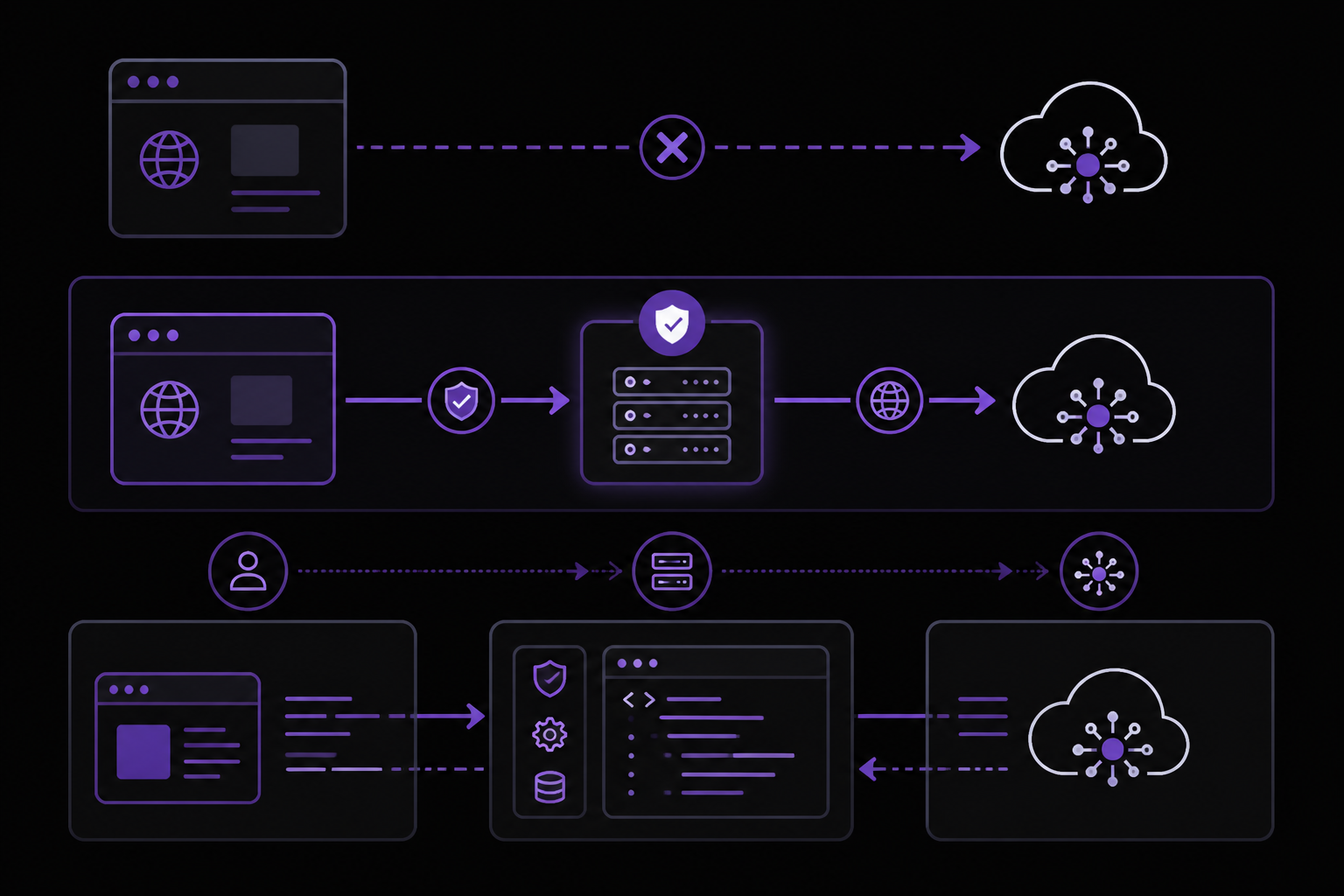
Solution 1: Move API calls to a server-side proxy (most reliable)
This is the recommended fix from the community. Instead of calling the Anthropic API directly from the browser, create a server-side endpoint (e.g., a Node.js Express route, a Next.js API route, or a serverless function) that makes the API call and returns the result to the client. This avoids CORS entirely because the server-to-server request is not subject to browser CORS.
Step 1: Create a server-side endpoint
If you are using Node.js with Express:
// server.js
import express from 'express';
import Anthropic from '@anthropic-ai/sdk';
import dotenv from 'dotenv';
dotenv.config();

const app = express();
app.use(express.json());

const anthropic = new Anthropic({
  apiKey: process.env.ANTHROPIC_API_KEY,
});

app.post('/api/anthropic/messages', async (req, res) => {
  try {
    const message = await anthropic.messages.create({
      max_tokens: req.body.max_tokens || 1024,
      messages: req.body.messages,
      model: req.body.model || 'claude-3-haiku-20240307',
    });
    res.json(message);
  } catch (error) {
    console.error('Anthropic API error:', error);
    res.status(500).json({ error: error.message });
  }
});

app.listen(3001, () => {
  console.log('Proxy server running on port 3001');
});
Step 2: Update your client-side code to call your proxy
// In your Vue component (AIWriter2.vue)
async function sendPrompt(aiprompt) {
  try {
    const response = await fetch('http://localhost:3001/api/anthropic/messages', {
      method: 'POST',
      headers: {
        'Content-Type': 'application/json',
      },
      body: JSON.stringify({
        max_tokens: 1024,
        messages: [{ role: 'user', content: aiprompt }],
        model: 'claude-3-haiku-20240307',
      }),
    });
    if (!response.ok) {
      throw new Error(`Server error: ${response.status}`);
    }
    const message = await response.json();
    console.log('Anthropic response:', message);
    return message;
  } catch (error) {
    console.error('Connection error:', error);
  }
}
What to expect: The client-side fetch to your proxy will succeed because it is same-origin (or CORS-configured on your proxy). The proxy then makes the server-to-server call to Anthropic, which is not subject to CORS. The error should disappear.
Solution 2: Use a CORS proxy during development
If you cannot set up a server-side proxy immediately, you can use a development CORS proxy. This is a temporary fix for local development only.
Step 1: Install and run a CORS proxy
# Install cors-anywhere globally
npm install -g cors-anywhere

# Run it on port 8080
cors-anywhere --port 8080
Step 2: Configure the Anthropic SDK to use the proxy
const anthropic = new Anthropic({
  apiKey: process.env['ANTHROPIC_API_KEY'],
  baseURL: 'http://localhost:8080/https://api.anthropic.com',
});
Important caveat: This approach is insecure for production because the CORS proxy can intercept your API key. Only use it for local testing. The official documentation does not mention this approach, and it is a community-reported workaround.
Solution 3: Use the Node.js SDK in a non-browser environment
If you are running the SDK in a Node.js environment (e.g., a backend server, a CLI tool, or a script), the TypeError: Failed to fetch error should not occur because Node.js does not enforce CORS. The GitHub issue reporter confirmed that the same code works when called from a server function. Ensure you are not accidentally running the code in a browser context.
Check your environment:
- If you are using a bundler like Vite or Webpack, the SDK may be bundled into client-side code. Configure your bundler to treat the Anthropic SDK as an external dependency for server-side bundles.
- For Vite, add this to
vite.config.js:
export default {
  ssr: {
    external: ['@anthropic-ai/sdk'],
  },
};
Solution 4: Verify network connectivity and API endpoint
Step 1: Test the API endpoint directly
Run this curl command from your development machine:
curl -v https://api.anthropic.com/v1/messages \
  -H "x-api-key: $ANTHROPIC_API_KEY" \
  -H "anthropic-version: 2023-06-01" \
  -H "Content-Type: application/json" \
  -d '{
    "model": "claude-3-haiku-20240307",
    "max_tokens": 1024,
    "messages": [{"role": "user", "content": "Hello"}]
  }'
If this fails with a network error, the issue is with your network or DNS. If it succeeds, the issue is specific to the SDK's fetch call from the browser.
Step 2: Check for proxy or VPN interference
Disable any VPN or corporate proxy temporarily. If the curl command works after disabling them, your network is blocking the request.
Solution 5: Ensure the API key is correctly loaded
Step 1: Verify the .env file
Make sure your .env file has no spaces around the equals sign and no quotes:
ANTHROPIC_API_KEY=sk-ant-...your-key-here
Step 2: Log the key (for debugging only)
Add a temporary log to confirm the key is loaded:
console.log('API Key loaded:', process.env['ANTHROPIC_API_KEY'] ? 'Yes' : 'No');
Step 3: Check for environment variable loading
If you are using Vite, environment variables must be prefixed with VITE_ to be exposed to client-side code. However, as noted in Solution 1, you should not expose your API key to the client. Use a server-side proxy instead.
Solution 6: Handle MCP server connection errors (if applicable)
If you are using MCP servers with the Anthropic SDK, the official documentation describes several connection behaviors:
- HTTP and SSE servers are automatically reconnected with exponential backoff (up to five attempts, starting at one-second delay, doubling each time).
- Stdio servers are not reconnected automatically.
- Authentication errors and 4xx responses are not retried.
- Transient errors (5xx, connection refused, timeout) are retried up to three times.
Step 1: Check MCP server status
Run claude mcp list to see if your MCP servers are connected. If a server shows as failed, check its configuration.
Step 2: Verify MCP server URL
Ensure the url field in your .mcp.json or ~/.claude.json is correct. An empty url field causes the server to show as "not configured" and Claude Code will not attempt to connect to it.
Step 3: Increase timeouts
If your MCP server is slow to respond, increase the per-server timeout:
{
  "mcpServers": {
    "my-server": {
      "type": "http",
      "url": "https://example.com/mcp",
      "timeout": 600000
    }
  }
}
This sets a 10-minute timeout per tool call. The per-server timeout is a hard wall-clock limit. Values below 1000 are ignored and fall through to MCP_TOOL_TIMEOUT or its default of about 28 hours.
Solution 7: Use the SSE transport (deprecated) as a fallback
The official documentation states that the SSE transport is deprecated in favor of HTTP. However, if you are using an older MCP server that only supports SSE, you can configure it:
claude mcp add --transport sse my-server https://example.com/sse
But the documentation recommends using HTTP servers where available.
If Nothing Works
Escalate to Anthropic support
If you have tried all the solutions above and still encounter the error, contact Anthropic support through the official channels:
- Open an issue on the Anthropic TypeScript SDK GitHub repository
- Use the Anthropic support portal (if you have an enterprise account)
- Check the Anthropic status page for any ongoing API outages
Workaround: Use the REST API directly
As a temporary workaround, bypass the SDK entirely and make HTTP requests directly using fetch or axios from a server-side environment:
// server-side only
const response = await fetch('https://api.anthropic.com/v1/messages', {
  method: 'POST',
  headers: {
    'x-api-key': process.env.ANTHROPIC_API_KEY,
    'anthropic-version': '2023-06-01',
    'Content-Type': 'application/json',
  },
  body: JSON.stringify({
    model: 'claude-3-haiku-20240307',
    max_tokens: 1024,
    messages: [{ role: 'user', content: 'Hello' }],
  }),
});

const data = await response.json();
Use a different transport for MCP servers
If you are using MCP and the HTTP transport fails, try the WebSocket transport (configured via .mcp.json or claude mcp add-json):
claude mcp add-json events-server \
  '{"type":"ws","url":"wss://mcp.example.com/socket","headers":{"Authorization":"Bearer YOUR_TOKEN"}}'
Note that WebSocket does not support OAuth or the claude mcp add --transport flag.
Check for version-specific issues
If you are using an older version of Claude Code (before v2.1.205), the official documentation notes that connection errors were not passed to Claude, which could mask the issue. Update to the latest version:
npm update -g @anthropic-ai/claude-code
How to Prevent It
1. Always use a server-side proxy for browser applications
Never call the Anthropic API directly from client-side JavaScript. The official documentation does not provide a browser-compatible SDK, and the CORS policy is by design. Set up a backend proxy as described in Solution 1.
2. Keep your SDK and CLI up to date
The official documentation frequently updates the SDK with bug fixes and new features. Run regular updates:
npm update @anthropic-ai/sdk
3. Configure MCP servers with proper timeouts
To avoid connection errors with MCP servers, set appropriate timeouts:
- Set
MCP_TIMEOUTenvironment variable for server startup timeout (e.g.,MCP_TIMEOUT=10000for 10 seconds) - Set per-server
timeoutin.mcp.jsonfor long-running tool calls - Set
CLAUDE_CODE_MCP_TOOL_IDLE_TIMEOUTto change the idle timeout (default 5 minutes for HTTP servers, 30 minutes for stdio servers)
4. Use the recommended HTTP transport for MCP
The official documentation recommends HTTP over SSE and WebSocket for most use cases. HTTP supports OAuth and the claude mcp add --transport flag, making configuration easier.
5. Validate your environment variables early
At the start of your application, check that required environment variables are set:
if (!process.env.ANTHROPIC_API_KEY) {
  throw new Error('ANTHROPIC_API_KEY is not set in environment variables');
}
6. Avoid exposing API keys in client-side code
Even if you could bypass CORS, exposing your API key in client-side code is a security risk. Always keep API keys server-side.
7. Monitor MCP server health
Use the /mcp command in Claude Code to check server status. Servers that fail to connect will show as failed, and you can retry manually. The official documentation notes that as of v2.1.191, capability discovery requests (tools/list, prompts/list, resources/list) retry transient errors up to three times, but authentication errors are not retried.
8. Use the --scope flag appropriately
When adding MCP servers, use the --scope flag to control where the configuration is stored:
local(default): available only to you in the current projectproject: shared with everyone via.mcp.jsonuser: available across all projects
This prevents configuration conflicts that could lead to connection errors.
9. Handle backgrounding of long tool calls
If your MCP tool calls take longer than two minutes, they will be automatically backgrounded (requires Claude Code v2.1.212 or later). Set CLAUDE_CODE_MCP_AUTO_BACKGROUND_MS to change the threshold, or set it to 0 to disable automatic backgrounding. This prevents the session from blocking, but the tool call still runs and may eventually complete or fail.
10. Test with a simple curl command first
Before integrating the SDK, verify that the API is reachable from your environment using curl. This isolates network issues from SDK-specific problems.
The #1 Claude Newsletter
The most important claude updates, guides, and fixes — one weekly email.
No spam, unsubscribe anytime. Privacy policy
Related Error Solutions
Keep exploring Claude
Claude resources
Latest AI answers
Skip the manual work
Ready-made AI workflows and automation templates — import and run instead of building from scratch.