Data & Analytics Workflows
Data processing and analytics
Generate AI viral videos with VEO 3 and upload to TikTok
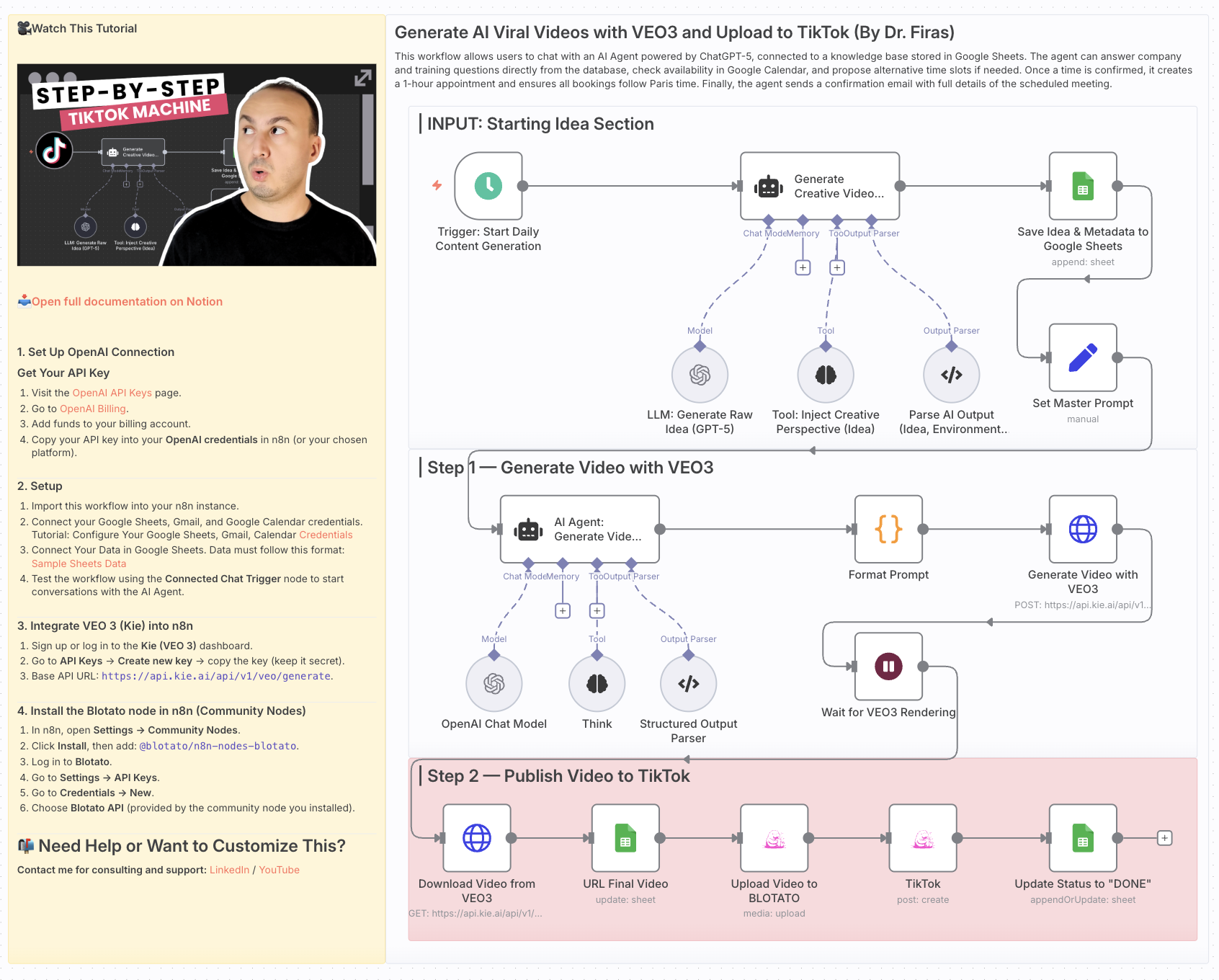 # Generate AI Viral Videos with VEO3 and Auto-Publish to TikTok ### Who is this for? This workflow is for **content creators, marketers, and social media managers** who want to consistently produce **viral-style short videos** and publish them automatically to TikTok — without manual editing or uploading. ### What problem is this workflow solving? / Use case Creating short-form video content that stands out takes time: ideation, scriptwriting, video generation, and publishing. This workflow automates the **entire pipeline** — from idea generation to TikTok upload — enabling you to scale your content strategy and focus on creativity rather than repetitive tasks. ### What this workflow does - **Generates viral video ideas** daily using GPT-5 - **Creates structured prompts** for before/after transformation videos - **Renders cinematic vertical videos** with VEO3 (9:16 format) - **Saves ideas and metadata** into Google Sheets for tracking - **Uploads videos automatically to TikTok** via Blotato integration - **Updates status in Google Sheets** once the video is live The result: a fully automated daily viral video publishing system. ### Setup 1. **Google Sheets** - Connect your Google Sheets account. - Create a sheet with columns for idea, caption, environment, sound, production, and final_output. 2. **OpenAI** - Add your OpenAI API credentials (for GPT-5 mini / GPT-4.1 mini). 3. **VEO3 (Kie API)** - Set up your API key in the HTTP Request node (`Generate Video with VEO3`). 4. **Blotato** - Connect your Blotato account for TikTok publishing. 5. **Schedule Trigger** - Adjust the `Start Daily Content Generation` node to fit your preferred posting frequency. ### How to customize this workflow to your needs - **Platforms**: Extend publishing to YouTube Shorts or Instagram Reels by duplicating the TikTok step. - **Frequency**: Change the Schedule Trigger to post multiple times per day or only a few times per week. - **Creative Style**: Modify the system prompts to align with your brand’s style (cinematic, minimalist, neon, etc.). - **Tracking**: Enhance the Google Sheets logging with engagement metrics by pulling TikTok analytics via Blotato. --- This workflow helps you build a **hands-free AI-powered content engine**, turning raw ideas into published viral videos every day. --- 📄 **🎥 Watch This Tutorial**: [Step by Step](https://youtu.be/E-_8KZ_FSeY) --- 📄 **Documentation**: [Notion Guide](https://automatisation.notion.site/Generate-AI-Viral-Videos-with-VEO3-and-Upload-to-TikTok-2703d6550fd980aa9ea1dd7867c1cccf?source=copy_link) --- ### Need help customizing? Contact me for consulting and support : [Linkedin](https://www.linkedin.com/in/dr-firas/) / [Youtube](https:/https://www.youtube.com/@DRFIRASS)
n8n$14.99Generate a daily multi-asset market report with TwelveData, Groq and Google Sheets
# Multi-Asset Daily Market Snapshot This workflow fully automates the creation of a daily multi-asset market report. It retrieves live pricing data for specified indices, forex pairs and commodities using the TwelveData API, manages rate limits safely and feeds the normalized data into a Groq-powered AI (Llama-3). The AI generates a professional, institutional-grade market summary which is then automatically logged in Google Sheets and emailed to your inbox. ### Quick Implementation Steps 1. **Import the Workflow:** Upload the JSON file into your n8n workspace. 2. **Add Your Keys:** In the `Environment Config` node, paste your TwelveData API key. 3. **Connect Accounts:** Authenticate your Google Sheets, Gmail and Groq API credentials in their respective nodes. 4. **Prepare the Sheet:** Create a Google Sheet with two tabs ("Sheet1" for reports, "Error logs" for failures) matching the column headers defined in the Google Sheets nodes. 5. **Execute:** Click "Test Workflow" (or trigger it manually) to fetch data and receive your daily snapshot. ## What It Does This workflow acts as an automated quantitative analyst. It starts by establishing your target asset watchlists across three categories: Indices (e.g., SPY, QQQ), Forex (e.g., EUR/USD) and Commodities (e.g., Gold, Oil). It breaks these lists down and carefully queues them up to fetch daily pricing from the TwelveData API. To ensure it doesn't overwhelm the API and get blocked, it uses a batching system with a built-in 15-second throttle. As data flows in, the workflow actively monitors for errors. If an API call fails or hits a hard limit, it instantly logs the failure details into an "Error logs" Google Sheet and sends an emergency failure alert via Gmail. Successfully fetched data is normalized into a clean format, calculating daily percentage changes and basic bullish/bearish trends. Finally, the cleaned dataset is passed to a Llama-3 AI agent via Groq. Instructed to act as a macro strategist, the AI parses the numbers to generate a structured snapshot including a market summary, key movers, risk sentiment and actionable outlook. A custom script safely extracts these exact sections, logs the complete report into your main Google Sheet for historical tracking and delivers the final formatted text straight to your Gmail. ## Who’s It For This automation is ideal for - day traders, - macro analysts, - portfolio managers, - and financial newsletter writers. It is exceptionally useful for anyone who spends the first hour of their morning manually checking tickers and writing up market summaries to share with a team or clients. ## Requirements to Use This Workflow * An active **n8n instance**. * A **TwelveData API Key** for fetching real-time/daily financial market data. * A **Groq API account** to utilize the Llama-3 language model. * A **Google Workspace account** to authenticate both Google Sheets and Gmail nodes. * A **Google Sheet** pre-configured with the exact column headers expected by the workflow. ## How It Works & How To Set Up **1. Configure the Environment** Open the `Environment Config` node and input your `twelve_api_key`. The base API URL is already set up for you. **2. Define Your Watchlist** Open the `Set Market Assets` node. Here you will see comma-separated lists for Indices, Forex and Commodities. You can replace these ticker symbols with any standard symbols supported by TwelveData. **3. API Throttling & Fetching** The `Rate Controlled Queue` node processes one ticker at a time, followed by a 15-second `API Throttle` wait. This ensures you comply with free-tier or basic API limits. The `Fetch Asset Prices` node automatically constructs the HTTP request for each symbol. **4. Error Handling Pipeline** The `Validate API Response` node checks if the TwelveData response status is "ok". If not, the workflow branches downward, logging the specific error code and symbol to your Google Sheet and sending a localized Gmail alert, before continuing the loop. **5. AI Processing & Normalization** Once all loops finish, the `Normalize Market Data` node calculates the price changes. The `AI Market Insights` node then feeds this to Groq. You must select your Groq credentials in the attached `Insights` model node. **6. Final Delivery** The `Parse AI Output` node uses Regex to strictly format the AI's response. Finally, the `Log Daily Market Report` node saves the record and the `Send Today's market summary` node emails you the results. ## How To Customize Nodes * **Wait Node (API Throttle):** If you have a premium TwelveData API plan with higher rate limits, you can reduce or remove the 15-second wait time to make the workflow run instantly. * **AI Market Insights:** You can edit the System Message to change the AI's output tone or request additional sections (like "Crypto Outlook") if you add crypto tickers to your watchlist. * **Send Today's market summary:** The current email format is plain text. You
n8n$14.99Build an OpenAI RAG system with document upload, semantic search and caching
## Overview This workflow implements a complete Retrieval-Augmented Generation (RAG) system for document ingestion and intelligent querying. It allows users to upload documents, convert them into vector embeddings, and query them using natural language. The system retrieves relevant document context and generates accurate AI responses while using caching to improve performance and reduce costs. This workflow is ideal for building AI knowledge bases, document assistants, and internal search systems. --- ## How It Works ### 1. Input & Configuration - Receives requests via webhook (`rag-system`) - Supports two actions: - `upload` → process documents - `query` → answer questions - Defines: - Chunk size & overlap - TopK retrieval count - Database table names --- ### Document Upload Flow 2. **Text Extraction** - Extracts text from uploaded PDF documents 3. **Text Chunking** - Splits text into overlapping chunks for better retrieval accuracy 4. **Document Structuring** - Converts chunks into structured documents 5. **Embedding Generation** - Generates vector embeddings using OpenAI 6. **Vector Storage** - Stores embeddings in PGVector (Postgres) 7. **Upload Logging** - Logs document metadata (user, filename, timestamp) 8. **Response** - Returns success message via webhook --- ### Query Flow 9. **Cache Check** - Checks if query result exists in cache (last 1 hour) 10. **Cache Routing** - If cached → return cached response - If not → proceed to retrieval --- ### Cache Hit Flow 11. **Format Cached Response** - Standardizes cached output format 12. **Respond to User** - Returns cached answer with `cached: true` --- ### Cache Miss Flow 13. **Vector Retrieval** - Retrieves top relevant document chunks from PGVector 14. **AI Answer Generation** - Uses LLM with retrieved context - Generates accurate, context-based answer 15. **Cache Storage** - Saves query + response in database for reuse 16. **Response** - Returns generated answer with `cached: false` --- ## Setup Instructions 1. **Webhook Setup** - Configure endpoint (`rag-system`) - Send payload with: - `action`: upload / query - `user_id` - `document` or `query` 2. **OpenAI Setup** - Add API credentials for: - Embeddings - Chat model 3. **Postgres + PGVector** - Enable PGVector extension - Create tables: - `documents` - `query_cache` - `upload_log` 4. **Configure Parameters** - Adjust: - Chunk size (e.g., 1000) - Overlap (e.g., 200) - TopK (e.g., 5) 5. **Optional Enhancements** - Add authentication layer - Add multi-tenant filtering (user_id) --- ## Use Cases - AI document search systems - Internal knowledge base assistants - Customer support knowledge retrieval - Legal or compliance document analysis - SaaS AI chat with custom data --- ## Requirements - OpenAI API key - Postgres database with PGVector - n8n instance (cloud or self-hosted) --- ## Key Features - Full RAG architecture (upload + query) - PDF document ingestion pipeline - Semantic search with vector embeddings - Context-aware AI responses - Query caching for performance optimization - Multi-user support via metadata filtering - Scalable and modular design --- ## Summary A complete RAG-based AI system that enables document ingestion, semantic search, and intelligent query answering. It combines vector databases, LLMs, and caching to deliver fast, accurate, and scalable AI-powered knowledge retrieval.
n8n$24.99Automate Website Content Scraping and SEO Keyword Extraction with GPT-4o-mini and Airtable
This workflow automates the process of scraping website content, cleaning HTML, extracting structured information using GPT-4o-mini, and storing results along with SEO keywords in Airtable. It's perfect for building keyword lists and organizing web content for SEO research.
n8n$14.99Process Contact Form Submissions with Validation and MongoDB Storage
This n8n workflow securely processes contact form submissions by validating user input, formatting the data, and storing it in a MongoDB database. The flow ensures data consistency, prevents unsafe entries, and provides a confirmation response back to the user. **Workflow** **1. Form Submission Node** *Purpose*: Serves as the workflow's entry point. *Functionality*: Captures user input from the contact form, which typically includes: ``` name ``` ``` last name ``` ``` email ``` ``` phone number ``` **2. Code Node (Validation Layer)** *Purpose*: Ensures that collected data is valid and secure. *Validations performed*: - Removes suspicious characters to mitigate risks like SQL injection or script injection. - Validates the phone_number field format (numeric, correct length, etc.). - If any field fails validation, the entry is marked as “is_not_valid” to block it from database insertion. **3. Edit Fields Node (Data Formatting)** *Purpose*: Normalizes data before database insertion. *Transformations applied*: - Converts field names to snake_case (*first_name, last_name, phone_number*). - Standardizes field naming convention for consistency in MongoDB storage. **4. MongoDB Node (Insert Documents)** *Purpose*: Persists validated data in MongoDB Atlas. *Process*: - Inserts documents into the target collection with the cleaned and formatted fields. - Connection is established securely using a MongoDB Atlas connection string (URI). **How to Set Up MongoDB Atlas Connection URL** a. Create a Cluster b. Log in to [MongoDB Atlas](https://www.google.com/aclk?sa=L&ai=DChsSEwiD276cwbOPAxVpKkQIHFOCpMYACICCAEQAxoCZHo&co=1&ase=2&gclid=Cj0KCQjwwsrFBhD6ARIsAPnUFD3UpSa_1KFmRsdiOYmSRl0oXmh3kC8g8ZhGf8OhiUsLGbHnwf046AaAgufEALw_wcB&cce=2&category=acrcp_v1_32&sig=AOD64_36CMbBMVgqf0cvhw5lpmpl-cMcQ&q&nis=4&adurl&ved=2ahUKEwiVzbScwbOPAxUzuJUCHQCKMnUQqyQoAXoECBcQDw) and create a new cluster. c. Configure Database Access: Add a database user with a secure username and password. Assign appropriate roles (e.g., Atlas Admin for full access or Read/Write for limited). d. Obtain Connection String (URI) From Atlas, go to Clusters → Connect → Drivers. Copy the provided connection string, which looks like: ``` mongodb+srv://<username>:<password>@cluster0.abcd123.mongodb.net/myDatabase?retryWrites=true&w=majority ``` - Configure in n8n. In the MongoDB node, paste the URI. - Replace <username>, <password>, and myDatabase with your actual credentials and database name. - Test the connection to ensure it is successful. **5. Form Ending Node** *Purpose*: Provides closure to the workflow. *Functionality*: Sends a confirmation response back to the user, indicating that their contact details were successfully submitted and stored. **Result**: With this workflow, all contact form submissions are safely validated, normalized, and stored in MongoDB Atlas, ensuring both data integrity and security.
n8n$14.99Add webhook data to a Google Sheet
Use this automation to instantly capture data from a webhook and automatically add it as a new row in a Google Sheet. This is ideal for real-time data logging, form submissions, or any event-driven updates that must be stored in a spreadsheet. [Learn more about webhooks!](https://www.make.com/en/help/tools/webhooks)
Make$2.99Scrape Business Leads from Google Maps Using OpenAI and Google Sheets
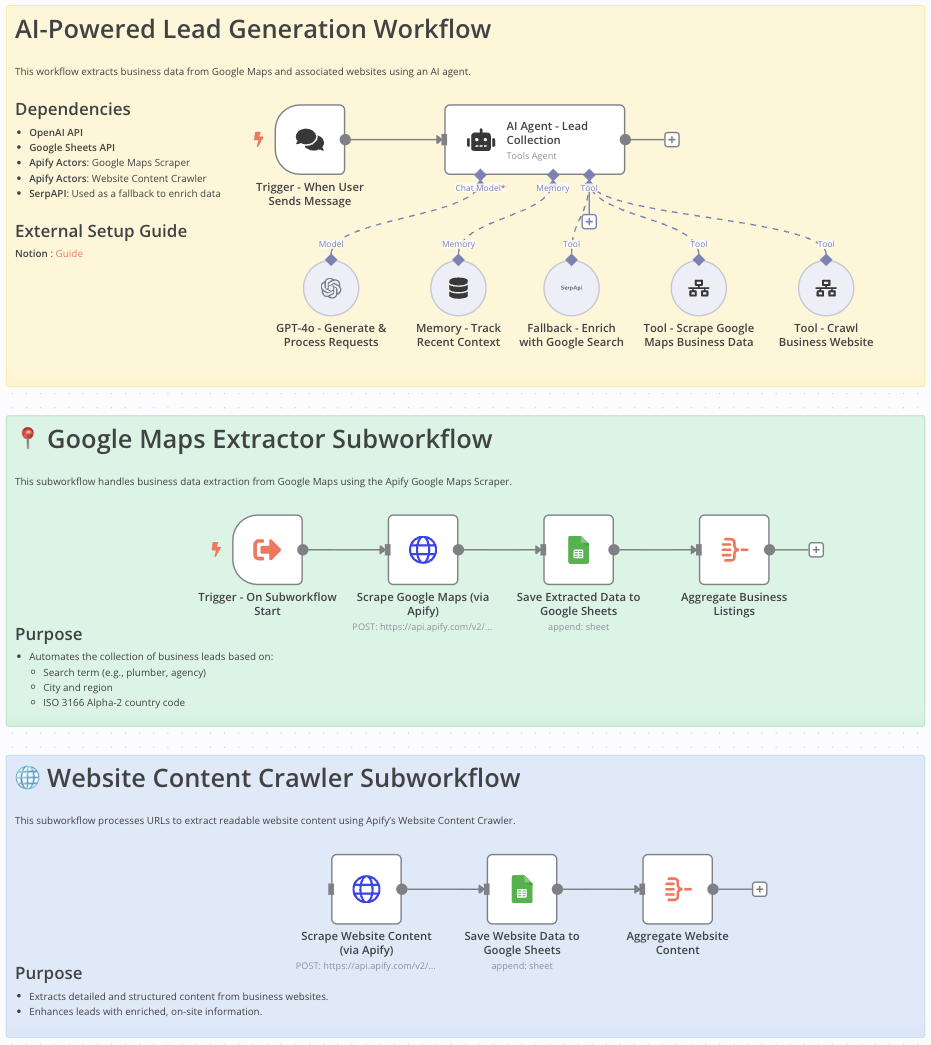 # Google Maps Data Extraction Workflow for Lead Generation This workflow is ideal for **sales teams, marketers, entrepreneurs, and researchers** looking to efficiently gather detailed business information from Google Maps for: - Lead generation - Market analysis - Competitive research --- # Who Is This Workflow For? - **Sales professionals** aiming to build targeted contact lists - **Marketers** looking for localized business data - **Researchers** needing organized, comprehensive business information --- # Problem This Workflow Solves Manually gathering business contact details from Google Maps is: - Tedious - Error-prone - Time-consuming This workflow **automates** data extraction to **increase efficiency, accuracy, and productivity**. --- # What This Workflow Does - Automates extraction of business data (name, address, phone, email, website) from **Google Maps** - Crawls and extracts **additional website content** - Integrates **OpenAI** to enhance data processing - Stores structured results in **Google Sheets** for easy access and analysis - Uses **Google Search API** to fill in missing information --- # Setup 1. **Import** the provided n8n workflow JSON into your **n8n instance**. 2. Set your **OpenAI** and **Google Sheets API** credentials. 3. Provide your **Google Maps Scraper** and **Website Content Crawler** API keys. 4. Ensure **SerpAPI** is configured to enhance data completeness. --- # Customizing This Workflow to Your Needs - Adjust scraping parameters: - Location - Business category - Country code - Customize **Google Sheets output format** to fit your current data structure - Integrate additional **AI processing steps or APIs** for richer data enrichment --- # Final Notes This structured approach ensures: - **Accurate and compliant data extraction** from Google Maps - Streamlined **lead generation** - Actionable and well-organized data ready for business use ➜ **Documentation**: [Notion Guide](https://automatisation.notion.site/GOOGLE-MAPS-SCRAPER-1cc3d6550fd98005a99cea02986e7b05?pvs=4) ## Demo Video Watch the full tutorial here: [YouTube Demo](https://www.youtube.com/watch?v=DoBRufiwElU)
n8n$14.99Interactive Chat with PostgreSQL Using AI
Enable seamless interaction with your PostgreSQL database through natural language queries using AI. This workflow leverages n8n's chat interface and OpenAI to process and execute SQL queries, providing users with relevant data insights.
n8n$9.99Automate Marketing Spend Summaries with Google Sheets and n8n
This workflow automates the transformation of raw marketing data into a pivot-style summary in Google Sheets. It combines lookup data, aggregates spend by name, and updates a reporting tab automatically.
n8n$9.99Automate AI Token Usage Tracking and Cost Estimation in Google Sheets
This workflow automates the process of tracking AI token usage and estimating costs by extracting token data from AI agents and storing it in Google Sheets. It is designed to work seamlessly with OpenAI, Google, and Anthropic APIs.
n8n$14.99Automate Web Content Extraction from Sitemaps to Google Drive
Efficiently scrape and extract content from websites using their sitemaps and save the data to Google Drive. Ideal for content audits, migrations, and research.
n8n$9.99Automate LinkedIn Lead Generation with Apify and Google Sheets
Streamline LinkedIn lead generation by extracting and enriching comments from targeted posts using Apify, and export the data to Google Sheets or CSV for easy access.
n8n$19.99Automate YouTube Channel Metadata Extraction to Google Docs
This workflow automates the extraction of YouTube channel metadata using the YouTube Metadata API and saves it to Google Docs. It streamlines data collection for marketers, content creators, and analysts.
n8n$9.99Clean & Standardize CSV Uploads for Google Sheets and Drive Imports
# Auto-Clean CSV Uploads Before Import This workflow automatically **cleans, validates, and standardizes any CSV file** you upload. Perfect for preparing customer lists, sales leads, product catalogs, or any messy datasets before pushing them into Google Sheets, Google Drive, or other systems. --- ## How It Works 1. **CSV Upload (Webhook)** - Upload your CSV via webhook (supports **form-data**, **base64**, or binary file upload). - Handles files up to ~10MB comfortably. 2. **Extract & Parse** - Reads raw CSV content. - Validates file structure and headers. - Detects and normalizes column names (e.g., `First Name` → `first_name`). 3. **Clean & Standardize Data** - **Removes duplicate rows** (based on email or all fields). - **Deletes empty rows**. - **Standardizes fields**: - Emails → lowercased, validated format. - Phone numbers → normalized `(xxx) xxx-xxxx` or `+1 format`. - Names → capitalized (John Smith). - etc → trims spaces & fixes inconsistent spacing. - Assigns each row a **data quality score** so you know how "clean" it is. 4. **Generate Cleaned CSV** - Produces a cleaned CSV file with the same headers. - Saves to Google Drive (optional). - Ready for immediate import into Sheets or any app. 5. **Google Sheets Integration (Optional)** - Clears out an existing sheet. - Re-imports the cleaned rows. - Perfect for always keeping your "master sheet" clean. 6. **Final Report** - Logs processing summary: - Rows before & after cleaning. - Duplicates removed. - Low-quality rows removed. - Average data quality score. - Outputs a neat summary for auditing. --- ## Setup Steps 1. **Upload Method** - Use the webhook endpoint generated by the `CSV Upload Webhook` node. - Send CSV via binary upload, base64 encoding, or JSON payload with `csv_content`. 2. **Google Drive (Optional)** - Connect your Drive OAuth credentials. - Replace `YOUR_DRIVE_FOLDER_ID` with your target folder. 3. **Google Sheets (Optional)** - Connect Google Sheets OAuth. - Replace `YOUR_GOOGLE_SHEET_ID` with your target sheet ID. 4. **Customize Cleaning Rules** - Adjust the `Clean & Standardize Data` code node if you want different cleaning thresholds (default = 30% minimum data quality). --- ## Example Cleaning Report **Input file:** `raw_leads.csv` - Rows before: **2,450** - Rows after cleaning: **1,982** - Duplicates removed: **210** - Low-quality rows removed: **258** - Avg. data quality: **87%** “Clean CSV saved to Drive “Clean data imported into Google Sheets “Full processing report generated --- ## Why Use This? - Stop wasting time manually cleaning CSVs. - Ensure **high-quality, import-ready data** every time. - Works with **any dataset**: leads, contacts, e-commerce exports, logs, surveys. - Completely free - a must-have utility in your automation toolbox. --- Upload dirty CSV → Get **clean, validated, standardized data** instantly!
n8n$9.99Track Stock Prices with ScrapeGraphAI, Yahoo Finance & Google Sheets
# AI-Powered Stock Tracker with Yahoo Finance & Google Sheets  **COMMUNITY TEMPLATE DISCLAIMER: This is a community-contributed template that uses ScrapeGraphAI (a community node). Please ensure you have the ScrapeGraphAI community node installed in your n8n instance before using this template.** This automated workflow monitors stock prices by scraping real-time data from Yahoo Finance. It uses a scheduled trigger to run at specified intervals, extracts key stock metrics using AI-powered extraction, formats the data through a custom code node, and automatically saves the structured information to Google Sheets for tracking and analysis. ## Pre-conditions/Requirements ### Prerequisites - n8n instance (self-hosted or cloud) - ScrapeGraphAI community node installed - Google Sheets API access - Yahoo Finance access (no API key required) ### Required Credentials - **ScrapeGraphAI API Key** - For web scraping capabilities - **Google Sheets OAuth2** - For spreadsheet integration ### Google Sheets Setup Create a Google Sheets document with the following column structure: | Column A | Column B | Column C | Column D | Column E | Column F | Column G | |----------|----------|----------|----------|----------|----------|----------| | **symbol** | **current_price** | **change** | **change_percent** | **volume** | **market_cap** | **timestamp** | | AAPL | 225.50 | +2.15 | +0.96% | 45,234,567 | 3.45T | 2024-01-15 14:30:00 | ## How it works This automated workflow monitors stock prices by scraping real-time data from Yahoo Finance. It uses a scheduled trigger to run at specified intervals, extracts key stock metrics using AI-powered extraction, formats the data through a custom code node, and automatically saves the structured information to Google Sheets for tracking and analysis. ## Key Steps: - **Scheduled Trigger**: Runs automatically at specified intervals to collect fresh stock data - **AI-Powered Scraping**: Uses ScrapeGraphAI to intelligently extract stock information (symbol, current price, price change, change percentage, volume, and market cap) from Yahoo Finance - **Data Processing**: Formats extracted data through a custom Code node for optimal spreadsheet compatibility and handles both single and multiple stock formats - **Automated Storage**: Saves all stock data to Google Sheets with proper column mapping for easy filtering, analysis, and historical tracking ## Set up steps **Setup Time: 5-10 minutes** 1. **Configure Credentials**: Set up your ScrapeGraphAI API key and Google Sheets OAuth2 credentials 2. **Customize Target**: Update the website URL in the ScrapeGraphAI node to your desired stock symbol (currently set to AAPL) 3. **Configure Schedule**: Set your preferred trigger frequency (daily, hourly, etc.) for stock price monitoring 4. **Map Spreadsheet**: Connect to your Google Sheets document and configure column mapping for the stock data fields ## Node Descriptions ### Core Workflow Nodes: - **Schedule Trigger** - Initiates the workflow at specified intervals - **Yahoo Finance Stock Scraper** - Extracts real-time stock data using ScrapeGraphAI - **Stock Data Formatter** - Processes and formats extracted data for spreadsheet compatibility - **Google Sheets Stock Logger** - Saves formatted stock data to your spreadsheet ### Data Flow: 1. **Trigger** → **Scraper** → **Formatter** → **Logger** ## Customization Examples ### Track Multiple Stocks ```javascript // In the ScrapeGraphAI node, modify the URL to track different stocks: const stockSymbols = ['AAPL', 'GOOGL', 'MSFT', 'TSLA']; const baseUrl = 'https://finance.yahoo.com/quote/'; ``` ### Add Additional Data Fields ```javascript // In the Code node, extend the data structure: const extendedData = { ...stockData, pe_ratio: extractedData.pe_ratio, dividend_yield: extractedData.dividend_yield, day_range: extractedData.day_range }; ``` ### Custom Scheduling ```javascript // Modify the Schedule Trigger for different frequencies: // Daily at 9:30 AM (market open): 0 30 9 * * * // Every 15 minutes during market hours: 0 */15 9-16 * * 1-5 // Weekly on Monday: 0 0 9 * * 1 ``` ## Data Output Format The workflow outputs structured JSON data with the following fields: ```json { "symbol": "AAPL", "current_price": 225.50, "change": "+2.15", "change_percent": "+0.96%", "volume": "45,234,567", "market_cap": "3.45T", "timestamp": "2024-01-15 14:30:00Z" } ``` ## Troubleshooting ### Common Issues 1. **ScrapeGraphAI Rate Limits** - Implement delays between requests 2. **Yahoo Finance Structure Changes** - Update scraping prompts 3. **Google Sheets Permission Errors** - Verify OAuth2 credentials and document permissions ### Performance Tips - Use appropriate trigger intervals (avoid excessive scraping) - Implement error handling for network issues - Consider data validation before saving to
n8n$4.99Automate Sitemap URL Extraction and Storage in Google Sheets
Effortlessly extract and filter website page URLs from sitemaps and store them in Google Sheets for SEO analysis. This workflow automates sitemap discovery, URL extraction, and data organization.
n8n$14.99n8n for Beginners: Looping Over Items
# N8N for Beginners: Looping Over Items ## Description This workflow is designed for **n8n beginners** to understand how n8n handles **looping (iteration)** over multiple items. It highlights two key behaviors: - **Built-In Looping:** By default, most n8n nodes iterate over each item in an input array. - **Explicit Looping:** The **Loop Over Items** node allows controlled iteration, enabling **custom batch processing** and multi-step workflows. This workflow demonstrates the difference between processing an **unsplit array of strings (single item)** vs. **a split array (multiple items)**. --- ## Setup ### 1. Input Data To begin, **paste the following JSON** into the **Manual Trigger** node: ```json { "urls": [ "https://www.reddit.com", "https://www.n8n.io/", "https://n8n.io/", "https://supabase.com/", "https://duckduckgo.com/" ] } ``` **Steps to Paste Data:** - **Double-click** the Manual Trigger node. - Click **Edit Output** (top-right corner). - Paste the JSON and **Save**. - The node **turns purple**, indicating that test data is pinned. ### 2. Click Test Workflow button at the bottom of the canvas --- ## Explanation of the n8n Nodes in the Workflow | Node Name | Purpose | Documentation Link | |-----------|---------|--------------------| | **[Manual Trigger](https://docs.n8n.io/integrations/builtin/core-nodes/n8n-nodes-base.manualtrigger/)** | Starts the workflow manually and sends test data | [Docs](https://docs.n8n.io/integrations/builtin/core-nodes/n8n-nodes-base.manualtrigger/) | | **[Split In](https://docs.n8n.io/integrations/builtin/core-nodes/n8n-nodes-base.splitin/)** | Converts an array of strings into separate JSON objects | [Docs](https://docs.n8n.io/integrations/builtin/core-nodes/n8n-nodes-base.splitin/) | | **[Loop Over Items (Loop Over Items 1)](https://docs.n8n.io/integrations/builtin/core-nodes/n8n-nodes-base.splitinbatches/)** | Demonstrates how an **unsplit** array is treated as one item | [Docs](https://docs.n8n.io/integrations/builtin/core-nodes/n8n-nodes-base.splitinbatches/) | | **[Loop Over Items (Loop Over Items 2)](https://docs.n8n.io/integrations/builtin/core-nodes/n8n-nodes-base.splitinbatches/)** | Iterates over **each item separately** | [Docs](https://docs.n8n.io/integrations/builtin/core-nodes/n8n-nodes-base.splitinbatches/) | | **[Wait](https://docs.n8n.io/integrations/builtin/core-nodes/n8n-nodes-base.wait/)** | Introduces a delay per iteration (set to 1 second) | [Docs](https://docs.n8n.io/integrations/builtin/core-nodes/n8n-nodes-base.wait/) | | **[Code](https://docs.n8n.io/integrations/builtin/core-nodes/n8n-nodes-base.code/)** | Adds a constant parameter (`param1`) to each item | [Docs](https://docs.n8n.io/integrations/builtin/core-nodes/n8n-nodes-base.code/) | | **[NoOp (Result Nodes)](https://docs.n8n.io/integrations/builtin/core-nodes/n8n-nodes-base.noop/)** | Displays output for inspection | [Docs](https://docs.n8n.io/integrations/builtin/core-nodes/n8n-nodes-base.noop/) | --- ## Execution Details ### 1. How the Workflow Runs - **Manual Trigger starts execution** with the pasted JSON data. - The workflow follows **two paths**: 1. **Unsplit Array Path** - **Loop Over Items 1** - Processes the entire array as **a single item**. - **Result1 & Result5:** Show that the array was **not split**. 2. **Split Array Path** - **Split In → Loop Over Items 2** - **Splits** the array into **separate objects**. - **Result2, Result3, Result4:** Show that each item is processed **individually**. - A **Wait node (1 sec delay)** demonstrates **controlled execution**. - Code nodes modify the JSON, adding a parameter (`param1`). ### 2. What You Will See | Node | Expected Output | |------|-----------------| | **Result1 & Result5** | The entire array is processed **as one item**. | | **Result2, Result3, Result4** | The array is **split and processed** as **individual items**. | | **Wait Node** | Adds a **1-second delay per item** in **Loop Over Items 2**. | --- ## Use Cases This workflow is useful for: - **API Data Processing:** Loop through **API responses** containing arrays. - **Web Scraping:** Process **multiple URLs** individually. - **Task Automation:** Execute **a sequence of actions per item**. - **Workflow Optimization:** Control execution order, delays, and dependencies. --- ## Notes - Sticky notes are included in the workflow **for easy reference**. - The **Wait node** is **optional**—remove it for faster execution. - This template is structured for **beginners** but serves as a **building block** for more advanced automations. ---
n8n$14.99Automate Lead Generation from Google Maps to Airtable with Contact Extraction
Streamline the process of discovering businesses in various cities, extracting their contact details, and storing them in Airtable for lead generation.
n8n$19.99Automate LinkedIn Profile Scraping and Data Storage in Google Sheets
This n8n workflow automates the extraction of LinkedIn profile data using Apify and organizes the information in Google Sheets for streamlined analysis and follow-up.
n8n$9.99Securely Retrieve MongoDB Data via HTTP API with Validation
This workflow sets up a secure HTTP GET endpoint to retrieve documents from a specified MongoDB collection. It includes validation of collection names, error handling, and response formatting for seamless integration.
n8n$14.99Automate Stock Market Reports with Bright Data and Google Gemini AI
This workflow automates the process of tracking stock market trends and generating daily email summaries using Bright Data scraping and Google Gemini AI.
n8n$14.99Create Automatic Pivot Tables in Google Sheets with n8n
This n8n workflow pulls campaign data from Google Sheets and creates two pivot tables automatically each time it runs. --- ### Step 1: Connect Google Sheets 1. In n8n, go to **Credentials** and click **New Credential**. 2. Select **Google Sheets OAuth2 API**. 3. Log in with your Google account and authorize access. 4. Use this sheet: [Campaign Data Sheet](https://docs.google.com/spreadsheets/d/1lUEY6kPQbXizbmszLLNUJ_pBfGIKd75hu4uHj0vGRZQ/edit?usp=sharing). 5. Make sure the sheet includes: - A **Data** tab (row 1 = headers, rows 2+ = campaign data) - A tab for each **pivot view** (e.g., by Channel, by Campaign). --- ### Need Help? Feel free to reach out: - robert@ynteractive.com - [LinkedIn](https://www.linkedin.com/in/robert-breen-29429625/)
n8n$9.99Automate YouTube Comment Extraction to Google Sheets
This workflow automates the extraction of comments from YouTube videos and stores them in a Google Sheet, providing valuable insights for creators, marketers, and analysts.
n8n$14.99Build Academic Knowledge Graph from Research Papers with PDF Vector, GPT-4, and Neo4j
This workflow contains community nodes that are only compatible with the self-hosted version of n8n. ## Transform Research Papers into a Searchable Knowledge Graph This workflow automatically builds and maintains a comprehensive knowledge graph from academic papers, enabling researchers to discover connections between concepts, track research evolution, and perform semantic searches across their field of study. By combining PDF Vectors paper parsing capabilities with GPT-4's entity extraction and Neo4j's graph database, this template creates a powerful research discovery tool. ### Target Audience & Problem Solved This template is designed for: - **Research institutions** building internal knowledge repositories - **Academic departments** tracking research trends and collaborations - **R&D teams** mapping technology landscapes - **Libraries and archives** creating searchable research collections It solves the problem of information silos in academic research by automatically extracting and connecting key concepts, methods, authors, and findings across thousands of papers. ### Prerequisites - n8n instance with PDF Vector node installed - OpenAI API key for GPT-4 access - Neo4j database instance (local or cloud) - Basic understanding of graph databases - At least 100 API credits for PDF Vector (processes ~50 papers) ### Step-by-Step Setup Instructions 1. **Configure PDF Vector Credentials** - Navigate to Credentials in n8n - Add new PDF Vector credentials with your API key - Test the connection to ensure it's working 2. **Set Up Neo4j Database** - Install Neo4j locally or create a cloud instance at [Neo4j Aura](https://neo4j.com/cloud/aura/) - Note your connection URI, username, and password - Create database constraints for better performance: ```cypher CREATE CONSTRAINT paper_id IF NOT EXISTS ON (p:Paper) ASSERT p.id IS UNIQUE; CREATE CONSTRAINT author_name IF NOT EXISTS ON (a:Author) ASSERT a.name IS UNIQUE; CREATE CONSTRAINT concept_name IF NOT EXISTS ON (c:Concept) ASSERT c.name IS UNIQUE; ``` 3. **Configure OpenAI Integration** - Add OpenAI credentials in n8n - Ensure you have GPT-4 access (GPT-3.5 can be used with reduced accuracy) - Set appropriate rate limits to avoid API throttling 4. **Import and Configure the Workflow** - Import the template JSON into n8n - Update the search query in the PDF Vector - Fetch Papers node to your research domain - Adjust the schedule trigger frequency based on your needs - Configure the PostgreSQL connection for logging (optional) 5. **Test with Sample Papers** - Manually trigger the workflow - Monitor the execution for any errors - Check Neo4j browser to verify nodes and relationships are created - Adjust entity extraction prompts if needed for your domain ### Implementation Details The workflow operates in several stages: 1. **Paper Discovery**: Uses PDF Vectors academic search to find relevant papers 2. **Content Parsing**: Leverages LLM-enhanced parsing for accurate text extraction 3. **Entity Extraction**: GPT-4 identifies concepts, methods, datasets, and relationships 4. **Graph Construction**: Creates nodes and relationships in Neo4j 5. **Statistics Tracking**: Logs processing metrics for monitoring ### Customization Guide **Adjusting Entity Types:** Edit the GPT-4 prompt in the Extract Entities node to include domain-specific entities: ```javascript // Add custom entity types like: // - Algorithms // - Datasets // - Institutions // - Funding sources ``` **Modifying Relationship Types:** Extend the Build Graph Structure node to create custom relationships: ```javascript // Examples: // COLLABORATES_WITH (between authors) // EXTENDS (between papers) // FUNDED_BY (paper to funding source) ``` **Changing Search Scope:** - Modify providers array to include/exclude databases - Adjust year range for historical or recent focus - Add keyword filters for specific subfields **Scaling Considerations:** - For large-scale processing (>1000 papers/day), implement batching - Use Redis for deduplication across runs - Consider implementing incremental updates to avoid reprocessing ### Knowledge Base Features: - Automatic concept extraction with GPT-4 - Research timeline tracking - Author collaboration networks - Topic evolution visualization - Semantic search interface via Neo4j ### Components: 1. **Paper Ingestion**: Continuous monitoring and parsing 2. **Entity Extraction**: Identify key concepts, methods, datasets 3. **Relationship Mapping**: Connect papers, authors, concepts 4. **Knowledge Graph**: Store in graph database 5. **Search Interface**: Query by concept, author, or topic 6. **Visualization**: Interactive knowledge exploration
n8n$9.99
Related categories
Custom AI Systems & Services
Our team of experienced AI builders will help build custom AI systems, workflows, and solutions.
Request Custom Work